Configure Coordination Agent (Live, Ghost, autonomy, SLA)
Last updated: October 26, 2026
Use Edit settings to control how a Coordination Agent profile runs—whether it acts on scheduling, how fast interviews should be booked, how independently it handles candidate situations, how it signs emails, and which knowledge documents it can search.
For what the agent is and where to find it, see Coordination Agent Overview.
Open Edit settings
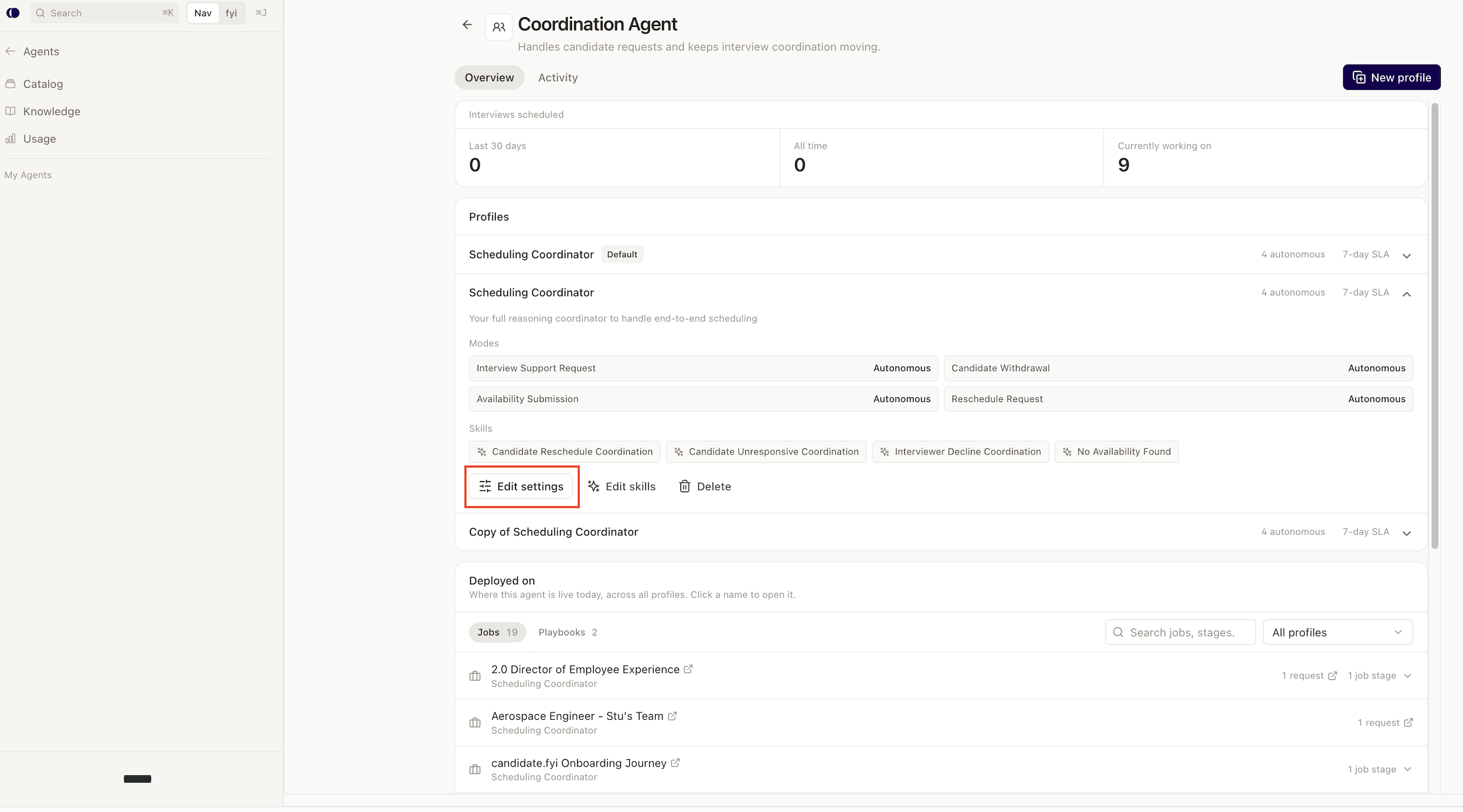
In the left nav, click Agents → Catalog.
On the Coordination Agent card, choose Manage.
On Overview, expand a profile under Profiles.
Click Edit settings.
Settings save as you edit (you’ll see confirmation when updates succeed). Close the dialog when you’re done.
Execution mode
Choose one:
Mode | What it means |
|---|---|
Live | Acts on scheduling: books, reschedules, and messages people. |
Ghost | Reports to the scheduler only. It investigates and keeps follow-ups current, but does not book, cancel, or contact interviewers or candidates. |
Confirm when you switch
Changing mode opens a confirmation:
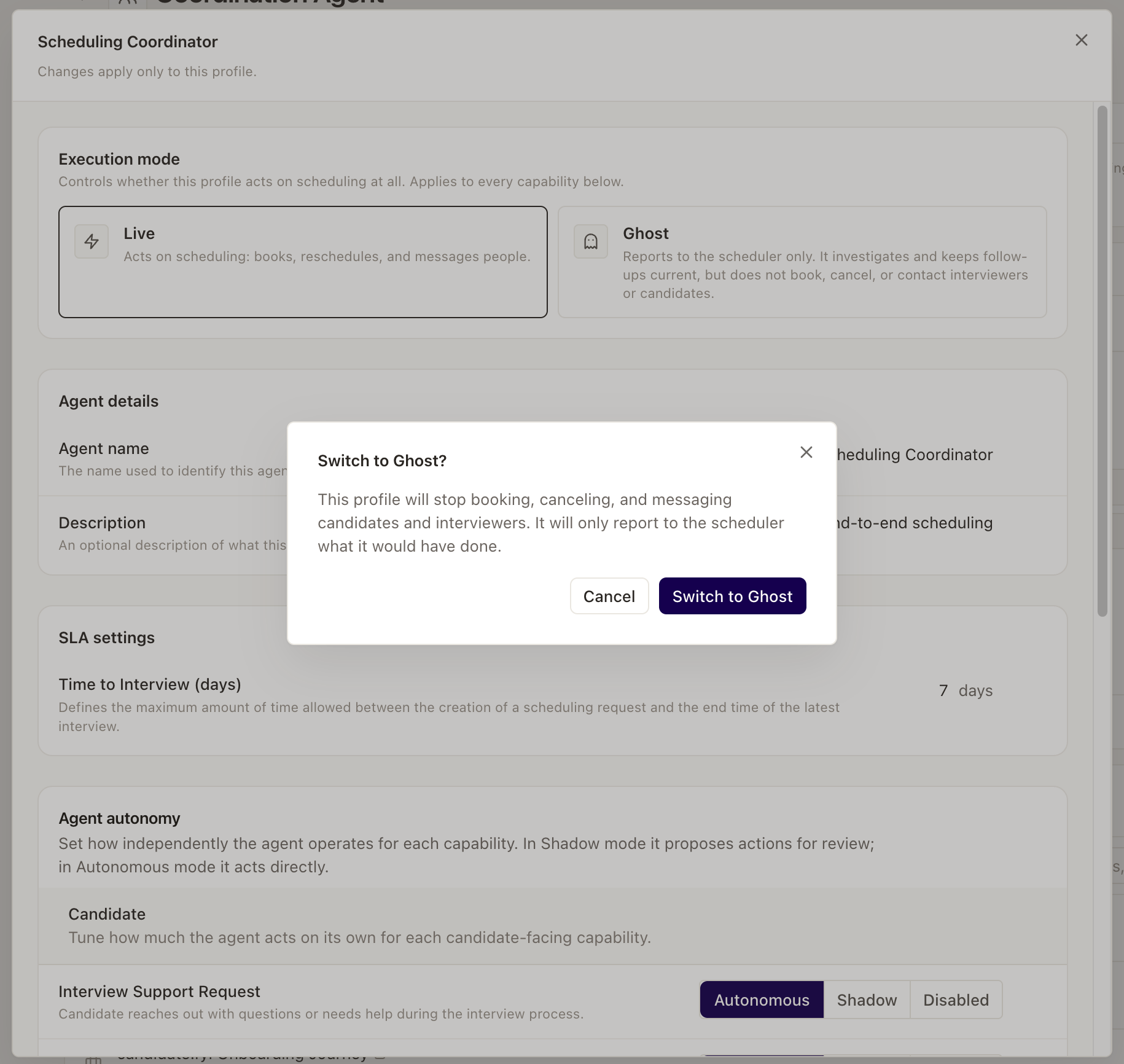
Switch to Ghost?
Body: “This profile will stop booking, canceling, and messaging candidates and interviewers. It will only report to the scheduler what it would have done.”
Confirm with Switch to Ghost, or Cancel.
Switch to Live?
Body: “This profile will book, cancel, and message candidates and interviewers again.”
Confirm with Switch to Live, or Cancel.
In Ghost mode, the Agent autonomy section is hidden (autonomy applies when the profile can act). On Overview, Ghost profiles show a Ghost badge and “Reports to scheduler.”
Agent details
Setting | Description |
|---|---|
Agent name | The name used to identify this agent. Required. |
Description | An optional description of what this agent does. Shows as None when empty. |
SLA settings
Setting | Description |
|---|---|
Time to Interview (days) | Defines the maximum amount of time allowed between the creation of a scheduling request and the end time of the latest interview. Value is in days (suffix: days). |
Set 0 if you don’t want an SLA target; the profile row on Overview may show No SLA. Otherwise Overview can show a summary such as a multi-day SLA.
Agent autonomy
Shown only when Execution mode is Live.
Under the Candidate group (“Tune how much the agent acts on its own for each candidate-facing capability”), set each capability to Autonomous, Shadow, or Disabled:
Capability | Description |
|---|---|
Interview Support Request | Candidate reaches out with questions or needs help during the interview process. |
Candidate Withdrawal | Candidate decides to withdraw from the hiring process. |
Availability Submission | Candidate submits their available times for scheduling. |
Reschedule Request | Candidate requests to move an already-scheduled interview. |
Use Shadow when you want proposals for review, Autonomous when the agent should act directly, and Disabled when this profile should not handle that capability.
Signature & AI disclosure
Section: Signature & AI disclosure. Description: “How this profile signs its emails to candidates.”
Setting | Description |
|---|---|
Signature | Ends every email this profile sends to candidates. Add the scheduler’s name so candidates know who runs their process. Empty shows as No signature. You can insert tokens such as Scheduler’s Full Name, Scheduler’s First Name, Scheduler’s Email, and Organization. |
AI disclosure | Added after the signature on every email to candidates. You can change the wording, but you can’t remove it. Saving an empty disclosure shows: “Every email to candidates needs an AI disclosure.” |
Knowledge sources
Use Manage documents to open the shared Knowledge library (see Agent Knowledge for adding and indexing sources).
In this section you:
See how many sources are included (for example “3 of 10 included”).
Include or exclude each document with its checkbox.
See type and status under each title (and Inactive when a source is inactive). Inactive sources can’t be newly attached; you can still detach ones already included.
If the library is empty: “No documents in the knowledge base yet.”
Tips
Start in Ghost if you want the agent to investigate and report without contacting people; switch to Live when you’re ready for it to book and message.
Set Time to Interview (days) to match how quickly your team expects interviews to land after a request is created.
Prefer Shadow on sensitive capabilities until you’re comfortable with Autonomous.
Keep AI disclosure clear and accurate—it goes on every candidate email from this profile.
Include only the knowledge documents this profile should search; broader library management stays in Knowledge.