Agent Knowledge
Last updated: October 27, 2026
Knowledge is shared context and documents your agents can use when answering questions. Add FAQs, policies, or uploaded files once so agents can draw on the same material across conversations.
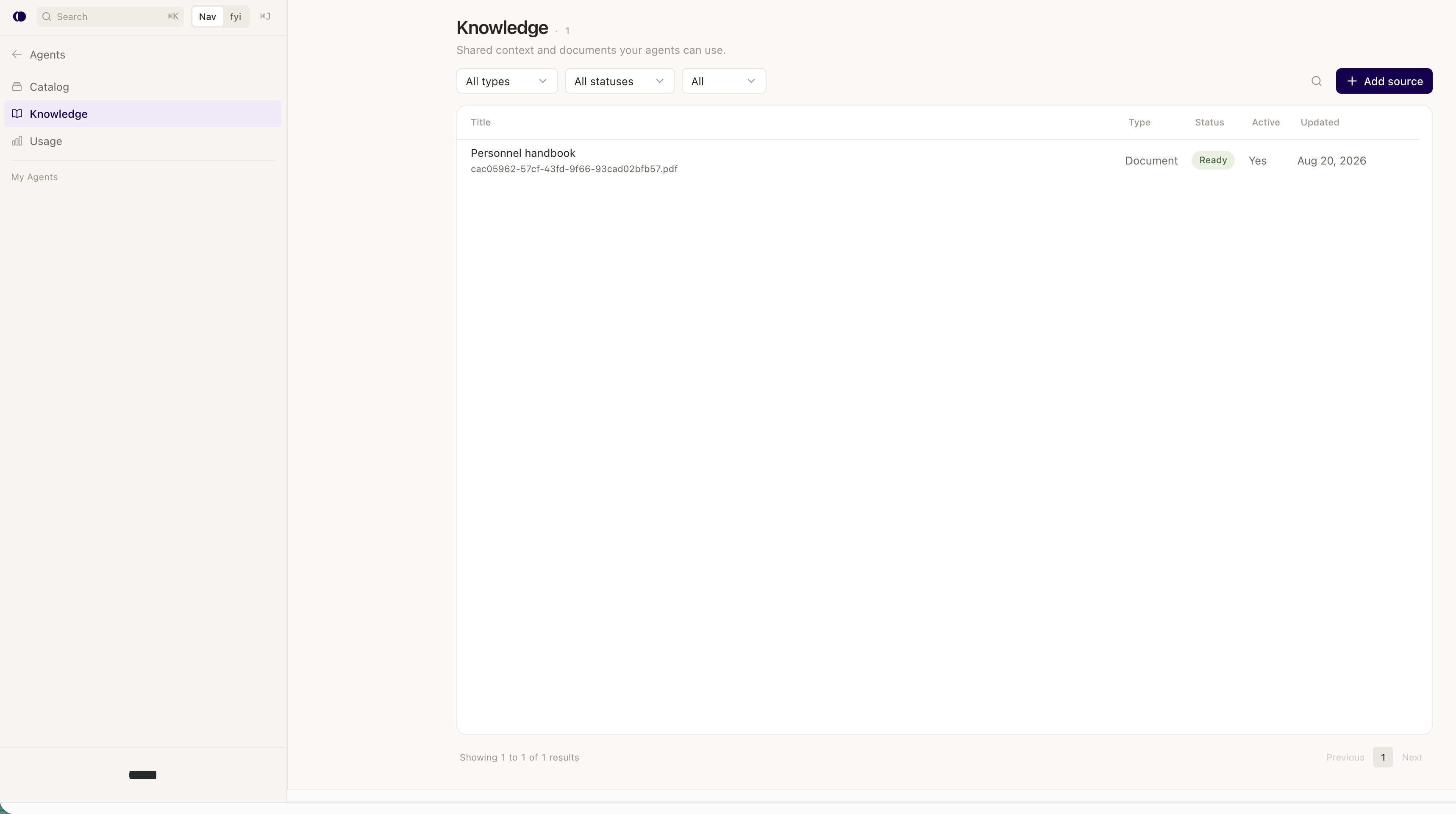
Open Knowledge
In the left nav, click Agents.
Open Knowledge.
Browse and filter sources
Use Search sources… to find sources by name.
Quick filters:
Filter | Options |
|---|---|
Type | All types, Manual, Document |
Status | All statuses, Pending, Processing, Ready, Failed |
Active | All, Active, Inactive |
Table columns
Column | What you see |
|---|---|
Title | Source name. For documents, the file name can appear underneath; if indexing failed, an error message may show there instead. |
Type | Manual or Document |
Status | Pending, Processing, Ready, or Failed |
Active | Yes or No |
Updated | Last update date |
Empty list: No knowledge sources yet. Add manual text or upload a PDF/DOCX.
Click a row to open Edit knowledge source.
Status lifecycle
After you create a source, it moves through indexing:
Pending — queued
Processing — being indexed
Ready — available for agents
Failed — indexing didn’t complete (check the error under the title or in edit)
Use Reprocess from the row menu if a source needs to be indexed again (especially after a Failed status or content change).
Add a source
Click Add source. The dialog is titled Add knowledge source (“Add shared context your agents can use when answering questions.”).
Choose Type
Create option | List type | What you provide |
|---|---|---|
Manual text | Manual | Paste or type content in Content (**Paste the text agents should know…**) |
Document upload | Document | Upload a file under Document — PDF or Word (.docx) |
Also set:
Title (placeholder example: e.g. Benefits FAQ)
New sources start active. Click Create (or Cancel to discard).
Manage sources
Edit
Open a row or choose Edit from the row menu. Dialog: Edit knowledge source (“Update the title, content, or active state for this source.”).
You can change:
Title
Content (manual sources) or Replace file (documents; shows Current: filename when a file is already attached)
Active — toggle whether the source is available for agents (Yes / No in the list)
Type can’t be changed after create. Click Save.
Activate / deactivate
In Edit knowledge source, use the Active switch. Inactive sources stay in the list but are not treated as active knowledge for agents. Filter the list with Active / Inactive to review them.
Reprocess
Row menu → Reprocess re-indexes the source without deleting it.
Delete
Row menu → Delete opens Delete knowledge source? (“This permanently deletes … and its indexed content. This cannot be undone.”). Confirm with Delete or Cancel.
How agents use Knowledge
Sources marked Active and Ready become shared context agents can use when answering. Prefer clear titles and keep content up to date; deactivate or delete outdated material so agents don’t rely on old guidance.
What’s next
Add your most important FAQs or policy docs first, wait until status is Ready, then try questions in fyi or with the agents that use this knowledge. Check Usage under Agents if you also track credit consumption.