Agents Usage
Last updated: November 3, 2026
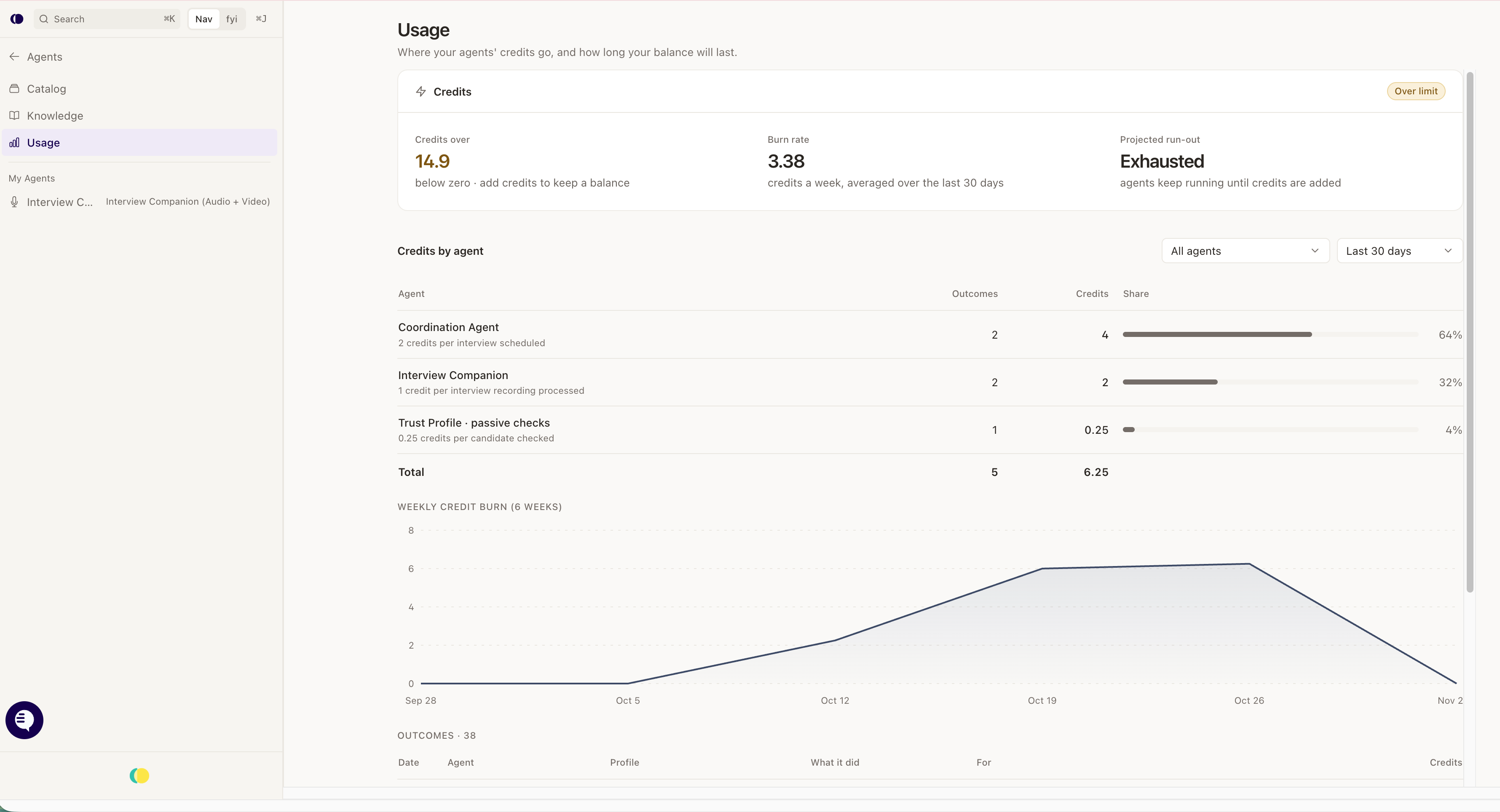
Usage shows where your agents’ credits go, and how long your balance will last. Use it to monitor consumption, compare agents, and spot when you may need more credits.
Open Usage
In the left nav, click Agents.
Open Usage.
Credits summary
The Credits card at the top summarizes your pool:
Metric | What it means |
|---|---|
Credits left | Remaining balance, shown against your active package total—or noted when there is no active package |
Credits over | Replaces Credits left when the balance is below zero (Over limit). Add credits to restore a positive balance |
Burn rate | Credits a week, averaged over the last 30 days |
Projected run-out | Estimated date the balance runs out at recent pace. With no recent usage, there is nothing to project from. When over limit: Exhausted—agents keep running until credits are added |
Credits by agent
Credits by agent breaks down billed spend for a chosen period. The same period and filters drive the breakdown table, the weekly chart, and the Outcomes list.
Period and filters
Period: Last 7 days, Last 30 days (default), or Last 8 weeks
Agent filter: All agents, or one billed type—for example Coordination Agent, Interview Companion, AI Interviewer, Trust Profile · passive checks, or Trust Profile · active checks
When a type is selected: All profiles, or a specific profile
Click an agent row to open that type’s profiles (header shows the type’s profiles, with the credit rate for that type). Click again or use the header back control to return to All agents.
What appears here
Only credit-consuming work is listed. Included agents—Nudge Agent, Candidate Experience, and Job setup—do not use credits, so they do not appear in the agent filter, the breakdown, or Outcomes.
Breakdown table
Column | What you see |
|---|---|
Agent (or profile name when drilled in) | Who used credits; agent rows can show the credit rate under the name |
Outcomes | Count of billed outcomes |
Credits | Credits used |
Share | Percentage of period credits |
A Total row sums outcomes and credits for the rows shown.
Weekly credit burn
Below the table, Weekly credit burn charts credits across the weeks in the selected period.
Outcomes
Outcomes is the itemized list of billed activity for the same filters and period.
Column | What you see |
|---|---|
Date | When the charge happened |
Agent | Billed agent / usage type |
Profile | Profile name when applicable |
What it did | Action (for example Scheduled interview, Processed interview recording, Ran phone screen, or a Trust Profile check). Refunded charges are marked |
For | Candidate, plus job / interview when available |
Credits | Credits for that outcome |
Use Show more when additional rows are available.
How to read Usage
Check Credits left (or Credits over) and Projected run-out first—act if you are over limit or near run-out.
Use Credits by agent with Last 30 days (or another period) to see which billed agents drive burn.
Open Outcomes when you need the specific actions behind the totals.
What’s next
If burn is higher than expected, open the heavy agent from Catalog or My Agents and review how it’s deployed. Add credits before Projected run-out if you want uninterrupted agent activity.