Subscribe and My Agents
Last updated: November 3, 2026
My Agents is where agents tied to you live—especially Interview Companion for your own interviews—and where subscribed profiles show up for quick access. Subscribe is how you pin an AI Interviewer or Interview Companion profile to yourself from Manage.
Open My Agents
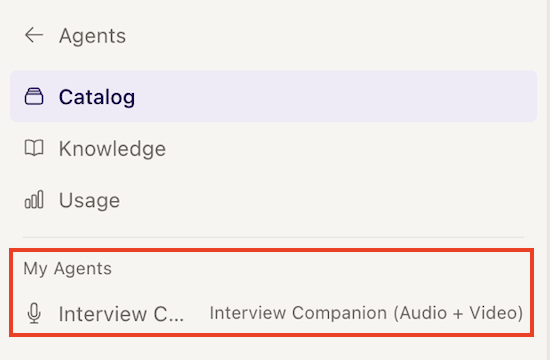
In the left nav, click Agents.
Under the My Agents group, open a row.
What shows under My Agents
Row | How it gets there |
|---|---|
Interview Companion | Personal agent for your interviews when Companion is available for your organization. It can appear here even if you never used Catalog Subscribe. |
Named profile (for example an AI Interviewer profile) | You Subscribe to that profile from Manage. The row uses the profile name. |
Coordination Agent, Nudge Agent, Candidate Experience, and Trust Profile do not appear under My Agents via Subscribe. Those run from Catalog / jobs / playbooks (or org settings), not as personal subscriptions.
Interview Companion (personal)
Interview Companion under My Agents is for notes on your interviews. Open the Interview Companion row to open its page (Configuration and Activity Log).
Turn on
Open My Agents → Interview Companion.
Under Setup, choose a profile your admins created.
Turn it on.
If no profiles exist yet, an Admin needs to create one from Catalog first—see Interview Companion Agent - Overview and FAQ: Setting up Interview Companion.
If your organization locks interview settings for roles below Editor, you may need an Admin to turn Companion on for you.
When it’s on
On Configuration you can:
Change which org Profile you run
Control whether it joins interviews from your Booking links
Control whether it also joins Interviews from your ATS that are on your calendar
Turn off so it stops joining your interviews
Under Your settings, changes apply only to your interviews. Anything you don’t change—and skills and knowledge—follow the profile. If you’ve customized settings, Reset to profile returns those personal overrides to the profile defaults.
Use Activity Log for this person’s runs on the profile you’re using now.
Subscribe from Manage
Subscribe / Subscribed lives on a profile under Manage—not on the Catalog card.
It appears for:
Interview Companion
Subscribe
Open Agents → Catalog.
On the agent card, click Manage (Admins).
Expand a profile.
Click Subscribe.
That profile is added under My Agents for you. On Deployed on, subscribed people can show under the People surface for that agent type.
Unsubscribe
On the same expanded profile, click Subscribed to remove that profile from My Agents for you.
For Interview Companion, day-to-day on/off and profile choice for your interviews are usually handled on the personal My Agents page above. Catalog Subscribe still pins a Companion profile to you as a subscription; the dedicated Interview Companion row is the main place most people set Companion up.
Subscribed profile pages
Open a named subscribed row under My Agents to review that subscription’s Configuration and Activity Log.
Settings you change there save on your subscription, not on the shared Catalog profile.
Retention and other profile-owned fields stay with the profile and apply to everyone who runs it.
If settings are customized, use Reset to profile to clear your overrides.
Who should use which path
Goal | Path |
|---|---|
Take notes on my interviews | My Agents → Interview Companion → turn on a profile |
Pin an AI Interviewer (or Companion) profile to me | Catalog → Manage → profile → Subscribe |
Change shared profile settings for the company | Catalog → Manage → Edit settings (Admins) |
Attach agents to jobs or playbooks | Stage setup / deploy articles—not My Agents |