Agents Catalog
Last updated: November 3, 2026
Catalog is your AI workforce hub—browse agent types, see what’s on, request what you don’t have yet, and open an agent to configure, deploy, and monitor it.
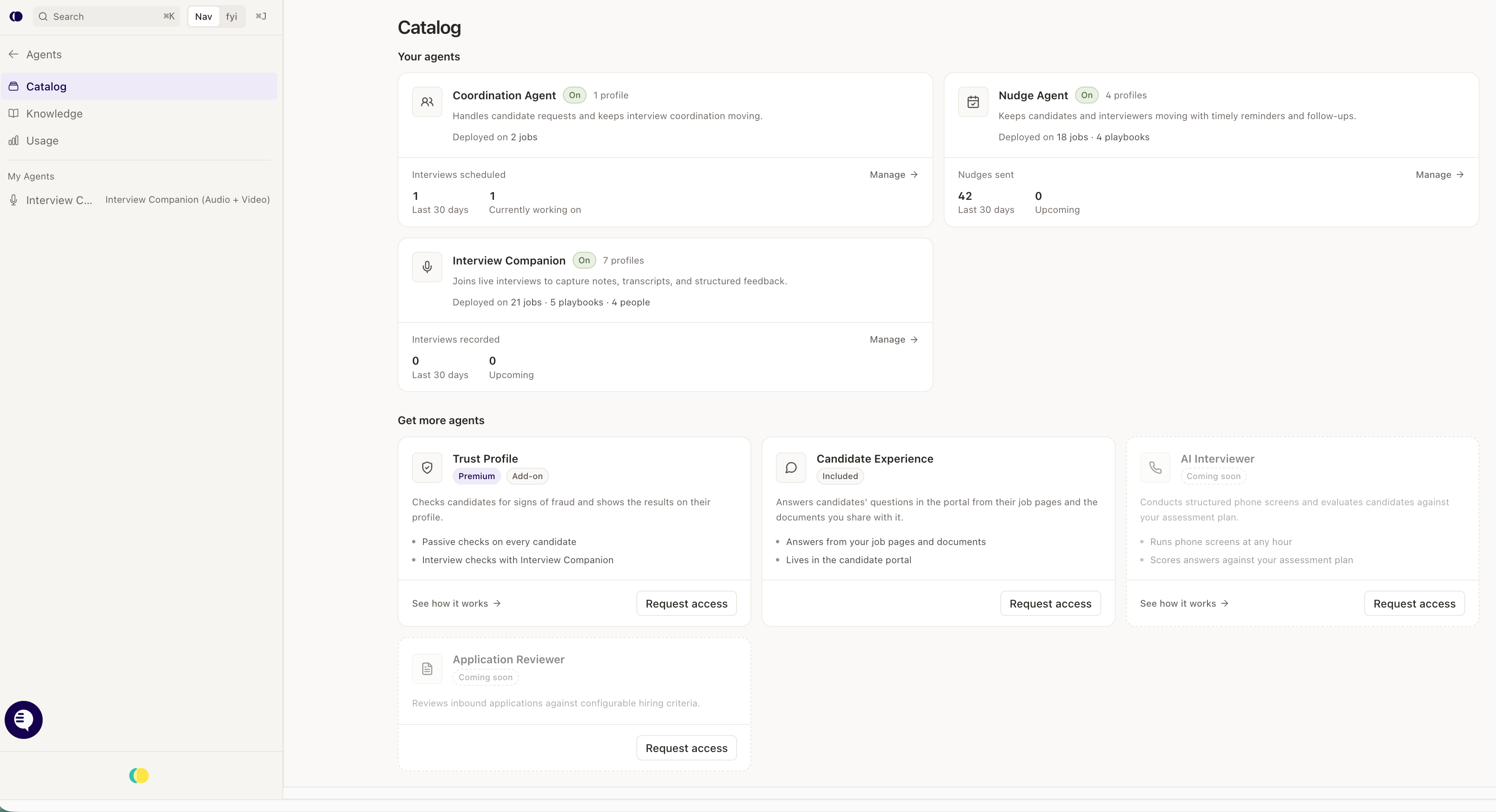
Open Catalog
In the left nav, click Agents.
Open Catalog.
Page layout
Catalog is split by what your organization already has:
Your agents — agents (and Trust Profile, when you have it) that are On or Off for your company
Get more agents — agents and add-ons you can still request, including Coming soon
Available agents
Cards in Catalog typically include:
Interview Companion — Joins live interviews to capture notes, transcripts, and structured feedback.
Coordination Agent — Handles candidate requests and keeps interview coordination moving.
Nudge Agent — Keeps candidates and interviewers moving with timely reminders and follow-ups.
Candidate Experience — Answers candidates’ questions in the portal from their job pages and the documents you share with it.
Trust Profile — Checks candidates for signs of fraud and shows the results on their profile (shown as its own card with Passive checks and Interview checks when available).
Application Reviewer (Coming soon) — Reviews inbound applications against configurable hiring criteria.
AI Interviewer (Coming soon) — Conducts structured phone screens and evaluates candidates against your assessment plan.
Which cards appear for your organization depends on what’s enabled for you.
Your agents
Each owned agent appears as a card. Typical contents:
Element | What it shows |
|---|---|
Name | Agent type (see Available agents) |
State | On or Off |
Profiles | Count when any exist (for example “2 profiles”) |
Description | Short summary of what the agent does |
Deployed on | Where it’s attached—counts of jobs, playbooks, and/or people when relevant. Candidate Experience may show every job in the candidate portal. |
Activity | Last 30 days, plus Upcoming or Currently working on when available |
Cards with no profiles yet use a dashed border so they don’t look fully set up.
Turn on / Turn off (Candidate Experience)
For Candidate Experience, Admins can:
Turn on — enable the agent for the candidate portal
Turn off — stop it answering candidates in the portal. Settings and knowledge stay; you can turn it back on from Catalog anytime
Other agent types are not switched from the Catalog card this way.
Add profile (first profile)
When an agent is On but has no profiles yet, Admins see Add profile on the card. That opens the form to create the first profile for that type. After at least one profile exists, use Manage for further setup—including creating additional profiles by copying.
Candidate Experience does not use Add profile on the card; it uses Turn on / Turn off instead.
Manage
Manage appears on a card only when at least one profile already exists for that agent and you are an Admin.
Manage opens that agent’s detail page—profiles, Deployed on (Jobs, Playbooks, People as applicable), settings, and activity. From a profile there you can Subscribe so it appears under My Agents.
If you’re not an Admin, or the agent has no profiles yet, the card has no Manage link.
Trust Profile
When Trust Profile is already available for your organization, it sits in Your agents with the other cards. It is labeled as an Add-on (not a normal agent with Manage). The owned card can show:
Resume checks — On or Off (Admins can switch)
Interview checks — how many Interview Companion profiles have them on, or that Companion is still needed
Day-to-day setup for those checks is covered in the Trust Profile articles.
Get more agents
Tiles under Get more agents are agents and add-ons your organization doesn’t own yet. Each tile shows a plan or availability chip:
Premium — sold on top of your plan
Included — available with your plan once access is granted
Coming soon — not released yet (tile appears faded)
Trust Profile tiles also show Add-on beside the chip.
Tiles can include a short description, a few highlight bullets, and—for Nudge Agent—the note that it is not used on requests where Coordination Agent runs.
See how it works
When details are available for a tile, open See how it works for a longer pitch, how it works steps, and what you set up. From there you can also request access.
Request access
On On request or Coming soon tiles, choose Request access. Optionally add a note about why you need it, then send the request. After you send it, the button shows Requested for that tile in your session.
Use Request access only for tiles you don’t have yet under Get more agents—not for agents already listed under Your agents.
What’s next
Review which cards are On, turn on what you need, and request access for anything still On request or Coming soon. Open Manage on an active agent to deploy it and Subscribe so it appears under My Agents.