Managing agent profiles
Last updated: November 3, 2026
Profiles are named configurations of an agent type—how it behaves, what knowledge it uses, and where it runs. Admins create and manage them from Catalog.
Add profile vs Manage
From Agents → Catalog (see Agents Catalog), on an owned card under Your agents:
Control | When it appears | What it does |
|---|---|---|
Add profile | Admin; agent is On; no profiles yet; not Candidate Experience | Opens the create form for the first profile of that type |
Manage | Admin; at least one profile already exists | Opens that agent’s Manage page (Overview and Activity) |
Candidate Experience uses Turn on / Turn off on the card instead of Add profile (see Turn on Candidate Experience and share knowledge). After it is on and has a profile, Admins use Manage like other types.
If you are not an Admin, or the agent has no profiles yet (and Add profile does not apply), the card has no Manage link.
Open Manage
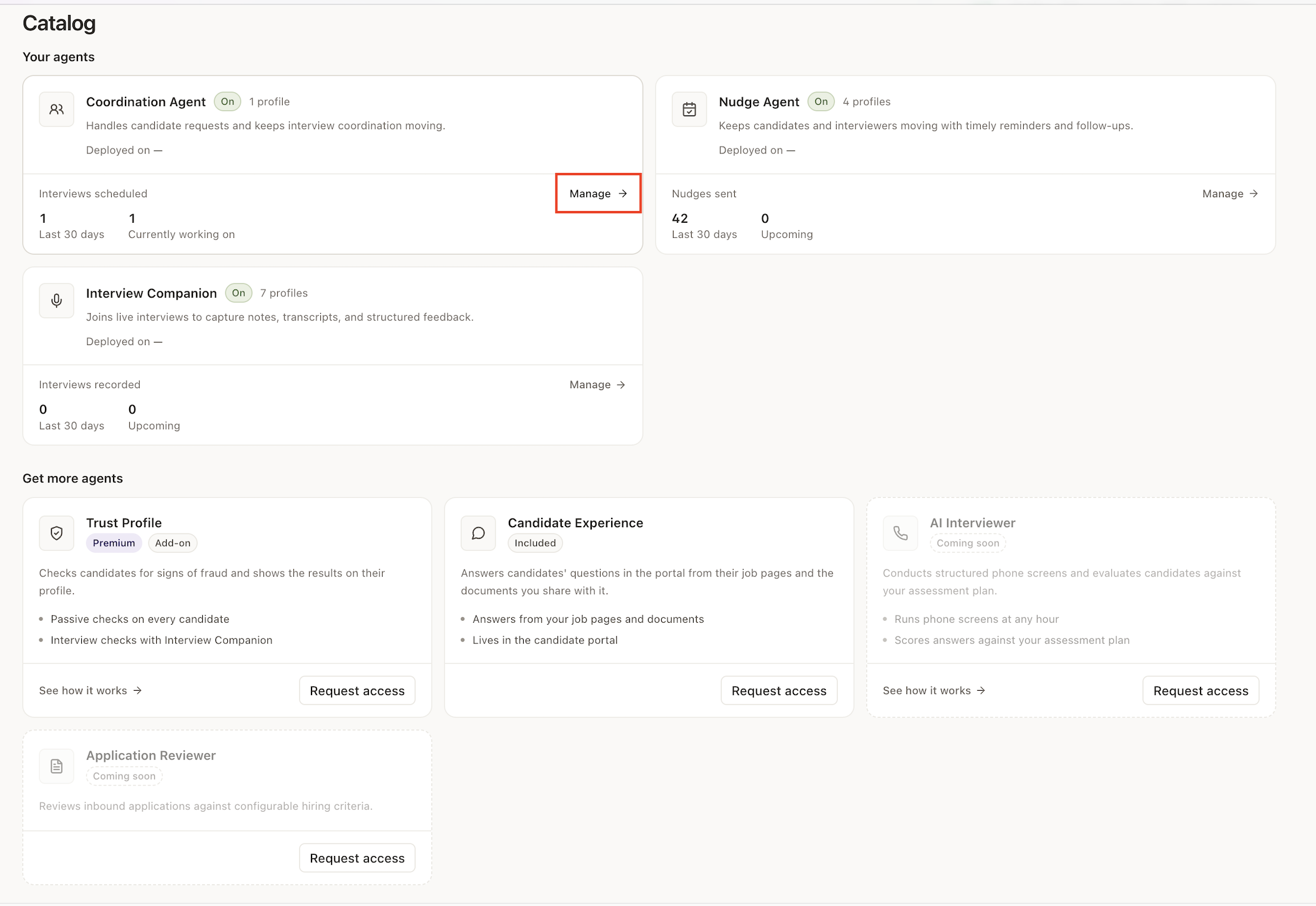
In the left nav, click Agents → Catalog.
On the agent card, choose Manage (or Add profile first if there are no profiles yet).
Manage shows the agent type name, a short description, and two tabs: Overview and Activity. Use the back control to return to Catalog.
Overview
Overview is where you review type-level metrics, work with profiles, and see where the agent is live.
Metrics
When profiles exist, Overview can show type totals such as Last 30 days and All time for that agent’s main outcome (for example Interviews scheduled or Conversations). Some types also show Upcoming or Currently working on.
Candidate Experience may not show the same pipeline-style third metric as other agents.
Profiles list
Under Profiles, expand a row to see that profile’s summary and actions.
Profile name (and optional description)
For Candidate Experience only: a Default marker on the org default profile
For Coordination Agent: Ghost when the profile reports to the scheduler instead of acting
A short mode or capability summary, plus a recent metric or SLA line when available
Expand to review detail rows (Used for, settings highlights, Coordination modes/skills chips) and run profile actions.
New profile

On Overview, New profile creates another profile for this type.
For most agent types, New profile opens the same create form as Catalog Add profile—name the profile and set initial configuration, then save.
For Candidate Experience, New profile copies the current org default. Rename and adjust knowledge (and other settings) on the new copy afterward.
You need at least one Candidate Experience profile before you can add more by copying. Other types can create from an empty Overview with New profile once you can open Manage—or from Catalog Add profile when the card still has none.
Edit settings and Delete
On an expanded profile:
Edit settings — opens that profile’s settings. Changes apply only to this profile. Exact sections depend on the agent type (see that agent’s configure article below).
Edit skills — Coordination Agent only; customize what that profile can do (see Customize Coordination Agent skills).
Set as default — Candidate Experience only; marks this profile as the org default (see Default below).
Delete — stops the profile and removes it from Catalog. There is no restore from this UI.
For Candidate Experience, you cannot delete the last active profile. If you delete the default while others remain, another active profile becomes the default. Other agent types allow deleting any profile, including the last one.
Deployed on
Deployed on lists where this agent type is live today, across all profiles. It is a directory—open a row to go to the job, playbook, or person; attach or remove the agent in stage setup, request details, or Subscribe (depending on type). For playbook stage attachment, see Configure playbook stages.
Surfaces depend on the agent:
Surface | Typical agents |
|---|---|
Jobs | All profiled agents (Candidate Experience runs portal-wide while on, not as counted stage slots like the others) |
Playbooks | Coordination Agent, Nudge Agent, AI Interviewer, Interview Companion (your org may call these Interview Plans) |
People | AI Interviewer and Interview Companion (via Subscribe) |
Use the Jobs / Playbooks / People tabs, search, and the profile filter (All profiles or one profile) when many deployments exist.
Activity
Activity shows recent work for this agent type—summary tiles for about the last 30 days, then filterable cards for requests, interviews, or conversations the profiles handled.
Filter by activity (All activities, Agent actions only, or type-specific options) and by profile when more than one exists. Use Activity to monitor outcomes; use each agent’s configure and deploy articles for setup, and Agents Usage for credit burn on billed agents.
Subscribe on a profile
Subscribe lives on the profile under Manage—not on the Catalog card.
It appears for AI Interviewer and Interview Companion profiles. Subscribing adds that profile under My Agents for you (People deployment). Subscribed removes it from My Agents.
Coordination Agent, Nudge Agent, and Candidate Experience do not use Subscribe.
Default (Candidate Experience only)
Only Candidate Experience has a real org default:
The default profile shows Default on Overview.
Use Set as default on another active profile to change it (see Turn on Candidate Experience and share knowledge).
Playbooks can follow the org default or pick a specific Candidate Experience profile (see Candidate Experience on playbooks).
Do not treat Default as a universal badge for Coordination, Nudge, AI Interviewer, or Interview Companion—those types do not use Set as default on Manage.
What’s next
Create the first profile with Catalog Add profile when needed, then use Manage for Overview, Activity, Edit settings, Deployed on, and (where available) Subscribe.