Customize Coordination Agent skills
Last updated: October 26, 2026
Skills tell a Coordination Agent profile how to handle specific situations—for example scheduling blockers or candidate coordination. Use Edit skills to view the default instructions, customize them for this profile, or revert to the defaults.
For opening Manage and understanding Live vs Ghost, see Coordination Agent Overview. Execution mode, autonomy, SLA, and signature are in Configure Coordination Agent (Live, Ghost, autonomy, SLA)—skills are separate from those settings.
Open Edit skills
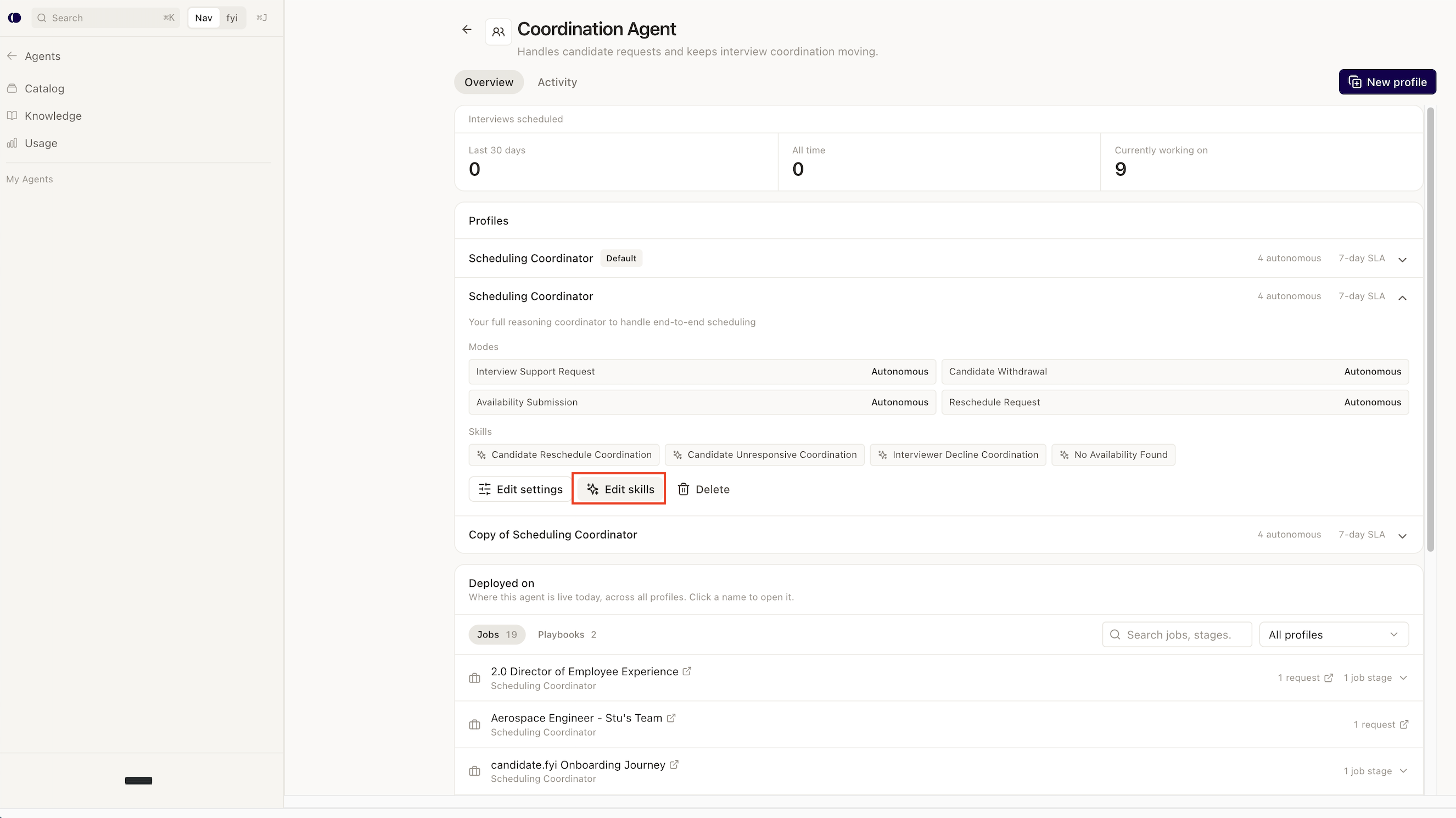
In the left nav, click Agents → Catalog.
On the Coordination Agent card, choose Manage.
On Overview, expand a profile under Profiles.
Click Edit skills.
You can also open a skill from the profile’s Skills chips (each chip shows the skill name; customized skills show Customized on the chip).
What’s on a skill card
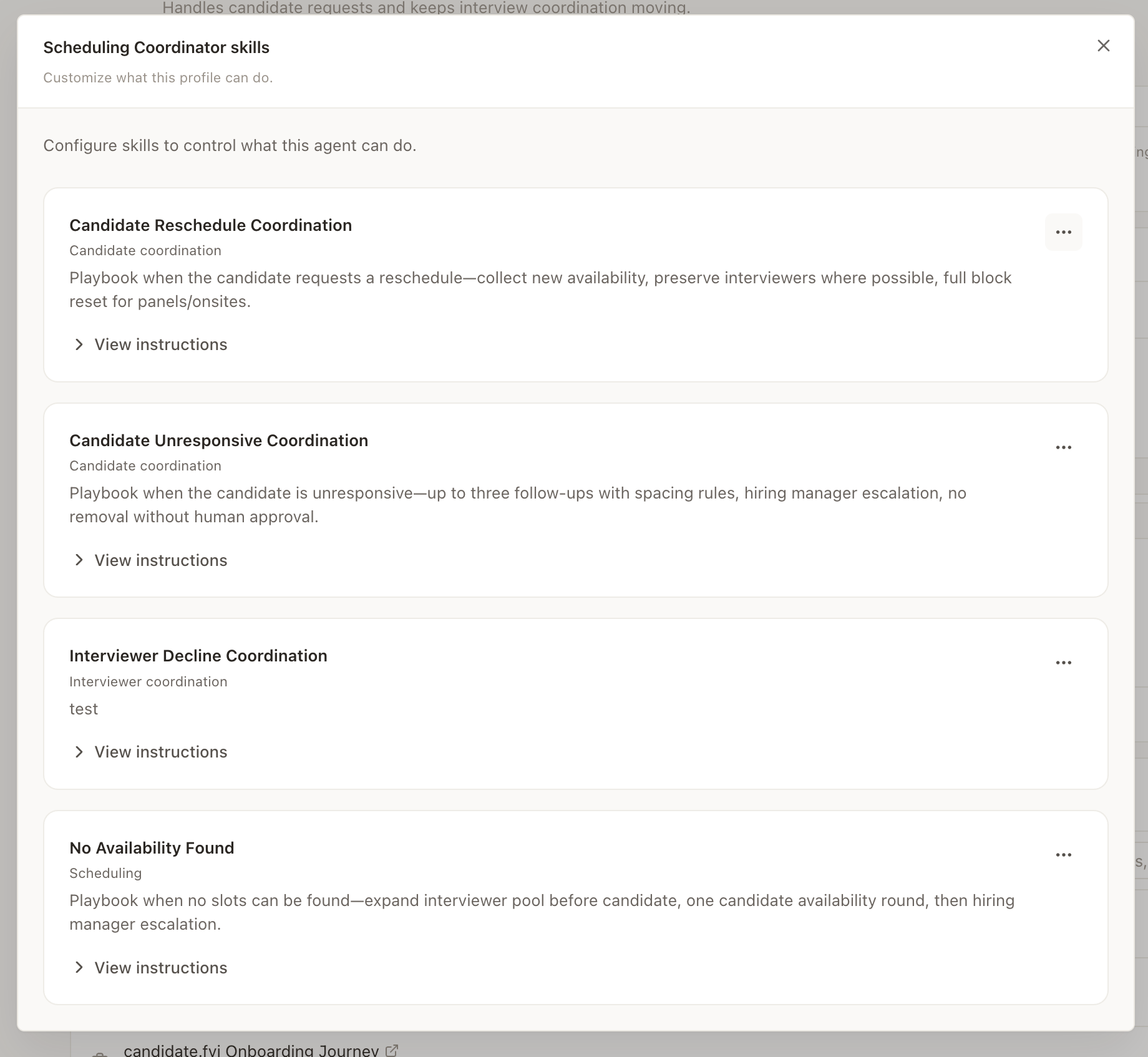
Each skill appears as its own card with:
Element | What you see |
|---|---|
Name | Skill name |
Customized | Badge when this profile’s instructions differ from the default |
Category | Short label under the name—for example Scheduling, Candidate coordination, or Interviewer coordination |
Purpose | One-line description of when the skill applies |
Actions menu (⋯) | Skill actions: Customize instructions and Revert to default |
View instructions
On a skill card, click View instructions (chevron expands the card).
The Instructions block lists the current rules for that skill (line by line).
Click Hide instructions to collapse again.
From the expanded block you can also click Edit to customize (same as Customize instructions in the menu).
Customize instructions
Open the skill’s ⋯ menu and choose Customize instructions—or click Edit inside View instructions.
Edit the Instructions text. Placeholder: “Enter instructions for this skill...”
Helper text: “Instructions are sent to the agent as plain text. Use line breaks to separate multiple rules.”
Click Save changes (disabled if the text is empty or unchanged), or Cancel to discard the draft.
After a successful save you’ll see “Skill instructions updated,” and the card shows the Customized badge.
Changes apply only to this profile—the same skill on another Coordination Agent profile is unchanged.
Revert to default
Revert to default is available only when the skill is Customized (menu item is disabled otherwise).
Open the skill’s ⋯ menu and choose Revert to default.
Confirm in the banner: “Custom instructions for {skill name} will be removed and the default instructions restored for this agent.”
Click Revert, or Cancel.
After a successful revert you’ll see “Reverted to default instructions,” and the Customized badge is removed.
Tips
Customize when your process differs from the default (tone, escalation, or when to pause)—keep instructions clear and specific.
Use line breaks so each rule stands alone; the agent receives the text as written.
Prefer Revert to default over blanking instructions if you want the standard behavior back.
Skills do not replace Execution mode or Agent autonomy—those still control whether and how independently the profile acts (see Configure Coordination Agent).