Deploy Coordination Agent
Last updated: October 26, 2026
Attach a Coordination Agent profile to job and playbook stages so it can work on candidate interview requests for those stages. You can also assign or change the agent on an individual scheduling request.
Where it deploys
Coordination Agent deploys to:
Jobs (per stage)
Playbooks
It does not deploy to People and does not use Subscribe / My Agents.
There is no separate “org default Coordination Agent” picker on playbook Automation (that pattern is for Candidate Experience only). For Coordination, you assign a profile on each stage’s Agents slot.
See where it’s live (Deployed on)
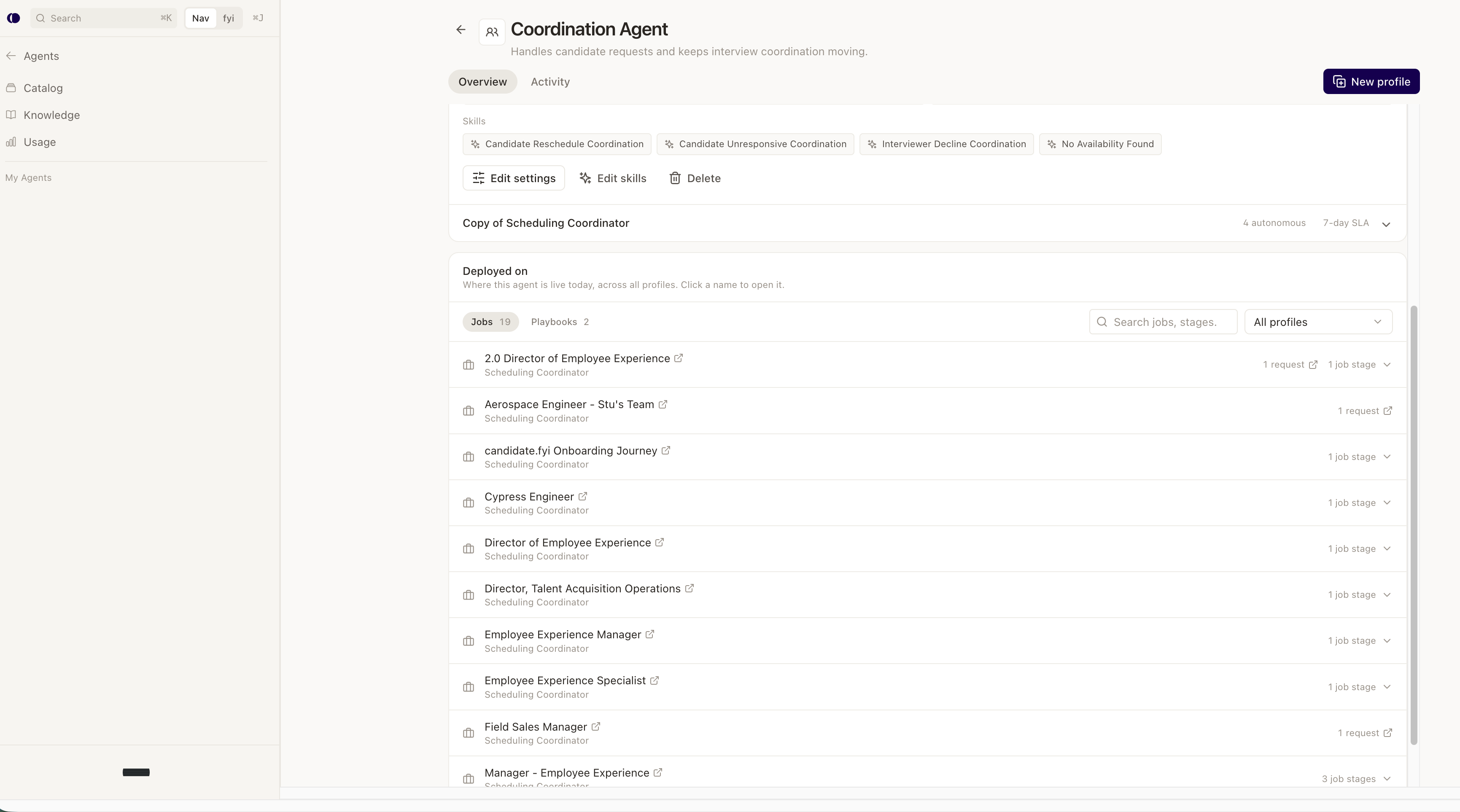
Agents → Catalog → Coordination Agent → Manage.
On Overview, open Deployed on.
Use the Jobs and playbooks tabs, search (for example “Search jobs, stages…”), and the profile filter (All profiles or a specific profile).
Deployed on is a directory only—you open a job or playbook from a row, but you attach or remove profiles in stage setup or on the request (below).
Attach on a playbook stage
Use this when many jobs should inherit the same Coordination Agent from a template.
In the left nav, open Templates & libraries → Playbooks.
Open a playbook → Stages.
Open the stage you want and find the Agents row.
Click the dashed Coordination chip (Add Coordination agent).
In the popover, choose a profile from Select coordination agent.
When filled, the chip shows Coordination plus the profile name. To change profiles, open the chip again and pick another. To clear it, choose Remove agent.
When the playbook applies to jobs (manually or via Automation), stages can inherit this Coordination Agent—unless a job overrides it.
Attach on a job stage
Use this for a specific job, or to override what the playbook provided.
Open the job from Jobs (or from a Deployed on row).
Open stage setup for the stage that should run coordination.
In Agents, click the Coordination chip and Select coordination agent (or change / Remove agent as above).
Job override vs playbook
If the job’s Coordination Agent differs from the playbook stage, the chip shows an override cue and the popover notes:
“Updated for this job.” plus the playbook source and inherited name (or None).
Reset to playbook / Reset to interview plan — restores the inherited value.
How it shows on scheduling requests
Once a stage has a Coordination Agent, new requests for that stage can carry it. On the request, look in the details sidebar for Coordination Agent:
State | What you see |
|---|---|
None | “No coordination agent” — use Assign coordination agent to pick a profile, then Save (or Cancel). |
Assigned | Profile name; edit with Edit {name}; optional Open agent chat when a conversation exists; status such as Running or Last run … |
Needs you | Activity can show that the agent needs your help, or the current step in its plan |
Change or remove on a request
Edit the Coordination Agent row.
Select coordination agent and Save, or choose Remove coordination agent.
Confirm remove: “This removes the coordination agent from this request immediately. You can add a coordination agent again later if needed.” Then Remove or Cancel.
Successful updates show Agents updated.
When creating a request
On create / quick request, an Agents row can include the same Coordination chip. If you change it for one request only, you may see “Changed for this request.” and Reset to stage to restore the stage default.
Tips
Prefer setting Coordination on the playbook stage when many jobs share the same process; override on the job only when that role needs a different profile.
After attaching, confirm the profile appears under Deployed on and that requests show Coordination Agent with the expected name.
Ghost vs Live still comes from the profile’s Edit settings—deploying attaches the profile; it does not change execution mode.
Monitor after deploy
Activity on Coordination Agent Manage — recent work across profiles.
Usage under Agents — credits for Coordination Agent (see Agents Usage).