Scheduling Chrome Extension
Last updated: July 24, 2026
Overview
The candidate.fyi Chrome Extension is designed to seamlessly integrate with your Applicant Tracking System (ATS), enabling users to create and manage scheduling requests without ever having to leave the ATS interface. It streamlines the process of coordinating interviews by providing direct access to candidate.fyi's scheduling features from within the candidate's profile on the ATS.
Features and Benefits
Integration: The extension adds functionality directly to your ATS, allowing for a more cohesive workflow.
Efficiency: Quickly create scheduling requests while viewing candidate profiles, reducing the need to switch between systems.
Convenience: Access all active scheduling requests and manage them on the spot with just a click.
Installation
Visit the Chrome Web Store to find the candidate.fyi extension.
Click the "Add to Chrome" button to download and install the extension to your browser.
Chrome permissions
When you install the extension, Chrome will ask to allow access to app.candidate.fyi. That’s required so you can stay signed in to candidate.fyi and load scheduling in the side panel.
Access to your ATS websites (Greenhouse, Lever, etc.) is not all requested at install. You choose which ATS sites to allow on the setup page (see below).
Setting Up
1. Integration setup page
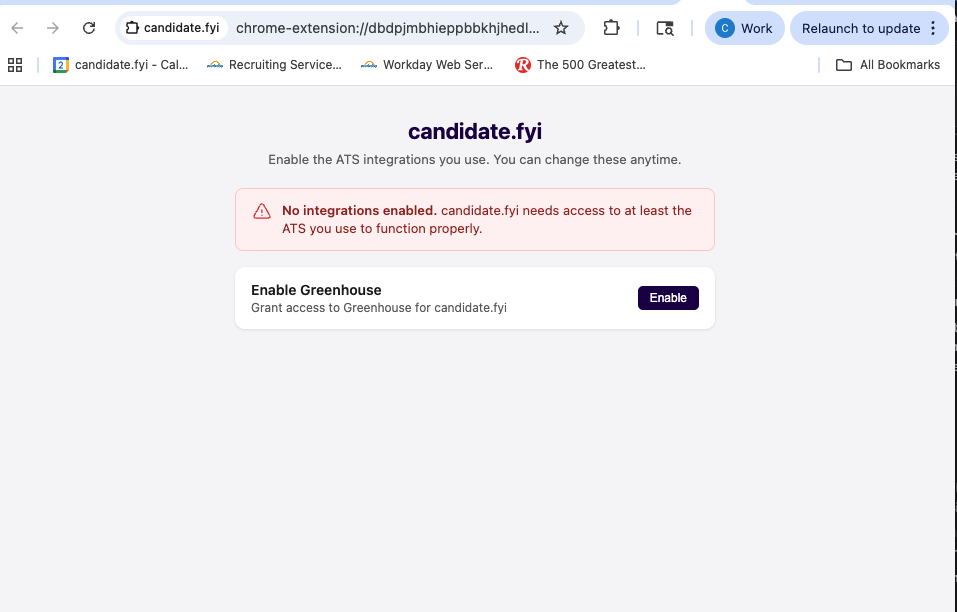
After install—or after an update if you haven’t granted any supported ATS site yet—Chrome may open an Extension integrations tab (candidate.fyi permissions page).
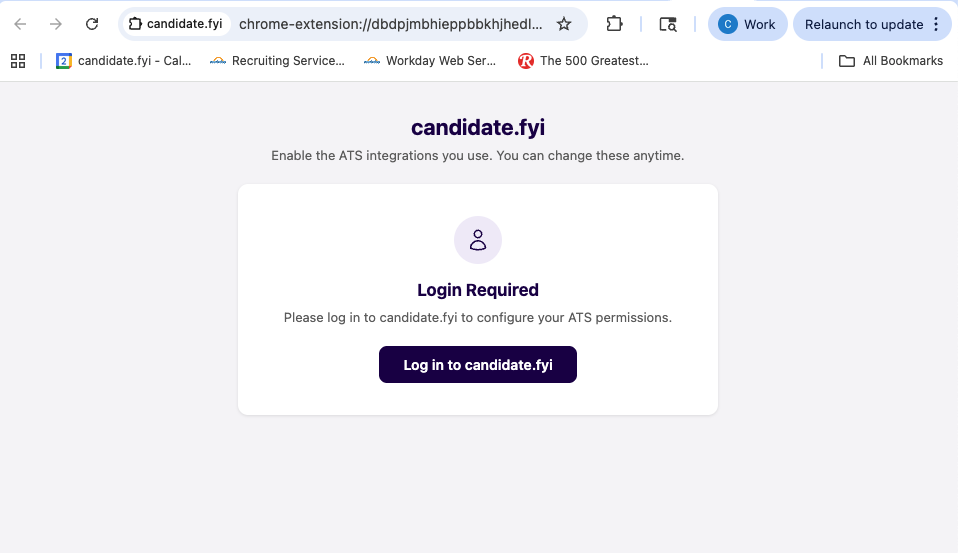
If that tab doesn’t appear, you still need to grant ATS access before the in-ATS buttons work. Use Chrome menu → Extensions → candidate.fyi → Details and review Site access / extension permissions, or copy and paste this link into your browser and enable your ATS's integration:
chrome-extension://mlldkokglanggjkokhdboagaekobhome/pages/permissions.html
2. Sign in to candidate.fyi
If the setup page asks you to sign in, click through and log in to candidate.fyi in the browser. The page uses your session to tailor which integrations to show.
3. Enable your ATS
Click Enable (or Enable all) for the ATS platforms you use. Chrome will show a separate prompt to allow access to that ATS’s website.
4. Confirm in the ATS
Open a candidate profile in your ATS. You should see Schedule in candidate.fyi after access is granted.
If nothing appears, refresh the page or confirm you granted access for that ATS domain on the setup page / Chrome site access.
How to Use

Creating Scheduling Requests
Click the "Schedule in candidate.fyi" button to open the candidate.fyi sidebar.
In the sidebar, you will have the option to create a new scheduling request or view active ones:
To create a new request, click on the "Create Scheduling Request" button.
To view active scheduling requests, simply look at the list below the button in the sidebar.
Managing Scheduling Requests
The sidebar provides a snapshot of all scheduling activities related to the candidate.
You can manage and update the status of these requests directly from this interface.
If changes are made within candidate.fyi, they will be reflected in real-time within the extension's sidebar.
Troubleshooting
Extension not showing up
Make sure the candidate.fyi Chrome extension is enabled and has permissions turned on. Copy and paste this into Chrome:
chrome-extension://mlldkokglanggjkokhdboagaekobhome/pages/permissions.htmlAlready enabled? Try removing the extension, then reinstalling it.
Quit Chrome completely (not just close the window), then reopen — sometimes it just needs a refresh.
If you don't have the extension yet, install it here: Candidate.fyi chrome extension
Extension info changes to a different candidate when I switch tabs
This happens because of how the extension handles sessions — one Chrome extension window equals one session. If you switch between tabs for different candidates, the sidebar can show whichever candidate is active in that shared session, which can look like the info is "changing" or disappearing.
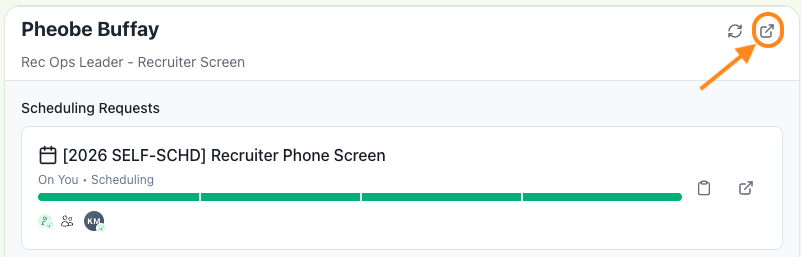
If you're mid-process creating a request and need to switch tabs to a different candidate, use the detach link at the top of the extension (see image below). This opens the sidebar in its own separate session, so it won't auto-refresh or swap when you switch tabs.