Importing iForms from iCIMS to candidate.fyi
Last updated: April 3, 2025
Importing iForms from iCIMS to candidate.fyi
candidate.fyi allows you to import your iForms from iCIMS to streamline interviewer feedback collection directly in your workflow.
Overview
You can bring your recruiting workflow iForms from iCIMS into candidate.fyi to use them for structured feedback collection. The setup is simple and gives you control over how your forms look and function within our platform.
How to Import
To import an iForm:
Navigate to the Settings / Scheduling section in candidate.fyi and select Feedback Forms.
Then, click New to open the modal.
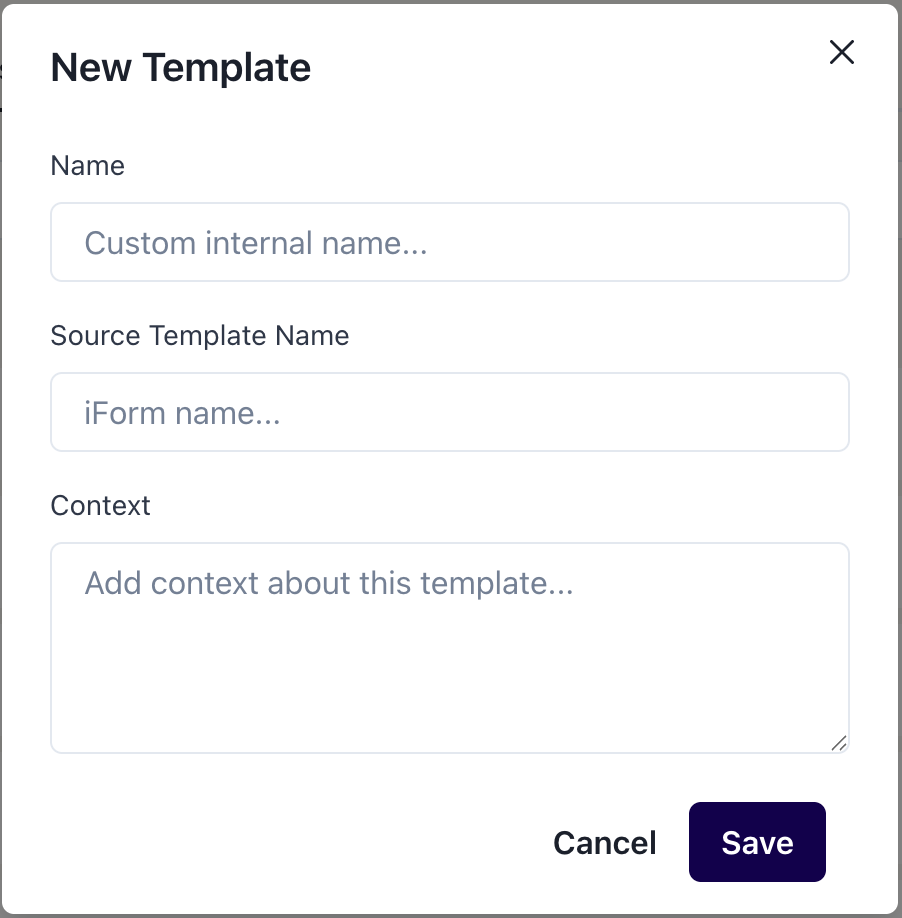
Enter the Form Name and Form ID exactly as they appear in iCIMS.
The iForm must be of the "Recruiting Workflow" type – other types are not currently supported.
Using AI Context from iCIMS
To enhance your form with cleaner labels and contextual titles:
Go to the view in iCIMS that contains your form data.
Export the view as XML.

When creating your form in candidate.fyi, paste the XML export into the Context field.
Our AI will use this to intelligently label fields and suggest relevant titles based on your data.
Post-Import Editing
After importing, you can customize your form further:
Edit field names and descriptions
Hide specific fields
Reorder fields
Add section titles
No XML Context?
If you don’t provide XML context, no problem — we’ll auto-convert question IDs into title case field names, and you can easily tweak them afterward through our editor.