Using Bulk Actions
Last updated: July 13, 2026
Bulk Actions let you apply portals and interview plans to multiple jobs at once, streamlining setup and reducing repetitive work.
Overview
Instead of manually configuring portals or interview plans one job at a time, bulk actions allow you to select multiple jobs and apply changes simultaneously. This is especially useful when activating several roles at once, rolling out a new portal template, or ensuring consistency across job setups.
Bulk actions run asynchronously in the background. After you initiate a bulk action, you can continue working in candidate.fyi. You'll receive an email notification if any jobs fail to update, along with details about what went wrong.
Who Can Use Bulk Actions
Bulk actions are available to users with Editor or Admin permissions. Viewers and non-approved members cannot access this feature.
Available Bulk Actions
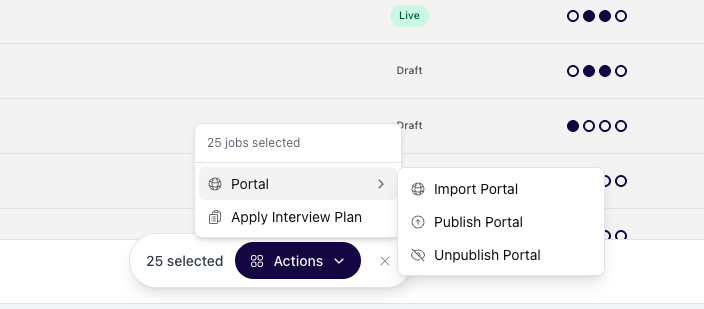
Import Portal
Applies a portal template to the selected jobs. Use this when you want to assign a portal structure to jobs that don't yet have one configured.
What happens if a job already has a portal?
If a job already has a portal set up, importing a new portal template will replace the existing portal configuration with the new template. Any customizations made to the original portal will be overwritten.
Publish Portal
Makes candidate portals live for the selected jobs. Once published, candidates assigned to these jobs will be able to access their portals and view the content you've configured.
What happens if a job's portal is already published?
The action completes successfully without making changes. The portal remains published.
Unpublish Portal
Takes candidate portals offline for the selected jobs. Candidates will no longer be able to access portal content for these roles.
What happens if a job's portal is already unpublished?
The action completes successfully without making changes. The portal remains unpublished.
Apply Interview Plan
Applies a predefined interview plan to the selected jobs. This sets up interview stages, rounds, and default automations according to the plan you've configured.
What happens if a job already has an interview plan?
If a job already has an interview plan set up, applying a new plan will replace the existing configuration with the new interview plan. Any job-specific customizations (such as assigned interviewers) will be overwritten by the defaults in the new plan.
How to Use Bulk Actions
Navigate to the jobs list in candidate.fyi.
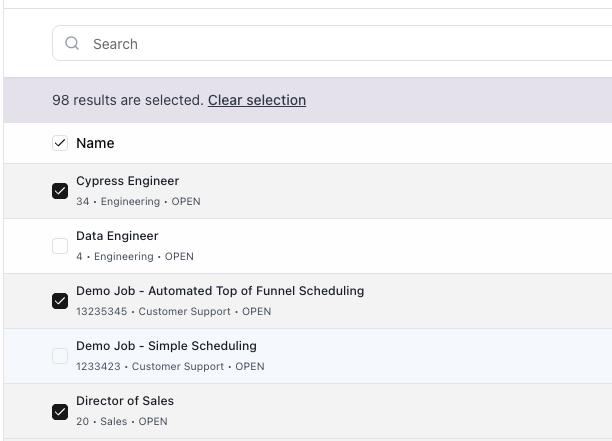
Select the jobs you want to update by checking the boxes next to each job, or use filters to narrow down your list and select all matching jobs.
If you selected all jobs matching your current filters, you can unselect specific jobs before proceeding. This grabs everything that applies to your filters except the ones you unselect.
Click the Actions button and choose the action you want to perform.
Confirm your selection. The action will begin processing in the background.
Refresh the page to see your bulk actions and their progress.
Important: You can only see bulk actions that you initiated. Other team members' bulk actions won't appear in your view.
Troubleshooting
My bulk action is taking a long time
Bulk actions process asynchronously and may take several minutes depending on the number of jobs selected and system load. Refresh the page to check the current status. If the action has been running for an unusually long time, contact support.
Some jobs failed to update
If any jobs fail during a bulk action, you'll receive an email notification listing which jobs failed and the reason for each failure. Common reasons include:
The job no longer exists in your ATS
Permissions or configuration issues specific to that job
The portal or interview plan template was deleted or is unavailable
Review the failure details and manually address any issues for those jobs, or retry the bulk action after resolving the underlying problem.