Turn on Candidate Experience and share knowledge
Last updated: November 3, 2026
Turn Candidate Experience on so it answers candidates in the portal, then choose which Knowledge documents each profile may search—on top of the job pages candidates can already open—and set how the profile discloses that candidates are chatting with an AI.
For what the agent is and where it runs, see Candidate Experience Overview.
Who can turn it on
Only Admins see Turn on / Turn off on the Catalog card. Editors can browse Catalog but don’t get the switch.
If the card is still under Get more agents (for example On request or Coming soon), request access first (see Agents Catalog)—the switch isn’t available until Candidate Experience is owned and shows under Your agents as On or Off.
Turn on
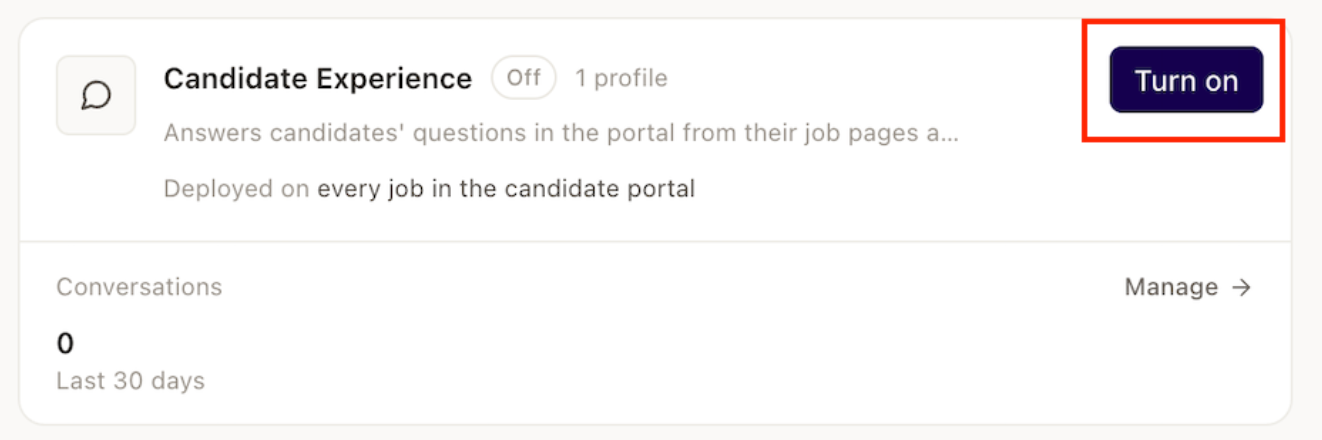
In the left nav, click Agents → Catalog.
Under Your agents, find the Candidate Experience card.
If the current state is off, click Turn on.
Turning on takes effect without an extra confirm step. While it’s on, the agent can answer across every job in the candidate portal. Deployed on reflects that portal-wide coverage.
Turn off
On the same Catalog card if the current state is on, click Turn off.
Confirm that you want to turn it off.
The agent stops answering in the portal. Profiles, knowledge selections, and AI disclosure wording are kept so you can turn it back on later. Turning off does not delete profiles or knowledge sources.
Open Manage and Edit settings
On the Candidate Experience card, click Manage (Admins; available when at least one profile exists).
On Overview, expand a profile under Profiles.
Click Edit settings.
For Candidate Experience, Edit settings has two main sections: Knowledge sources and AI disclosure.
Share knowledge with a profile
Add documents to the library
In the left nav, open Agents → Knowledge (or use Manage documents from Edit settings).
Click Add source and create a Manual text or Document upload source.
Wait until the source is Ready (and Active) before expecting the agent to use it. Full add/edit/status steps are in Agent Knowledge.
Include sources on the profile
In Edit settings, section Knowledge sources (documents the agent may search when answering candidates, on top of the job pages the candidate can open):
See how many are included (for example 3 of 10 included).
Check the box next to each document this profile should search.
Review type and status under each title. Inactive sources can’t be newly attached; you can still detach ones already included.
If the library has no documents yet, add them in Knowledge first, then return here.
Only included documents are searched, in addition to job pages.
AI disclosure
Still in Edit settings, section AI disclosure—how this profile tells candidates they’re chatting with an AI.
The disclosure is shown once in the candidate portal chat, under the agent’s latest reply, so word it for the whole conversation.
You can change the wording, but you can’t remove it. Empty wording can’t be saved.
Each profile has its own disclosure; copying a profile with New profile brings the source profile’s wording with it until you edit it.
Review disclosure before you turn the agent on so candidates see clear AI labeling from the first reply.
Multiple profiles: New profile and Set as default
You may want more than one Candidate Experience profile (for example different knowledge sets or disclosures). Additional profiles are created by copying the current org default—not from a blank form.
New profile
On Manage → Overview, click New profile (copies the current default).
The new profile opens so you can rename it and adjust knowledge and AI disclosure right away.
You need at least one profile before you can copy more.
Set as default
Expand a non-default profile.
Click Set as default.
The Default marker moves to that profile. Playbooks that use Org default follow this profile (see Candidate Experience on playbooks).
Delete (optional)
Delete is available when more than one active profile exists—you can’t delete the last active Candidate Experience profile. Deleting stops that profile and removes it from Catalog use. If you delete the default while others remain, another active profile becomes the default.
Suggested order
Add key FAQs or policy docs in Knowledge and wait until they’re Ready.
Manage → Edit settings → include those sources on the default profile, and set AI disclosure.
Turn on from Catalog when you’re ready for candidates to chat.
Add more profiles with New profile only if you need separate knowledge sets or disclosures; use Set as default for the one playbooks should treat as Org default.
What’s next
Agents Usage (Candidate Experience is Included and does not appear in credit Outcomes)