Candidate Experience Overview
Last updated: November 3, 2026
Candidate Experience answers candidates’ questions in the portal from their job pages and the documents you share with it—so candidates get help without waiting on a recruiter for every FAQ.
Open Candidate Experience
In the left nav, click Agents.
Open Catalog.
Under Your agents, find the Candidate Experience card.
When the agent is owned and has profiles, Admins can open Manage. If it still sits under Get more agents (for example On request or Coming soon), use Request access first—see Agents Catalog.
What it does
While the agent is on, candidates can ask questions in the candidate portal. Answers draw on:
The candidate’s job pages and process context
Documents you include for the profile (shared library in Knowledge—see Agent Knowledge)
Each profile also has an AI disclosure—wording shown once in portal chat under the agent’s latest reply so candidates know they’re chatting with an AI. You can change the wording per profile, but you can’t remove it. Setup is in Turn on Candidate Experience and share knowledge.
You’ll manage it from two tabs on Manage:
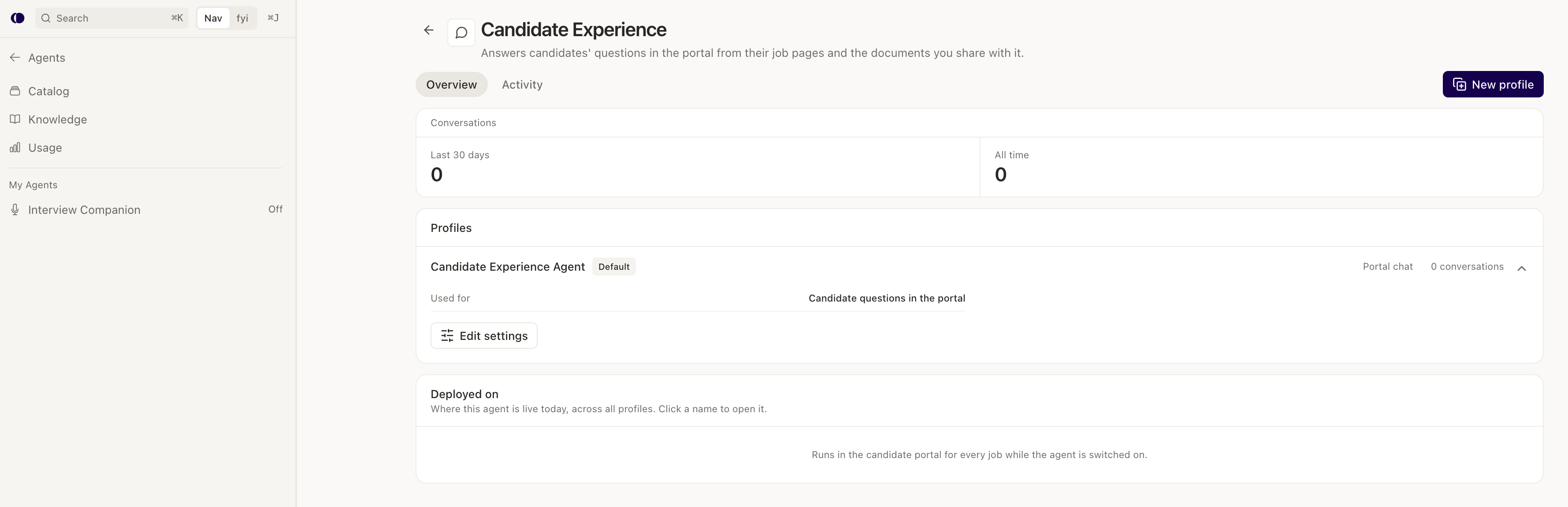
Overview — conversation outcomes, profiles, and deploy summary
Activity — recent portal conversations and how they were answered
Turn on and Turn off
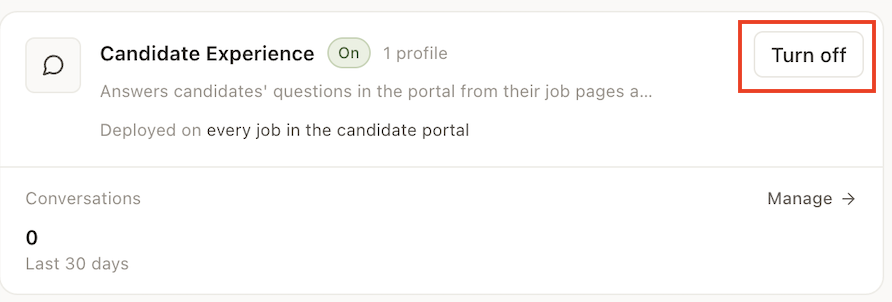
On the Catalog card, Admins see:
Turn on — start answering candidates in the portal
Turn off — stop answering; profiles, knowledge selections, and AI disclosure are kept so you can turn it back on later
Full steps for turning on, sharing knowledge, and setting AI disclosure are in Turn on Candidate Experience and share knowledge.
Where it runs
Runs in the candidate portal for every job while the agent is switched on.
Playbooks can still choose which Candidate Experience profile applies when a playbook is used (Org default vs a specific profile)—see Candidate Experience on playbooks.
Outcomes on Overview
At the top of Overview, outcomes are labeled Conversations, with:
Stat | Meaning |
|---|---|
Last 30 days | Conversations in the last 30 days |
All time | Conversations overall |
The Catalog card shows Conversations for Last 30 days.
On Activity, you’ll also see quality and volume tiles such as Answered from sources, plus Candidates, Conversations, Messages per conversation, Unanswered, and Knowledge lookups.
Profiles
Under Profiles, each Candidate Experience profile shows:
Name and optional description
A Default marker on the org default profile
A short portal-chat mode summary, plus Used for detail where shown
Actions you’ll use:
Edit settings — which knowledge sources this profile may search, and its AI disclosure
Set as default — on a non-default profile, make it the org default
New profile — copy the current org default (extra profiles are made by copying)
Delete — when more than one active profile exists (you can’t delete the last active one)
You need a first Candidate Experience profile before you can add more by copying.