Candidate Consent and Recording
Last updated: May 13, 2026
Recording, consent, and capture mode
Your organization’s notetaker settings control how recording works and what is captured:
Capture mode
Full capture (audio/video + transcript) — includes media suitable for playback alongside the transcript where available.
Transcript only — focuses on transcript-oriented capture without retaining audio/video.
Candidate consent
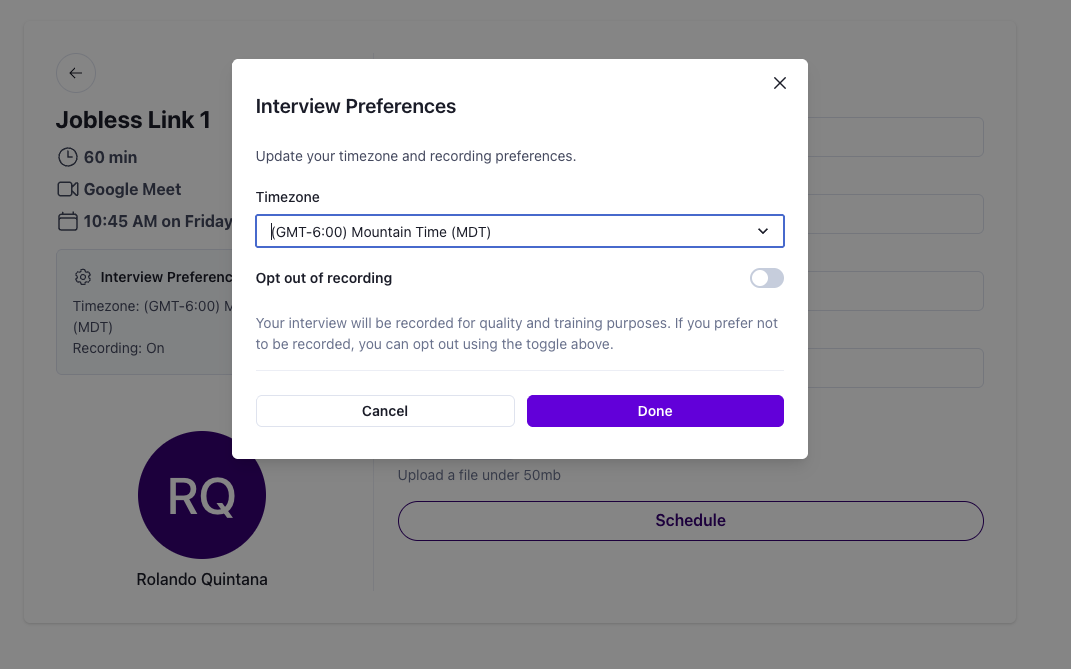
Opt-out (recording enabled by default) — recording can start automatically; candidates can opt out according to your process and messaging.
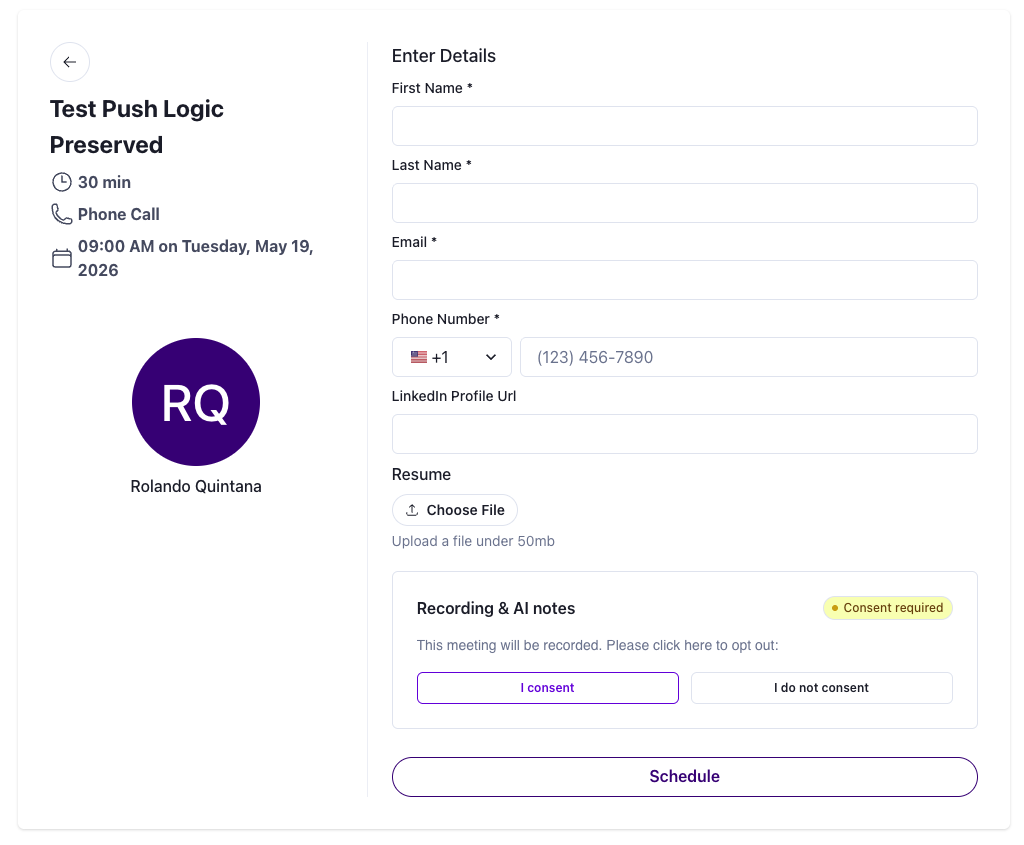
Opt-in — candidates are asked to acknowledge consent before recording starts.
Administrators can also set a general message to users about recording (for example, that the interview will be recorded and transcribed to help the hiring team review and provide feedback, and that candidates may opt out where applicable). Placeholders in emails and calendar templates can link candidates to consent flows when your team configures them.
Where will candidates see consent options?
The main place candidates will see consent options is while scheduling/selecting times to interview. Examples:
Candidate scheduling time with booking link (opt in required, final page before scheduling):
Candidate scheduling time with booking link (opted in by default, appears under 'Interview Preferences'):
Candidates will also see the consent language and a link to modify consent in an event invite. Example of a candidate event invite in Google:
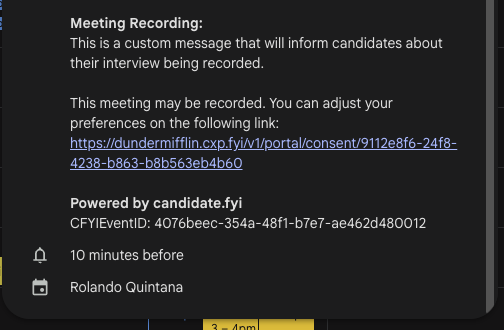
The "This meeting may be recorded..." language is always shown on a calendar event when an Interview Companion agent is added to an event.