Interview Companion Agent
Last updated: July 29, 2026
Overview
The Interview Companion Agent helps your team capture interviews so you can review what was said, share context with your team, and move candidates forward without relying on memory alone. After a supported interview completes, AI-generated insights are surfaced on the interview in Candidate.fyi — including a summary, transcript, and related views such as Q&A-style highlights, timing insights, etc.
The Interview Companion Agent supports both video conferences and phone calls.
Who turns this on, and where it applies
Various Interview Companion Agents can be created under the fyi Agent directory. Each agent can be given a unique name and settings.
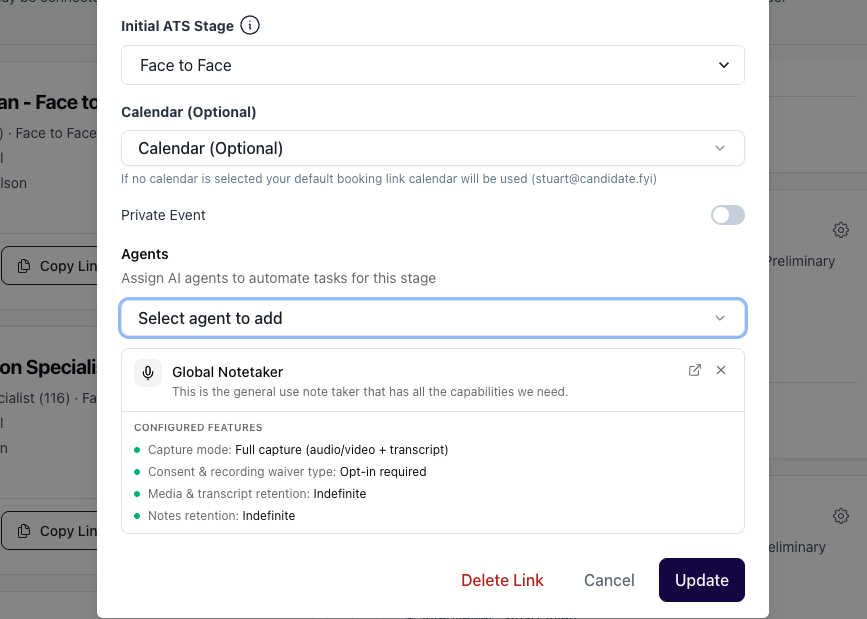
After an Interview Companion Agent is created, it can be added to Interview Plans, Job Setups, Scheduling requests, etc.
In order for the agent to actually capture the interview applicable conditions like candidate consent and event location must be met.
Note: event conference types must be either phone or a supported video platform (i.e. Google Meet, Zoom, etc.)
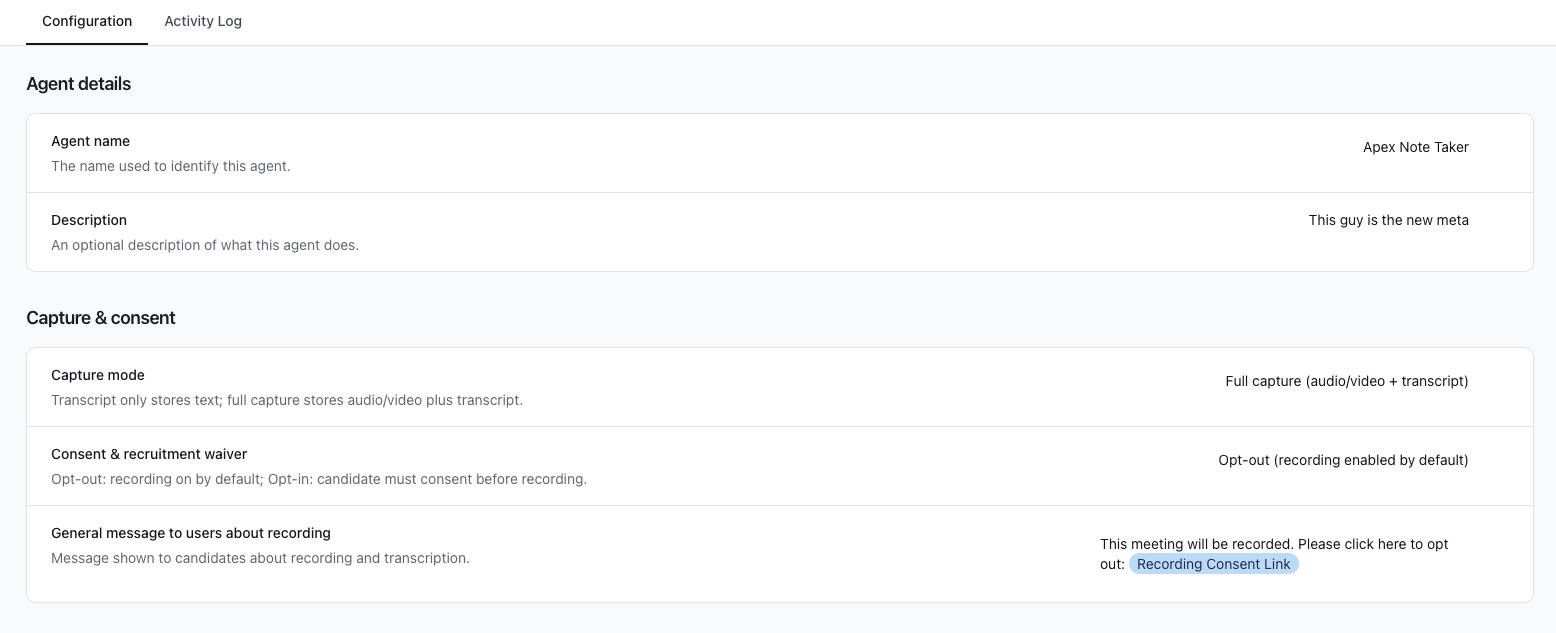
Interview plans Within an Interview Plan, you attach the Interview Companion Agent to the relevant stage. That tells Candidate.fyi which notetaker configuration applies when scheduling runs through that plan for a given stage.
Job Setup While setting up a job, you can assign the same kind of agent on interview stages that use scheduling, so new jobs created from the blueprint inherit the right setup for those stages.
Scheduling requests You can add the agent directly on a scheduling request when the request should use a specific Interview Companion configuration for the interviews it creates.
Booking links For booking links, the Interview Companion that joins an interview is resolved from your profile defaults, with optional per-link overrides.
Defaults live under Profile → Interview Companion:
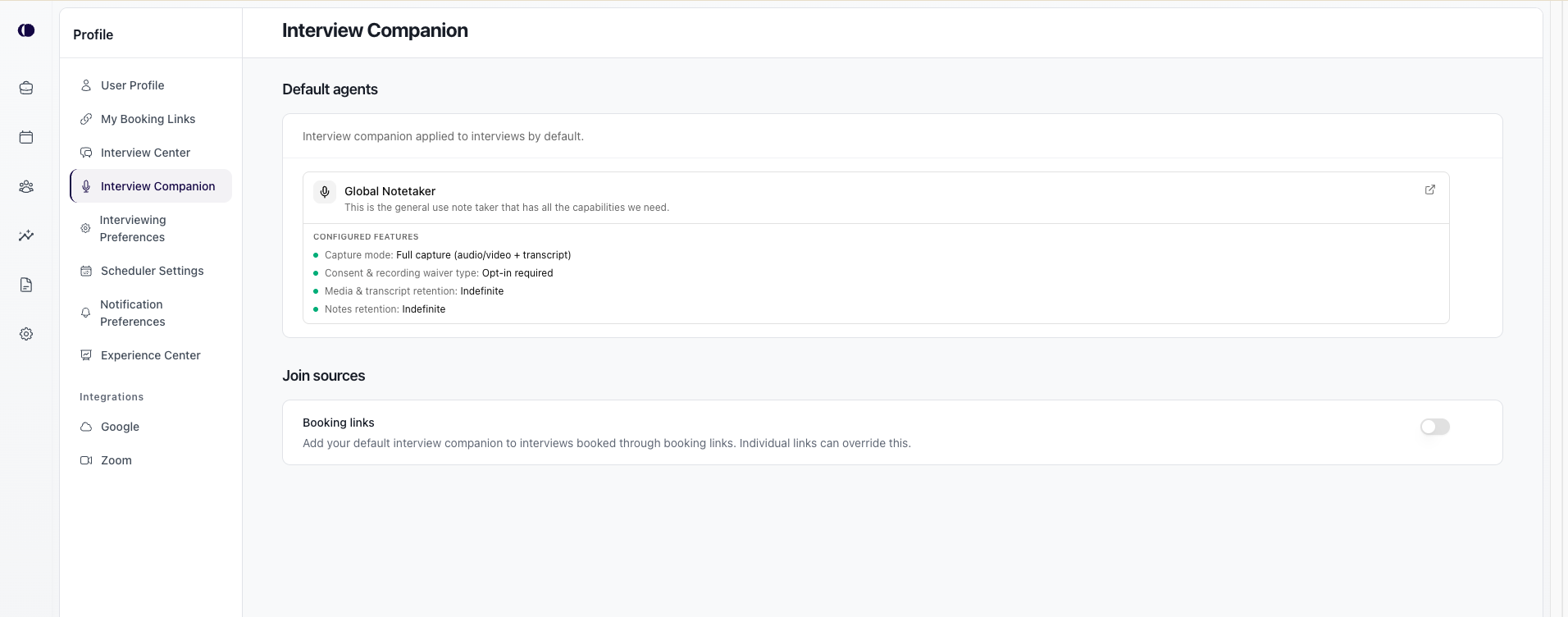
Under Default agents, choose the Interview Companion agent to use by default.
Under Join sources, turn on Booking links so interviews booked through your booking links use that default.
If your organization uses ATS-matched interviews, you can also enable Interview companion on ATS interviews.
Individual booking links under Profile → My Booking Links can override or turn off that default for a specific link.
Profile → Interview Companion — Default agents and Join sources
Per booking link agent settings
Recording, consent, and capture mode
Your organization’s notetaker settings control how recording works and what is captured:
Capture mode
Full capture (audio/video + transcript) — includes media suitable for playback alongside the transcript where available.
Transcript only — focuses on transcript-oriented capture without retaining audio/video.
Candidate consent
Opt-out (recording enabled by default) — recording can start automatically; candidates can opt out according to your process and messaging.
Opt-in — candidates are asked to acknowledge consent before recording starts.
Administrators can also set a general message to users about recording (for example, that the interview will be recorded and transcribed to help the hiring team review and provide feedback, and that candidates may opt out where applicable). Placeholders in emails and calendar templates can link candidates to consent flows when your team configures them.
Retention
Each Interview Companion Agent has its own retention policy, independent of capture mode and consent. Retention controls how long candidate.fyi keeps certain notetaker outputs after the interview; it does not change whether capture runs at all.
Two settings
Media retention — Governs raw capture and transcript-oriented storage (for example recording files and transcript data used with playback, depending on capture mode). When the retention period elapses, that tier of content is removed according to policy.
Notes retention — Governs AI-generated interview outputs stored on the interview (for example summary and structured panels such as Q&A-style highlights and timing-style insights). When the retention period elapses, those generated fields are cleared; behavior may differ from media retention so the two can be set to different durations.
Options — Each setting can be kept indefinitely or limited to a fixed period (7, 14, 30, 60, 90, 180, or 365 days).
Indefinite means no automatic expiry for that tier.
Relationship to capture mode — Media and notes retention still apply on top of capture mode and determine how long the corresponding data remains available in candidate.fyi after the interview.
Where to configure — Retention is configured on the same Interview Companion Agent you use in Interview Plans, Job Blueprints, or scheduling requests (under fyi Agent / agent settings in candidate.fyi).
Video interviews
For video interviews, the Interview Companion Agent is designed to work with the scheduled video meeting associated with the event. When conditions are met, a bot requests to join the meeting. Capture proceeds once the bot is admitted.
Phone interviews
Phone interviews use a dial-in flow so audio can be captured and transcribed in a controlled way.
One-time setup: verify your phone number
Interviewers who will place outbound calls through the Interview Companion Agent should register and verify a phone number in candidate.fyi. Verified numbers can be used as caller ID for phone notetaker calling. You can remove a registration later if you no longer want that number used.
Registering a phone number is required before it can be used with the Interview Companion Agent.

Running the interview
Call the dial-in number associated with your region (the preferred number is included on calendar event or email content when phone notetaker is in use).
The call flow identifies you from your registered number and looks for a scheduled phone interview in an appropriate time window. For the interview to be recognized, interviewers should be making a call within 15 minutes before or after the scheduled start time.
If multiple interviews could match closely in time, the flow may ask you to select the correct one from a short list using the keypad.
After the conversation ends, processing produces fyi Notes for that interview, similar to video.
Regional dial-in directory
candidate.fyi exposes a reference list of AI notetaker dial-in numbers by region so you can look up the desired country's number or share the list with your team. Visit the directory at app.candidate.fyi/dial-in-numbers
Click to call (when interviewer dial-in is not supported)
In some cases the calendar content will show a link to open in the browser instead of a single regional dial-in number. That click to call flow is used when a dedicated dial-in cannot be resolved for the interviewer’s registered phone region; it still uses the Interview Companion for the scheduled phone interview.
Prerequisites (same as dial-in) — Phone notetaker must be enabled for the agent and interview, the event must be a scheduled phone interview with a candidate phone number on file, and the interviewer must have a verified phone number registered in candidate.fyi.
How it works
Open the link from the calendar invite or email (it is tied to that interview and your registration).
On the page, start the call. candidate.fyi places an outbound call to the interviewer's verified number first.
When they answer, the system calls the candidate so both parties are on the same captured line for notetaker processing.
Link use — The link is only valid for that interview and registration. It stops working after a short grace period past the scheduled interview end
Regions with a listed dial-in — Where a regional dial-in number applies, interviewers should continue to use the dial-in flow described above; click to call is the alternate path when that is not offered.
Where to find fyi Notes after the interview
After an interview completes and the fyi Notes have finished generating, they will be available for review on the interview detail page in candidate.fyi. You should see AI-generated insights from this interview, including:
Interview summary
Transcript (and recording / playback when your capture mode and retention settings provide it)
Panels such as Q&A highlights and timing insights
Ask fyi allows you to inquire about the transcript using an AI assistant.
Feedback forms and your ATS
Some organizations connect interview feedback forms (for example, in Workday or Greenhouse) to candidate.fyi. Availability and behavior depend on your integration and template setup. The Interview Companion Agent can pre-fill questions with draft answers if there is sufficient context. This can be configured per agent.