Greenhouse Chrome Extension
Last updated: March 2, 2026
Getting Started
To install the Chrome extension, please visit the Chrome Web Store and download the extension from there.
Visual Indicators Explained
Now that you have the extension installed you'll have a few key visual indicators on the your candidate application.
Authentication Status Indicator
The first indicator will be your candidate.fyi authentication status icon. You'll find this hugging the right hand side of the screen. When logged in properly to candidate.fyi it will be active shaded blue.
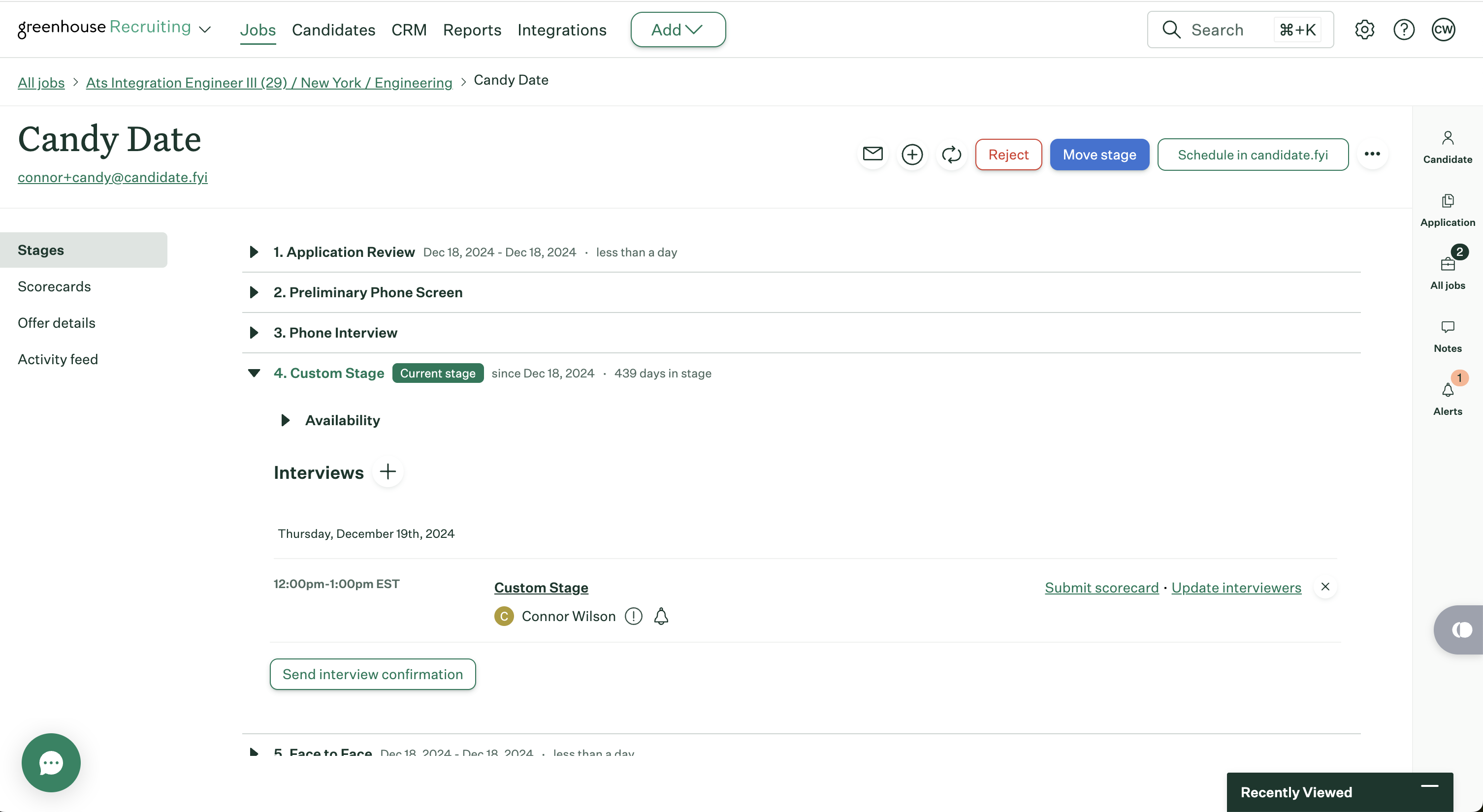
If it is gray (as it in the screen shot above) simply click the logo and sign in at app.candidate.fyi. Once you have signed in either refresh the page or click the refresh button.
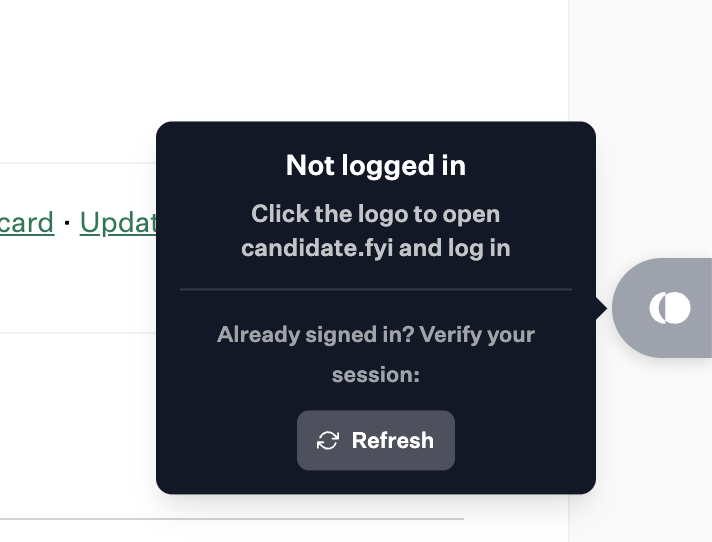
Note: If the indicator ever gets in the way feel free to drag and drop it up or down the side of your screen.
Automation Indicator
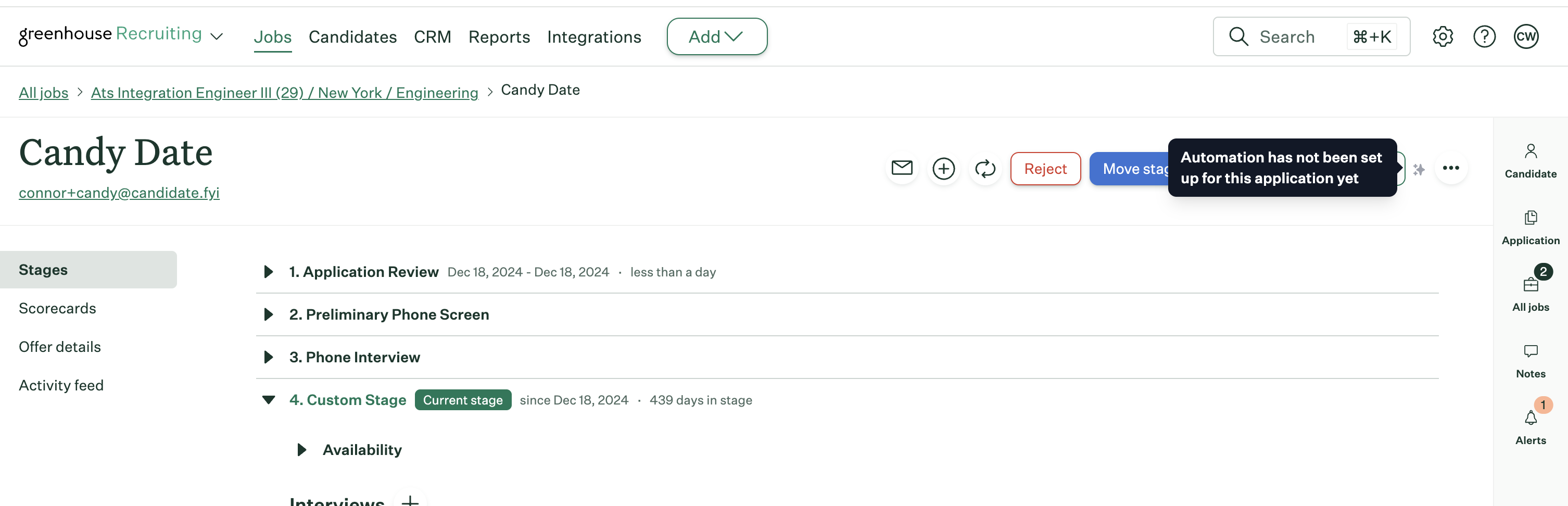
Once authenticated you'll notice a few additional features. The first will be the Automation indicator located to the right of the Schedule in candidate.fyi button.
This indicator will let you know if you have set up an automation for this job within candidate.fyi and if that automation is currently active.
FYI Stage Icons
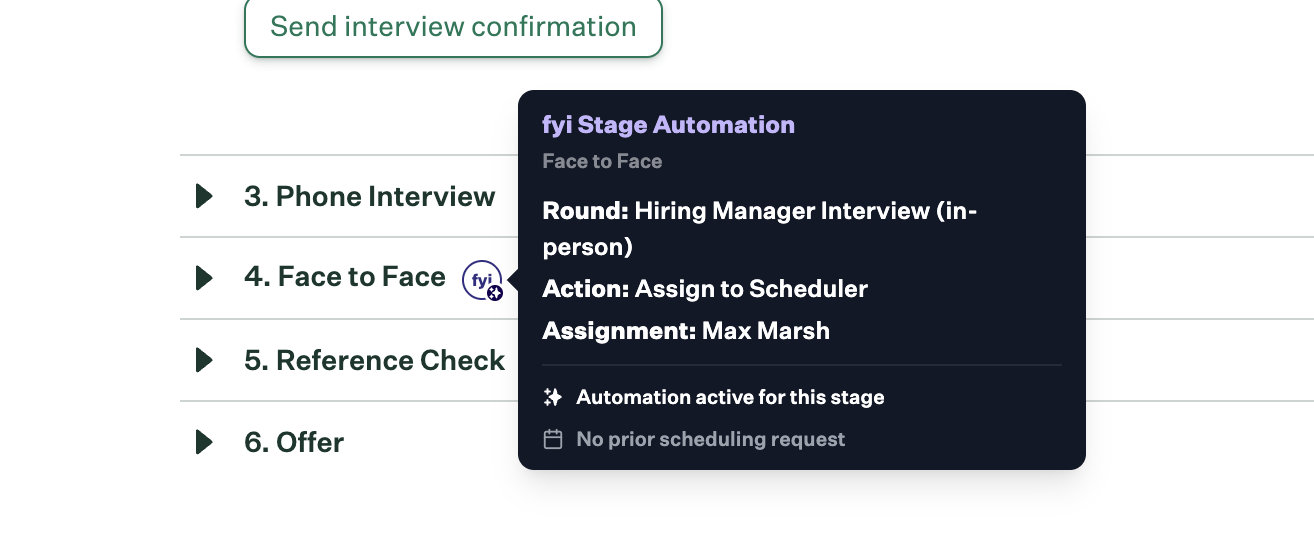
Next you will see the fyi stage automation icons located nest to your interview stages.
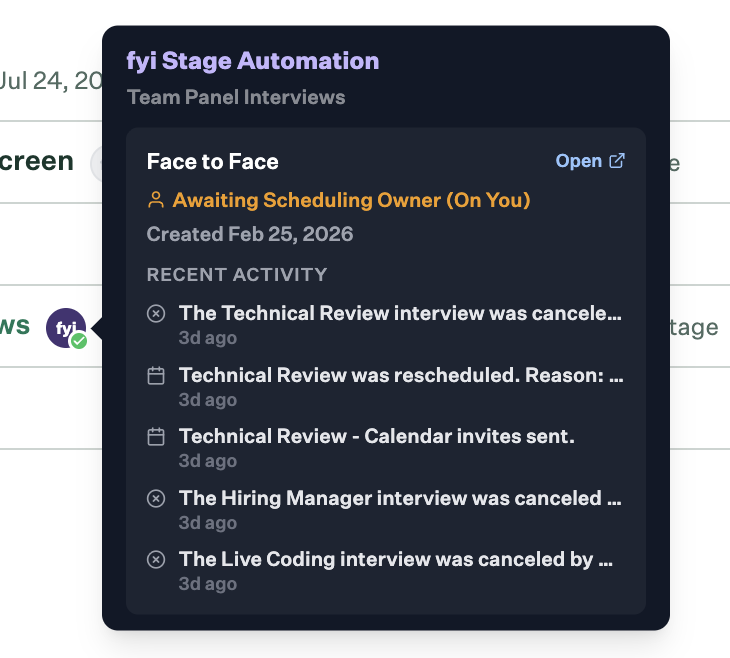
These will indicate if there are any automations setup for your interview stages. You can hover over these to see more details about the automation.
Active with auto create enabled:
In this case the scheduling request will be automatically created upon entry into this stage

Active but requires user initiation:
In this case the automation has been set up within candidate.fyi but requires a user to manually initiated it. In this case simply click the "Schedule in candidate.fyi" button and the defaults for this automation will be automatically set

Completed
Automation has already run for this application <> stage

In this case you can hover over the fyi icon to view the scheduling request, its current status, and recent activities/fyi tasks.
Inactive
This will happen for one of two reasons:
The automation has been created but is currently turned off.
or
A scheduling request has already been created for this automation and was archived
