Integrations: Add an end date to your Workday job applications report
Last updated: November 10, 2026
Approximate read time: 2 minutes
Add an end-date prompt to the Workday report candidate.fyi uses to sync job applications. Syncs then pull smaller time windows, so they run faster and more reliably. It takes about 5 minutes, and candidate.fyi picks it up on its own.
Before you start
You need edit access to custom reports in Workday (the report owner or a Workday admin).
You need the name of your candidate.fyi job applications report, often "cfyi job applications".
1. Open the report
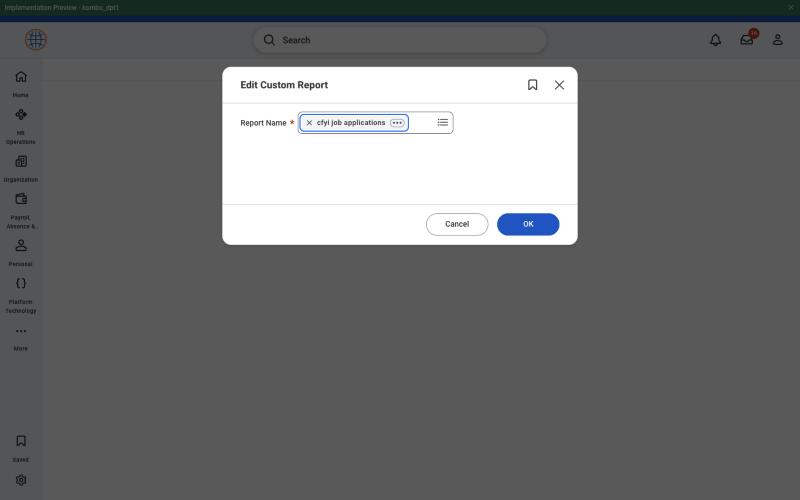
In Workday, search for Edit Custom Report.
Pick your candidate.fyi job applications report and click OK.
2. Add the filter
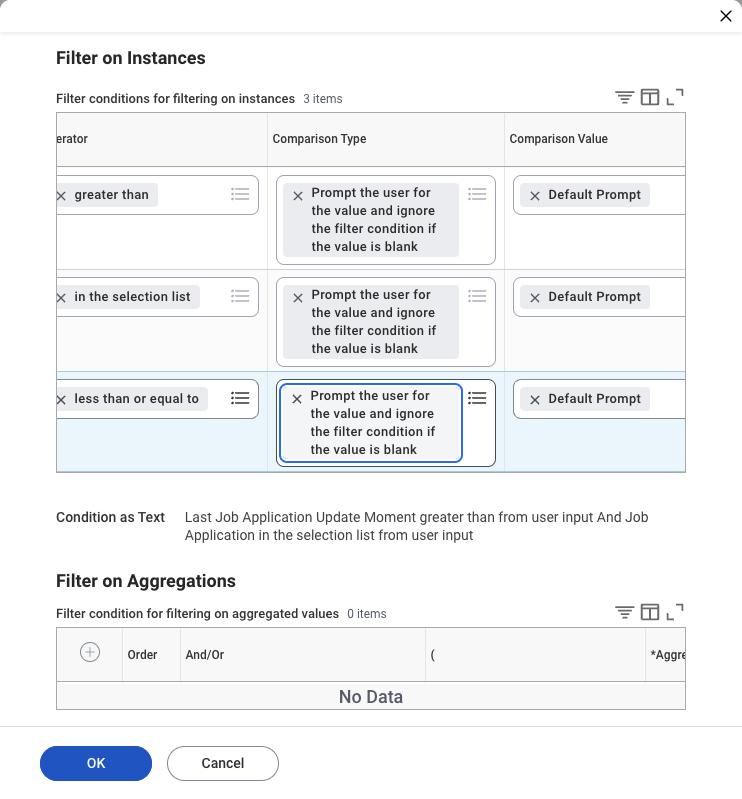
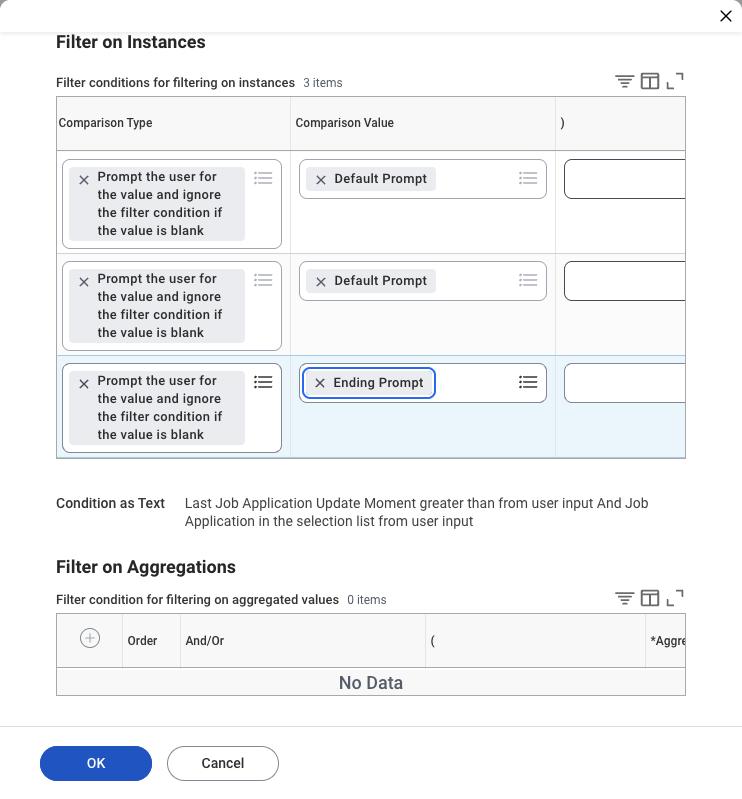
On the Filter tab, click + on the last row and fill in the new row:
And/Or: And
Field: Last Job Application Update Moment
Operator: less than or equal to
Comparison Type: Prompt the user for the value and ignore the filter condition if the value is blank
Comparison Value: Ending Prompt (not Default Prompt)
3. Name the prompt
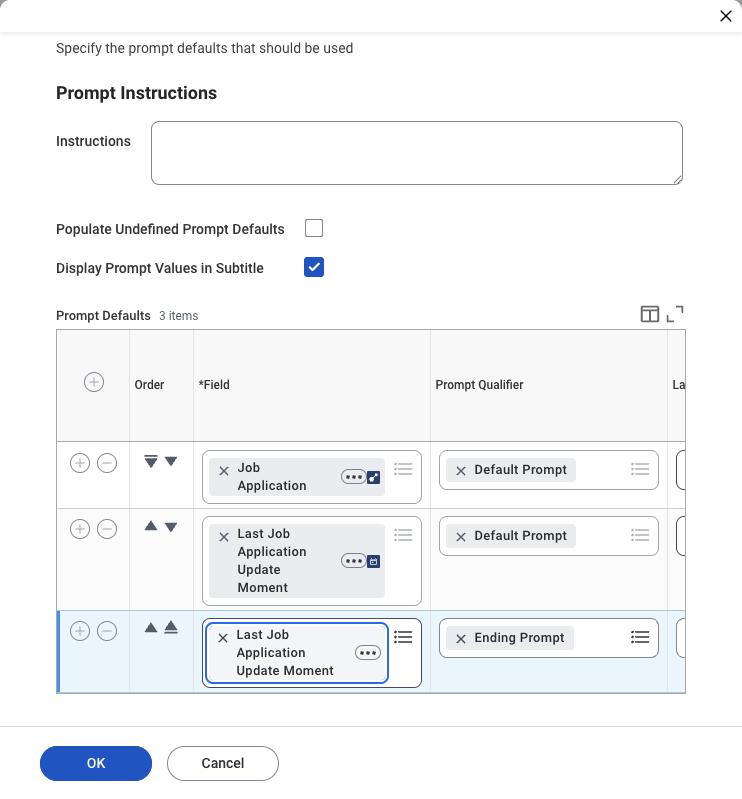
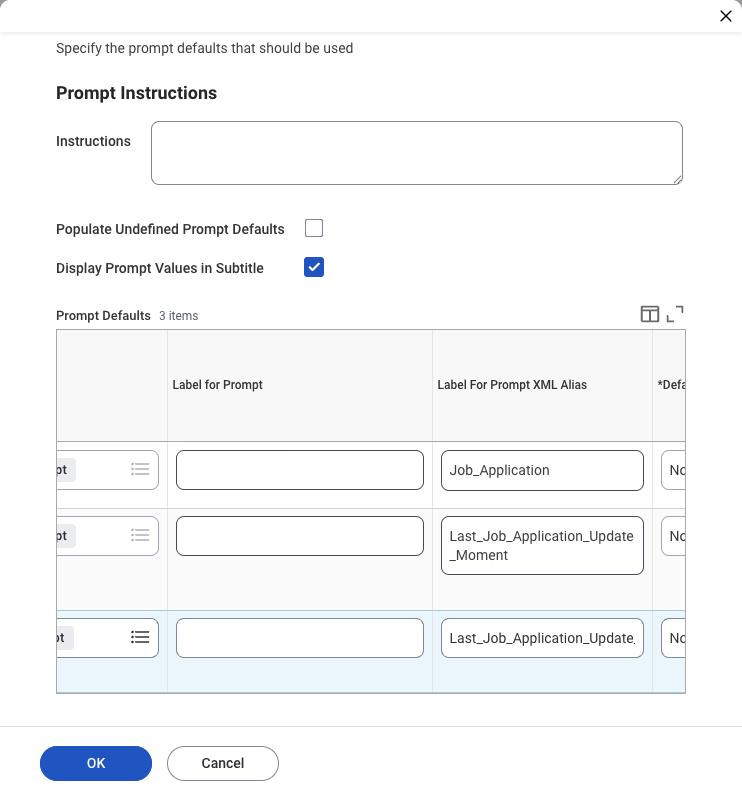
On the Prompts tab, find the Last Job Application Update Moment row with the Ending Prompt qualifier. If it's missing, add it.
Set Label For Prompt XML Alias to exactly
Last_Job_Application_Update_Moment_To.Leave Required unchecked.
Click OK. If Workday warns about long column aliases, click OK again.
4. Check it
Click Run on the report. You should see a new prompt called Ending Last Job Application Update Moment.
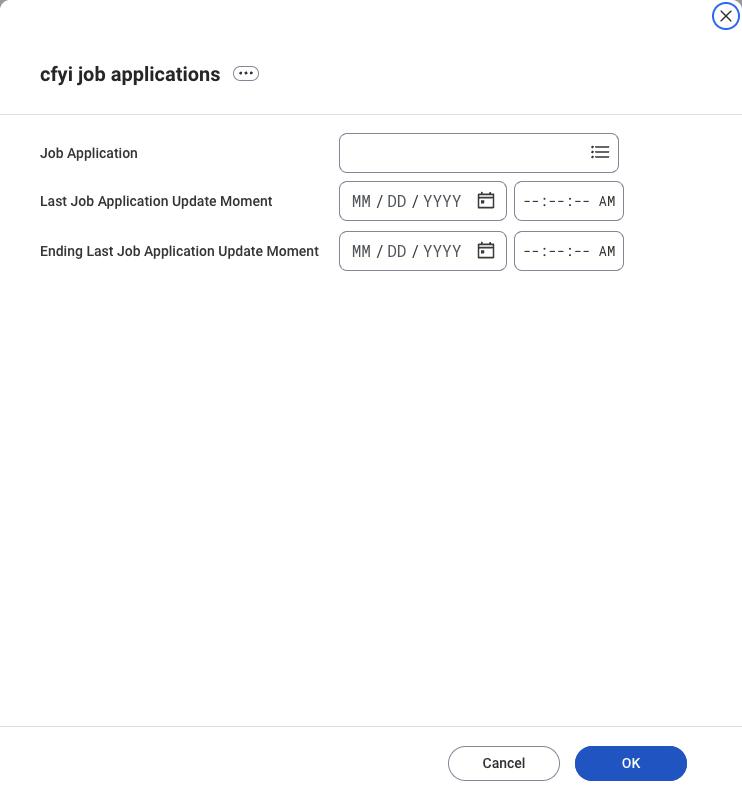
That's it. candidate.fyi starts using it within an hour.
Troubleshooting
No new prompt when you run the report: the Comparison Value must be Ending Prompt, not Default Prompt.
Syncs still aren't using it after an hour: check the XML alias is exactly
Last_Job_Application_Update_Moment_To.Something stopped syncing: make sure Required is unchecked and the comparison type is the "ignore if blank" option, then contact support.