Organization-wide email templates
Last updated: October 26, 2026
Approximate read time: 5 minutes
Organization email templates (org-wide or shared templates) are the standard candidate emails your company maintains in one place. Team members use them in scheduling and messaging; Editors and Admins create and update them on the Email Templates tab.
Who can manage org templates
Editor or Admin — Open Templates & libraries → Email templates, use the Email Templates tab, and create or edit org templates (unless a template is locked).
Admin (or the template creator, when applicable) — Lock or unlock org templates so Editors cannot change content until unlocked.
Navigating to org email templates
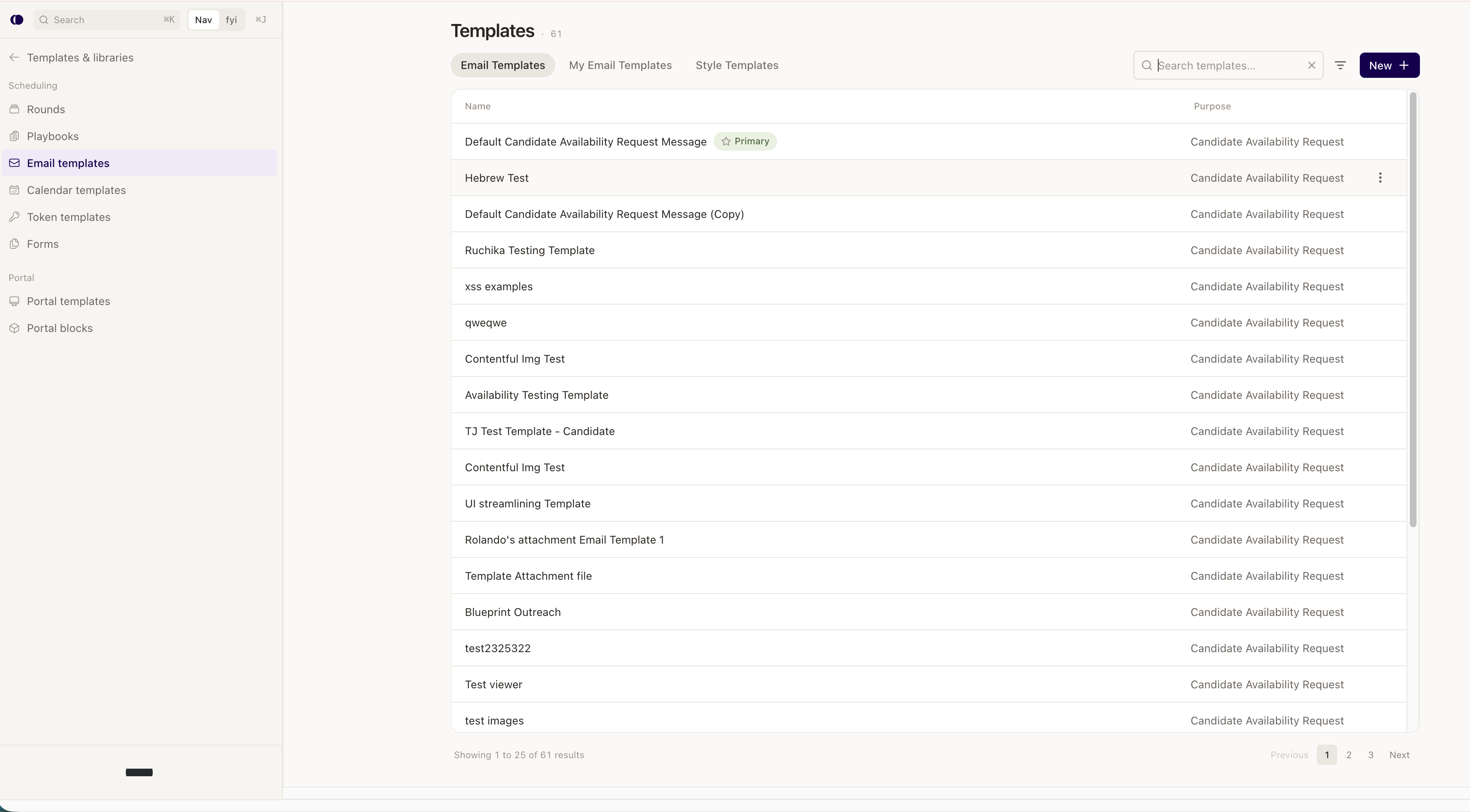
Sign in to candidate.fyi.
In the left sidebar, click Templates & libraries.
Click Email templates.
Select the Email Templates tab
Use Search and the Purpose filter to narrow the list. Each row shows Name, Purpose, and optionally a Primary badge or lock icon. Click a row to preview a template.
Create an org email template
On the Email Templates tab, click New (top right).
In Create Email Template, complete the form.
Click Save.
Template details
Name — Internal label. Make it clear when to use this template (for example, “Onsite confirmation – US”).
Purpose — Limits where the template appears in pickers:
Candidate Availability Request
Candidate Self Booking Request
Interview Confirmation
Generic
Style (optional) — Links a style template for HTML layout. Create styles on the Style Templates tab first (see your style templates article).
Email content
CC / BCC — Default extra recipients when this template is used.
Recruiter Communication — None, CC Recruiter, BCC Recruiter, CC Request Creator, or BCC Request Creator.
Subject — What candidates see in their inbox. Use the editor token menu to insert dynamic fields.
Body — Main message. Use formatting, links, and tokens (candidate name, interview details, video link, recruiter or request creator, job and company fields, and more).
Attachments (optional) — Files sent with the email when this template is applied.
Use the token picker in the subject and body editors for allowed placeholders. Available tokens article lists what each token resolves to.
Manage templates in the list
Open the ⋯ menu on a row:
Preview — Read-only view of the template.
Edit — Change fields and save. Disabled while the template is locked.
Duplicate — Copy to a new org template and adjust.
Mark as primary — Sets the default org template for that Purpose (not available for Generic). Only one primary per purpose; the list shows a Primary badge.
Unmark as primary — Removes primary status for that purpose.
Lock / Unlock — Lock prevents Editors from editing until an Admin or authorized user unlocks. Unlock restores editing.
Delete — Removes the template. You cannot delete a Primary template unless its purpose is Generic. Locked templates cannot be deleted until unlocked.
Where org templates are used
Org templates appear anywhere your organization configures shared candidate email, for example:
Scheduling requests — When you email a candidate, choose Email Template or Select Email Template; subject, CC, BCC, and body fill in from the template (you can edit before send).
Interview plans, schedulable stages, rounds, and job interview setup — Default request or confirmation email templates for a stage or round, when your workflow exposes those fields.
Company → Scheduling — Organization-level defaults for request or confirmation email, if your org uses them.
Only templates whose Purpose matches the scenario show in each dropdown—for example, self-booking flows use Candidate Self Booking Request templates.
Primary org templates are the defaults candidate.fyi prefers for that purpose when a specific template is not chosen.
Tips for org-wide standards
Use Purpose so coordinators only see relevant templates in each workflow.
Mark one template per purpose as Primary so new configuration picks a sensible default.
Lock approved templates after legal or TA sign-off so content stays consistent.
Use Generic for templates that must be available in multiple contexts; avoid overusing it if you want stricter purpose filtering.
Duplicate an existing org template when rolling out a regional or role variant instead of starting from scratch.