Nudge Agent Overview
Last updated: October 26, 2026
Nudge Agent keeps candidates and interviewers moving with timely reminders and follow-ups—so scheduling requests don’t stall waiting on a reply.
Open Nudge Agent
In the left nav, click Agents.
Open Catalog.
On the Nudge Agent card, choose Manage .
If the card shows On request or Coming soon, use Request access from Catalog first (see Agents Catalog).
What it does
Once a profile is attached to a job or playbook stage, Nudge Agent can send reminders and follow-ups tied to scheduling work—for example scheduler reminders, candidate follow-up nudges, interviewer attendance nudges, and candidate interview reminders (configured per profile).
Depending on which features are on, a profile’s “Used for” summary may list things like candidate follow-ups, scheduler reminders, and interview reminders—or fall back to “Scheduling requests.”
You’ll manage it from two tabs:
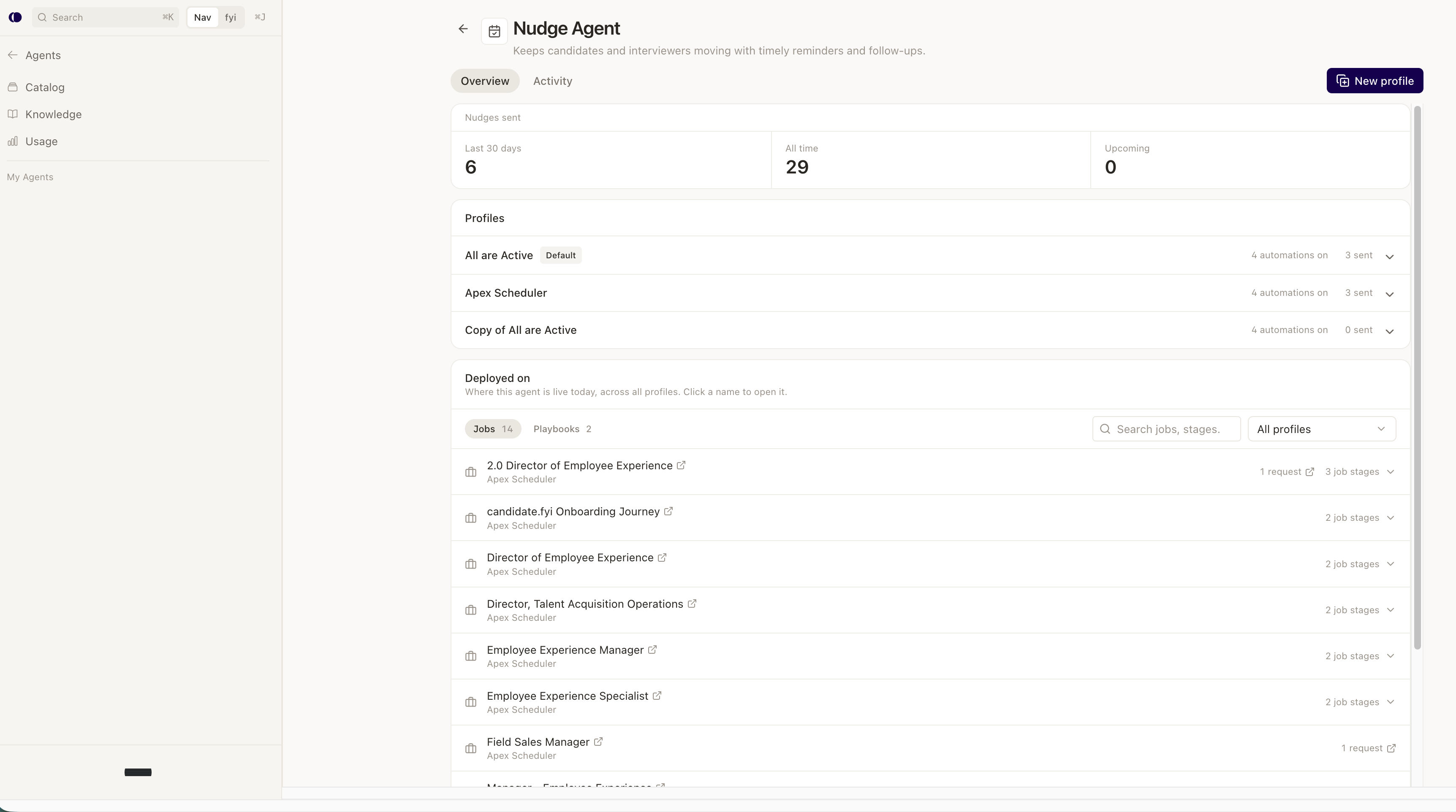
Overview — nudge outcomes, profiles, and where the agent is deployed
Activity — recent messages and related actions across profiles
Credit use appears under Usage (Agents → Usage).
Naming: Nudge Agent vs Scheduling
On job and playbook stages (and on requests), the agent slot is labeled Scheduling. Same agent—Catalog name vs stage slot name. Coverage summaries may also shorten it to “Nudge.”
When you’re attaching the agent in stage setup, look for the Scheduling chip under Agents (details in Deploy Nudge Agent).
Outcomes on Overview
At the top of Overview, outcomes are labeled Nudges sent, with:
Stat | Meaning |
|---|---|
Last 30 days | Nudges sent in the last 30 days |
All time | Nudges sent overall |
Upcoming | Queued / upcoming nudge work |
The Catalog card shows a shorter version: Nudges sent for Last 30 days plus Upcoming.
On Activity, summary tiles include Messages sent, Interviewers replaced, and Requests canceled.
Profiles
Below the stats, Profiles lists each Nudge Agent profile.
Typical cues:
Default — the primary profile for this agent type
Mode summary — “N automations on” when reminder/follow-up features are enabled, or Manual when none are on
Metric short count — for example “12 sent” for recent nudges on that profile
From a profile you can open Edit settings (reminder and follow-up toggles—see Configure Nudge Agent reminders and follow-ups). Use New profile to copy an existing profile—profiles are created by copying, not from a blank form.
If you see No profiles yet, your organization needs a first Nudge Agent before you can add more by copying.
Where it deploys
Deployed on shows where the agent is live today, across all profiles:
Jobs
Playbooks
Nudge Agent does not deploy to People and does not use Subscribe / My Agents.
How to attach the Scheduling slot on jobs and playbooks is in Deploy Nudge Agent.
Catalog and Usage
Discover and open the agent from Catalog (see Agents Catalog).
Monitor credit consumption for Nudge Agent in Usage (see Agents Usage).