Scheduling: Custom Statuses and Workflows
Last updated: October 9, 2026
Approximate read time: 4 minutes
After interviews finish, a scheduling request often still needs something to happen: feedback to come in, a hiring manager to sign off, a debrief to be booked. Custom statuses let you name those steps, and workflows decide when a request moves into each one automatically. This keeps your team's queue honest about what is waiting on whom.
The short version
A status is a label on a request, like Awaiting Hiring Manager Review. Each status says who the ball is with: On You, On Candidate, or No Action.
A workflow is a set of rules: "when this happens, set the request to that status."
Every round uses one workflow. If a round doesn't pick one, it uses your organization's default workflow.
Before you start
This feature has to be turned on for your organization. If you don't see the Status & Workflows tab in Scheduling settings, contact support. [CONFIRM: wording and who enables it]
Admins and Editors can add, rename and delete statuses and workflows. Other roles can view them but the buttons are greyed out. [CONFIRM: the workflow create/edit pages are currently Admin-only]
Where to find it
Go to Settings > Scheduling and open the Status & Workflows tab.
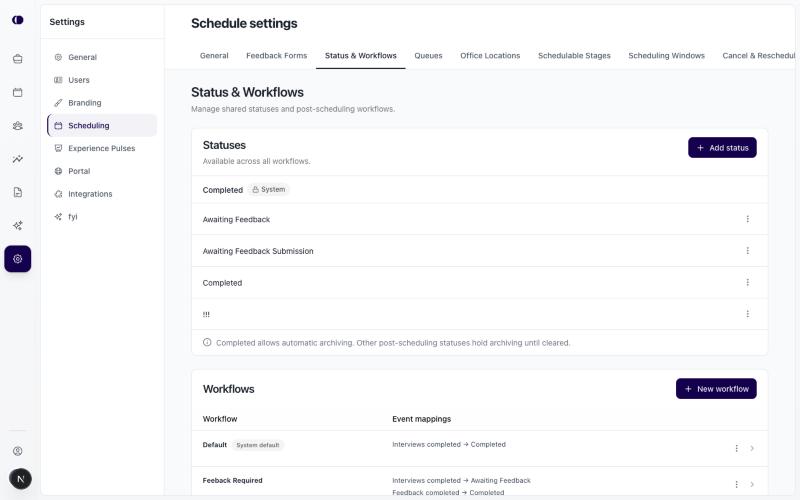
The page has two parts:
Statuses: every status you can use. Completed is built in (marked System) and can't be changed or deleted. Anything else is a custom status you added.
Workflows: the rules that move requests between statuses.
Add a custom status
In the Statuses card, click Add status.
Enter a Name, for example Awaiting Hiring Manager Review.
Pick an Ownership:
On You: your team needs to act.
On Candidate: you're waiting on the candidate.
No Action: nothing is needed right now.
Click Add status.
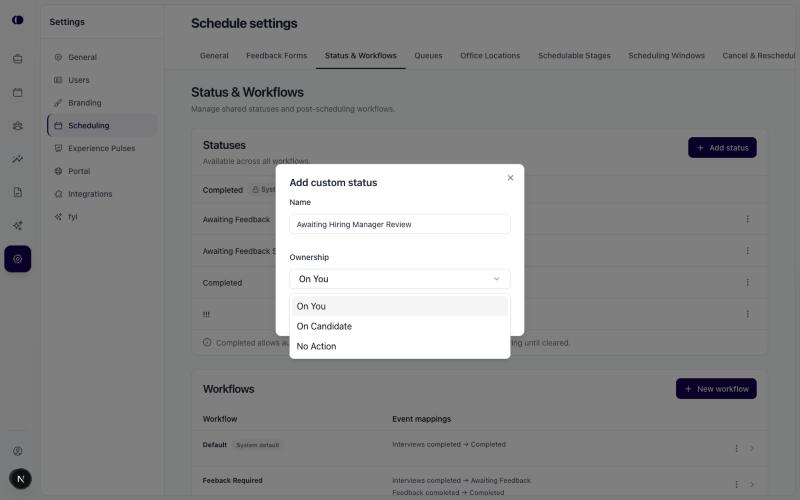
The new status appears in the list straight away and is available to every workflow.
Create a workflow
In the Workflows card, click New workflow.
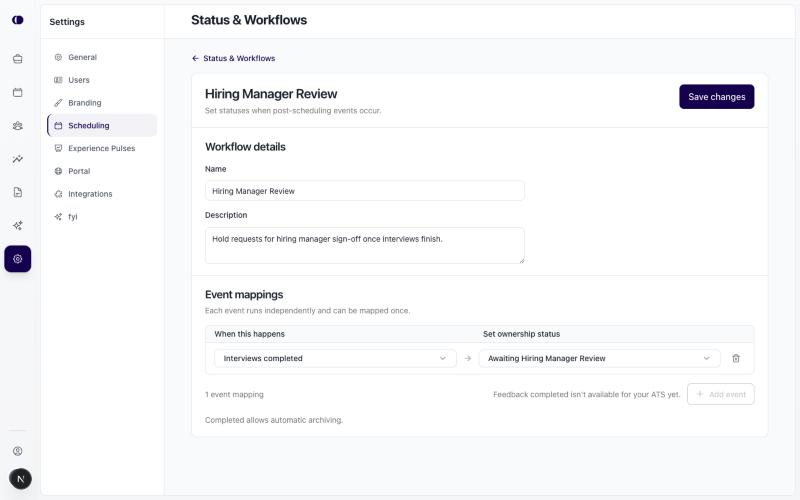
Give it a Name and, if you like, a Description.
Under Event mappings, click Add event.
Choose When this happens (the event), then choose Set ownership status (the status the request should move to).
Add more events if you need them, then click Save changes.
Good to know:
Each event can be used once per workflow, and each event works independently.
Interviews completed is available to everyone.
Feedback completed only appears if your ATS connection can report feedback status. If it can't, you'll see a note such as "Feedback completed isn't available for your ATS yet."
Completed allows the request to archive automatically. Any other status holds archiving until the status is cleared.
Manage your workflows
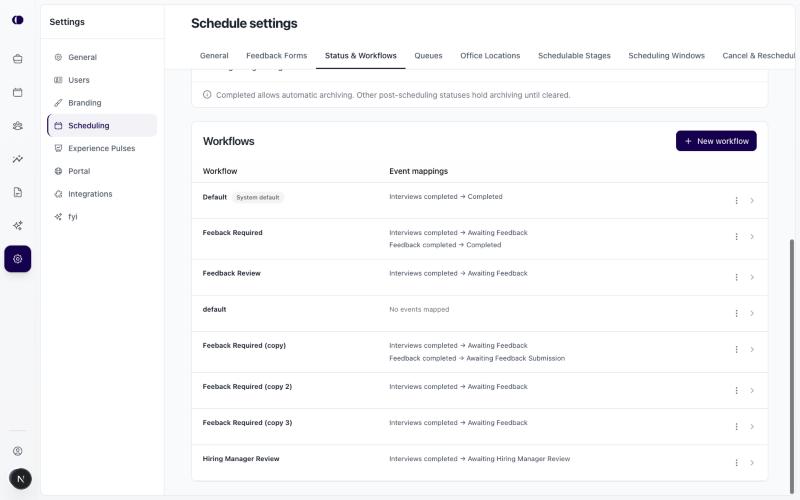
The Workflows card lists each workflow and what it does, for example Interviews completed → Awaiting Feedback.
Click a row, or use the three dots, to:
Edit: change the name, description or mappings.
Duplicate: make a copy to tweak. Handy for a small variation.
Set as default: use this workflow for every round that doesn't pick its own. The current default shows a System default badge and can't be deleted.
Delete: remove a workflow you no longer need.
a
Choose a workflow for a round
Go to Templates & Libraries > Rounds and open the round.
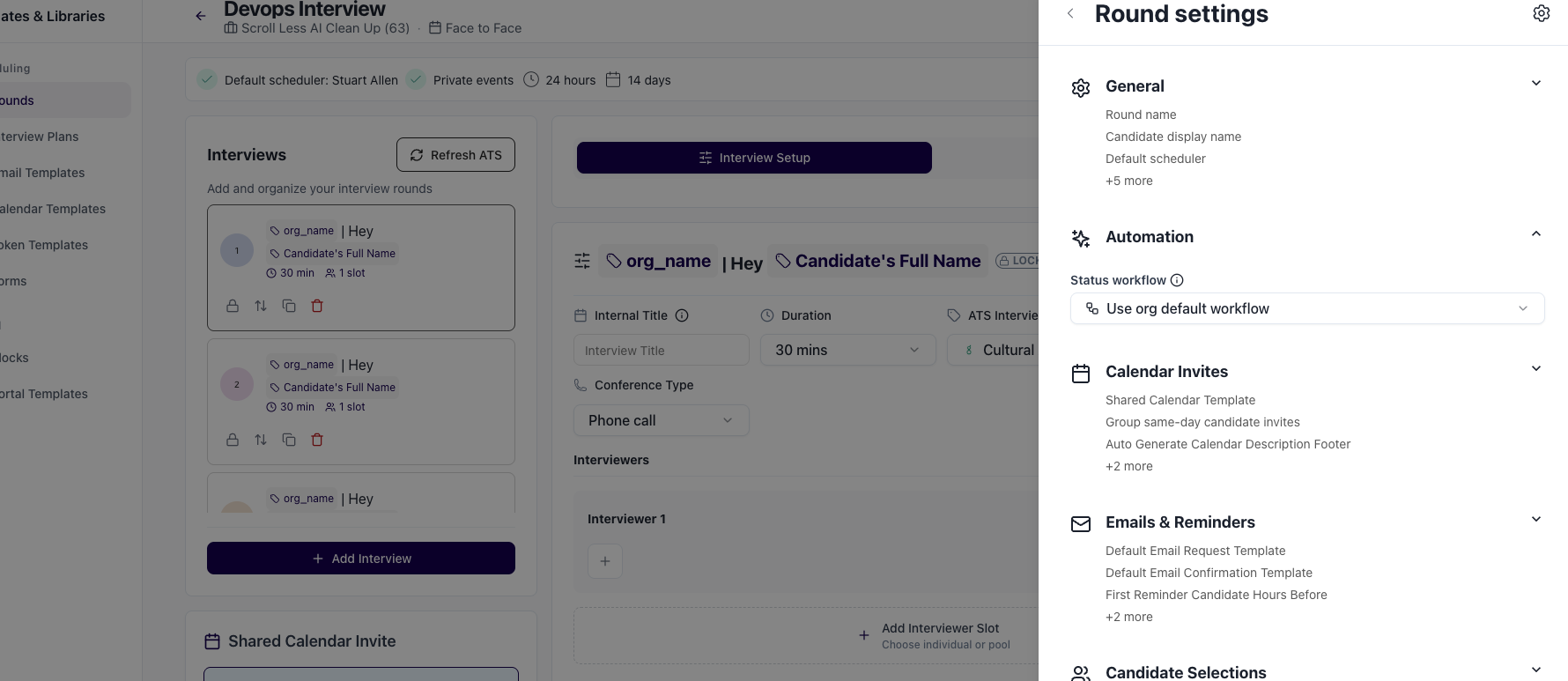
Open Settings > Automation.
Under Status workflow, pick a workflow. Leave it empty to use the organization default.
Example: hold requests for hiring manager sign-off
Add a status named Awaiting Hiring Manager Review with On You ownership.
Create a workflow named Hiring Manager Review.
Map Interviews completed to Awaiting Hiring Manager Review.
On the rounds that need sign-off, set Status workflow to Hiring Manager Review.
When the interviews for those rounds finish, the request moves to your new status and stays visible until someone clears it.
Troubleshooting
I don't see the Status & Workflows tab. The feature isn't enabled for your organization yet. Contact support.
Add status, Rename or Delete is greyed out. Your role is view-only. Ask an Admin.
I can't delete a status. A workflow is using it. Remove it from the workflow first.
I can't delete a workflow. The default workflow can't be deleted. Set a different workflow as the default first.
I can't pick Feedback completed. Your ATS connection doesn't report feedback status yet.