Connecting Outlook Account
Last updated: July 28, 2025
Introduction
This document provides instructions on connecting your Outlook account to our platform. This integration is essential for utilizing our scheduling features, which rely on Outlook Calendar for interview scheduling.
Each user who will be using candidate.fyi for scheduling will have to connect their calendar. This is typically each coordinator.
Requested Scopes:
openid
profile
offline_access
Calendar.ReadWrite
Calendar.ReadWrite.Shared
User.ReadBasic.All
Mail.Send (Only required if using direct mail integration)
Accessing Outlook Integration
To enable Outlook Integration:
Navigate to the your profile in the bottom left
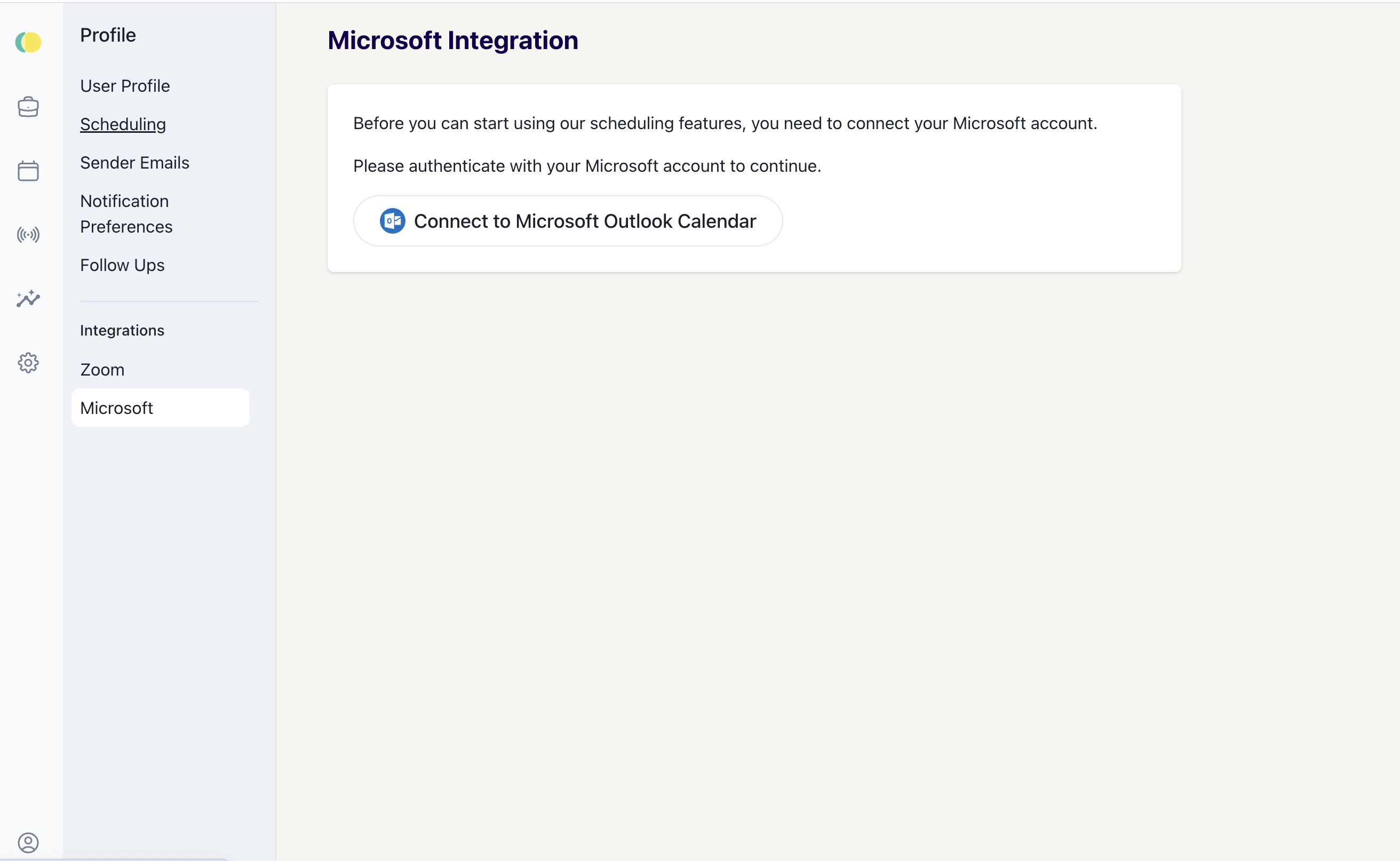
Select the 'Microsoft' tab on the side menu within the Integrations settings.
Steps for Microsoft Integration
Authentication Requirement: A message on the page states, "Before you can start using our scheduling features, you need to connect your Microsoft account."
Connect to Outlook Calendar: Click the 'Connect to Microsoft Calendar' button to initiate the integration process.
Connecting Your Outlook Account
Clicking the 'Connect to Outlook Calendar' button will redirect you to a Outlook sign-in page.
Sign in with your Outlook account credentials.
Troubleshooting
If you encounter issues while connecting your Outlook account, ensure that you are logged into the correct Outlook account and that you have a stable internet connection.
If problems persist, check to see if there are any restrictions in your Outlook account settings that might prevent third-party access.
Support
For assistance with issues related to Outlook Integration, please contact the support team. Provide them with any error messages you've encountered and the steps you have taken so far.