Delegating Scheduling Requests
Last updated: October 5, 2026
Overview
Use a delegate window when you will be out and want another scheduler to cover your requests. You stay the scheduler. For the length of the window, that person receives the notifications for your active requests, and you are copied on them.
Scheduler Active turns off while the window is in effect, so queues do not assign you new requests. It turns back on when the window ends, unless another window is still in effect.
Scheduling a delegate window
Your calendar needs to be connected before this section appears.
Go to Profile → Scheduler Settings.
In Coordinator settings, select Schedule.
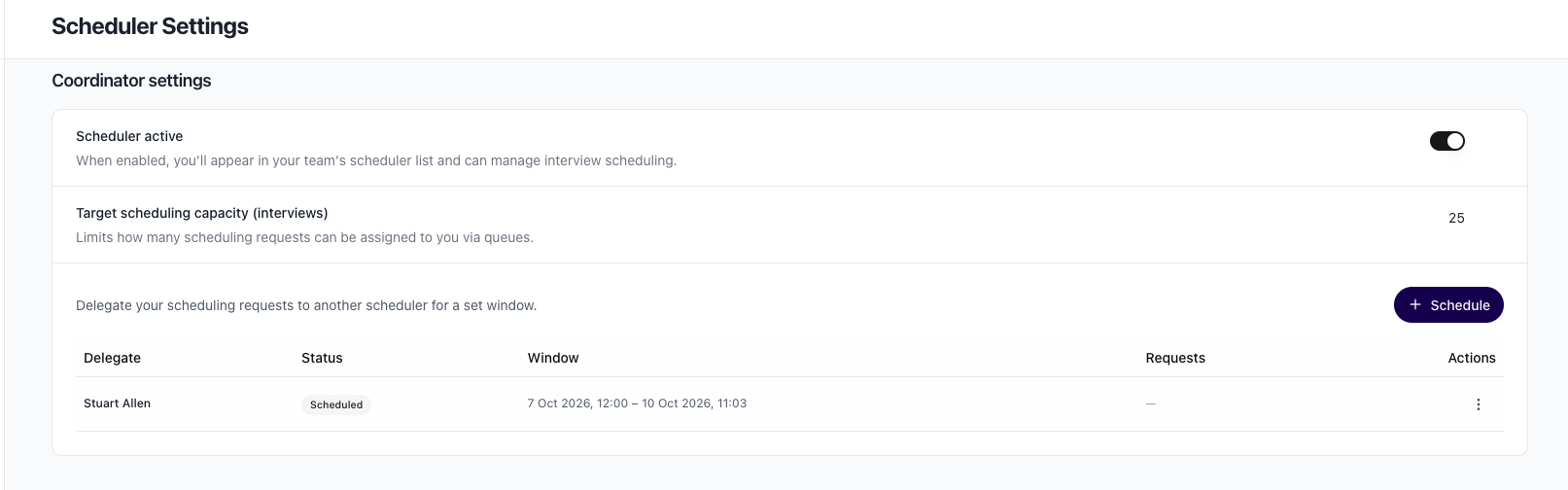
In Schedule Delegate, set Start. It is filled with the next hour. You can change it.
No end date (until cancelled) is checked, so the window stays open until you cancel it. Clear the checkbox and set End if you want it to stop on its own. The end must be after the start.
Under Delegate, choose a scheduler with a connected calendar. You cannot choose yourself.
candidate.fyi then checks which of your scheduling calendars that person can access. You can still schedule the window if they cannot access every calendar. The dialog lists each calendar and marks the ones they cannot access.
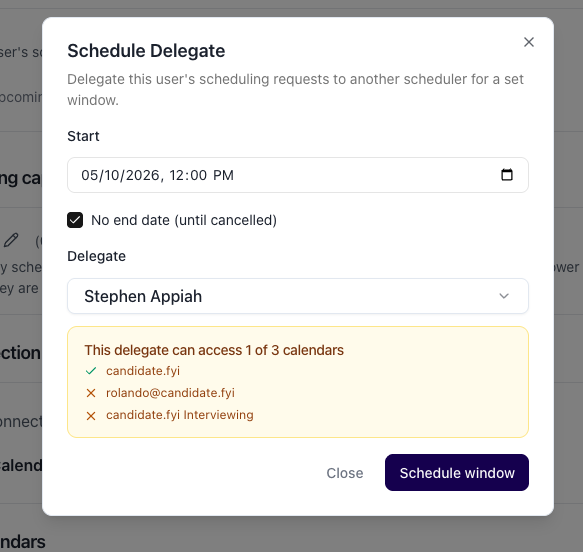
Select Schedule window.
The window appears in Coordinator settings. Nothing is delegated until the start time. If you cancel before then, no requests are delegated.
What happens when the window starts
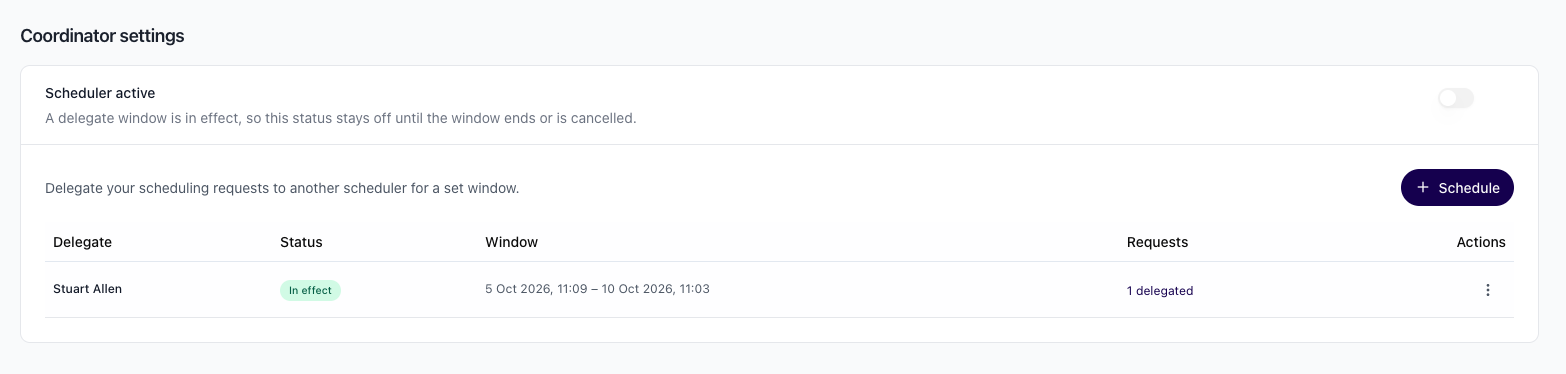
Scheduler Active turns off and stays off. The message reads: “A delegate window is in effect, so this status stays off until the window ends or is cancelled.”
Each of your active scheduling requests is delegated. Archived and canceled requests are not.
A request assigned to you while the window is in effect is delegated too.
The delegate gets an email that you assigned them those requests. The subject starts with [Action needed]. You are copied.
Later notifications for those requests go to the delegate. You are copied on them.
The requests show in the delegate’s My Requests.
You remain the scheduler on the request. The delegate does not take ownership of it.
What you should see
The table lists Delegate, Status, Window, Requests, and Actions.
A window that has started shows In effect.
A window that has not started shows Scheduled.
An open-ended window ends with No end date.
If you have no current or upcoming window, the section reads: “No current or upcoming delegate window.”
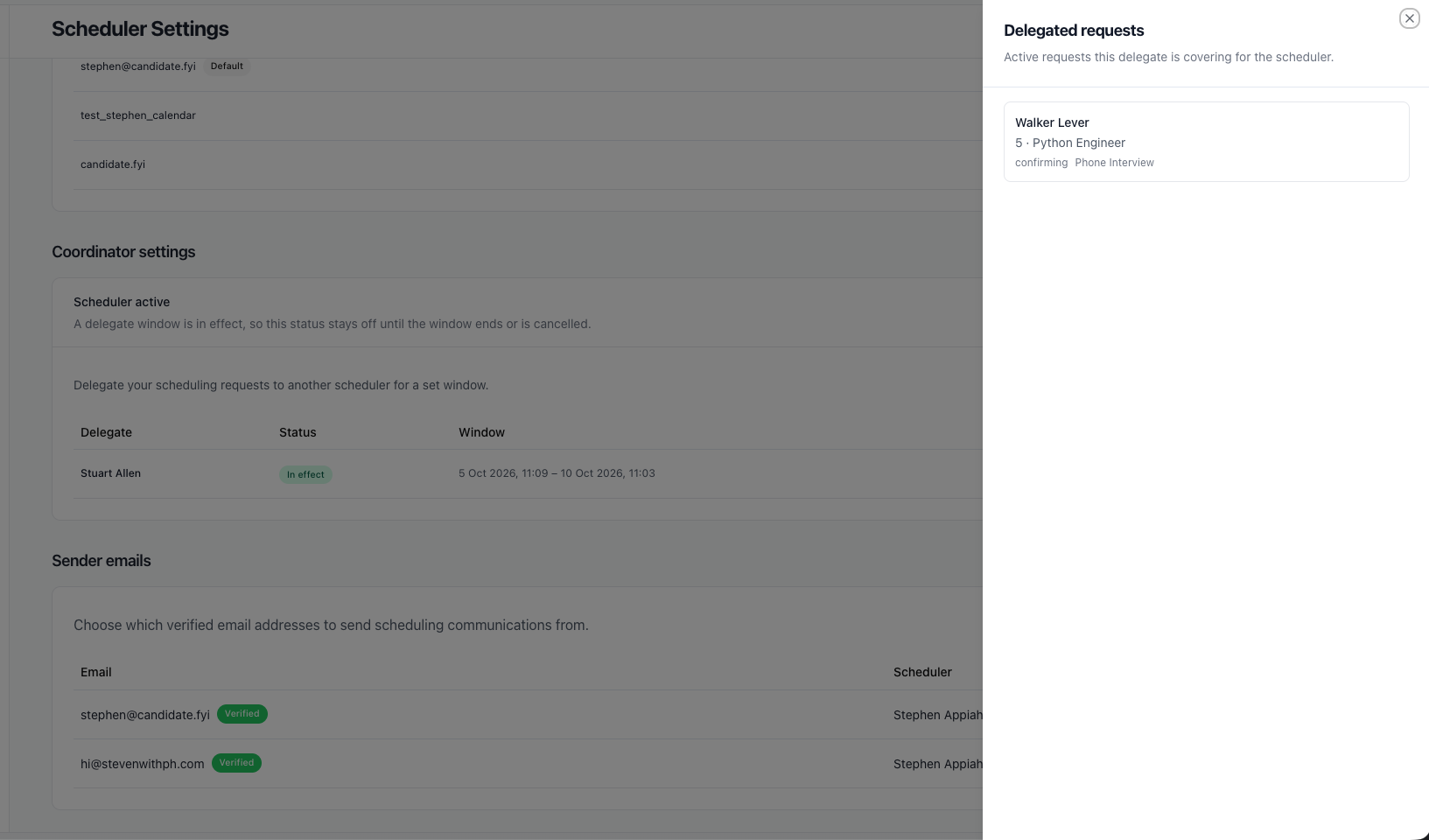
Select the requests count, such as 4 delegated, or open Actions and select View requests. The Delegated requests drawer lists the active requests that person is covering. Each row shows the candidate, job, status, and stage, and opens the request. View requests is available only while the window is in effect. If none are covered yet, the drawer reads: “No active requests are currently delegated.”
From Actions, select Edit to change the window. Before it starts, you can change the start, the end, and the delegate. After it starts, only the end can change. The dialog reads: “This window is already in effect, so only its end can change.” Select Save changes.
A new window cannot overlap a current or upcoming one. You can schedule another window that starts after the current one ends.
On the request
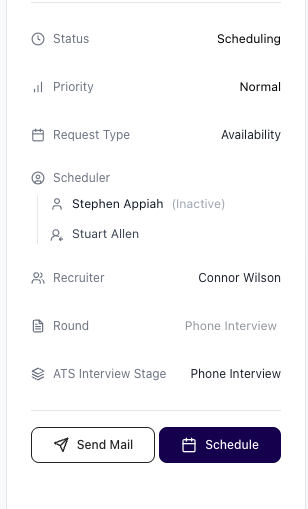
Once a delegate is added, the request’s Scheduler row shows you and the delegate. Editors and admins can choose a different delegate for that one request. That choice stays on the request. When the window ends, coverage ends for requests that are still delegated to the window’s delegate.
If the request is reassigned to another scheduler, this window’s coverage comes off that request.
Ending the window
The window ends at the End you set, or when you cancel it. Open Actions and select Cancel window. The dialog is titled Cancel Delegate. Select Cancel window to end it, or Keep window to leave it in place.
Screenshot placeholder — Cancel Delegate confirmation.
After the window ends or is cancelled:
Those requests are no longer delegated. Notifications come back to you.
Scheduler Active turns back on, unless another window is still in effect.
You get an email that coverage ended and you will receive notifications for those requests again. The delegate is copied.
Each request’s activity says the delegate was removed as delegate scheduler.
Delegating for another scheduler
Admins and editors can set the same window for someone else. Go to Scheduling → Schedulers, open the scheduler, and use Coordinator settings. The section reads: “Delegate this user's scheduling requests to another scheduler for a set window.”
While a window is in effect, that scheduler’s status stays Inactive and cannot be turned back on. The message reads: “A delegate window is in effect, so this scheduler is inactive until the window ends or is cancelled.”
Related articles
For more help, contact support@candidate.fyi.