Chrome Extension 101
Last updated: June 19, 2026
Let's Get Started!
🕑 3 min read
QUICK CONTEXT
The candidate.fyi extension is the tool used while working within the ATS, to action a candidate for scheduling. It can be downloaded from the App Store and once enabled, it will be connected to a 'Schedule in candidate.fyi' button on the candidate's profile in the ATS like the one shown here.
ANATOMY OF THE EXTENSION
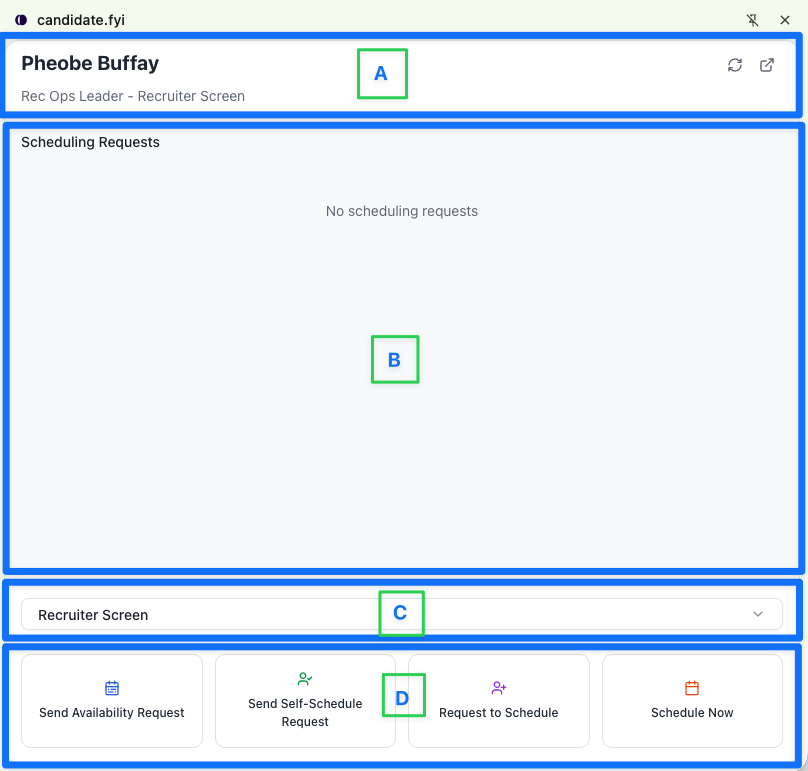
A (from right to left): Candidate's Legal Name, Job Title, Job Step, Refresh View, Create Pop Up Window (rather than in browser tab view.)
B: Scheduling requests will show here once actioned. See next section for more details.
C: The dropdown selection of the round the candidate is to be scheduled for.
D: The scheduling options available to the user. See below for definitions of each.
SCHEDULING OPTIONS IN THE EXTENSION
Within the extension, the candidate can be actioned for scheduling four different ways.
Send Availability Request: The candidate is sent an email with a link, asking them to submit their available times to interview. Settings on the Round level can help dictate minimum duration and timeframe the candidate must share.
Send Self-Schedule Request: The candidate is sent a direct link to book into the calendar of the interviewer. This is the most efficient way (both in effort and time) to schedule candidates.
Request to Schedule: Used as a handover, this function allows one team to signal to another that the candidate is ready to be scheduled by them. (i.e. when a recruiter is handing a candidate to a coordinator to schedule a panel interview.)
Schedule Now: This allows the user to immediately schedule the candidate without leaving the ATS.
ANATOMY OF A SCHEDULING REQUEST
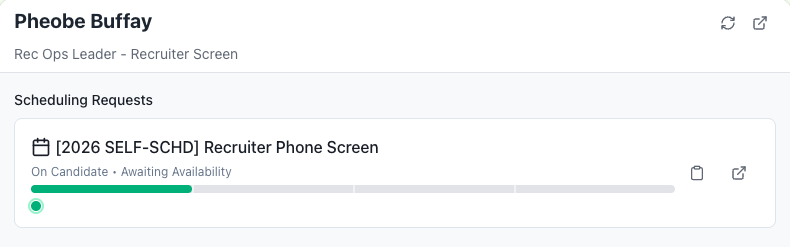
All scheduling type blocks will include the Internal Interview Title, ownership(who needs to action next task) and task description(what we are waiting for.) The progress bar is strategically coloured green when the ownership is on the candidate and orange when the action is for the person/team scheduling.
Send Availability Request will show 1/4 green bars. This indicates that the candidate has been sent an email to supply their availability and has NOT responded yet.
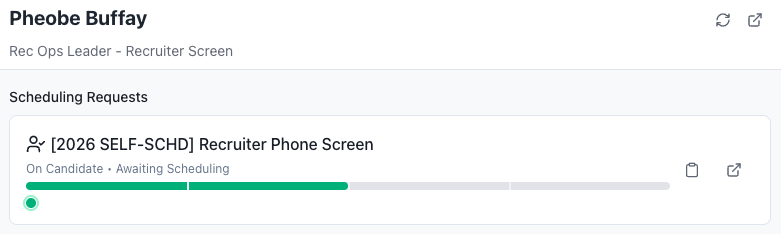
Send Self-Schedule Request will show 2/4 green bars. The additional green bar assumes that because the candidate will be booking directly into slots that are set to available with the interviewer's calendar, that they have already accepted. Once the candidate takes action, the 2/4 green bars will change to 4/4 green bars. This indicates a fully booked and accepted interview.
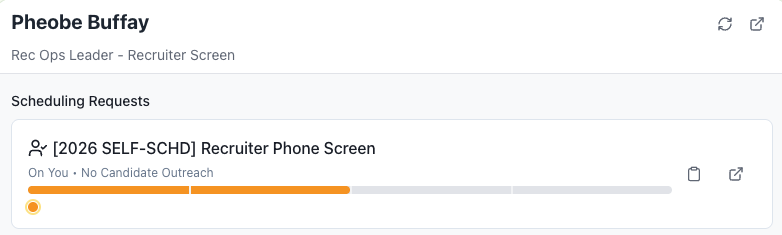
Request to Schedule will show 2/4 orange bars. These indicate that the scheduling has been assigned but not actioned yet.
Schedule Now will show 4/4 green bars. These indicate that the scheduling has been completed and confirmed. Interviewer icons are under the progress bar for ease of viewing.
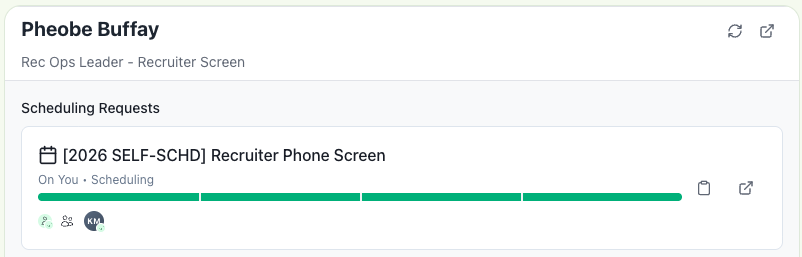
The progress bars can also been seen inside the candidate.fyi platfrom under the scheduling tab on the left side menu, per candidate.