Configure playbook stages
Last updated: October 26, 2026
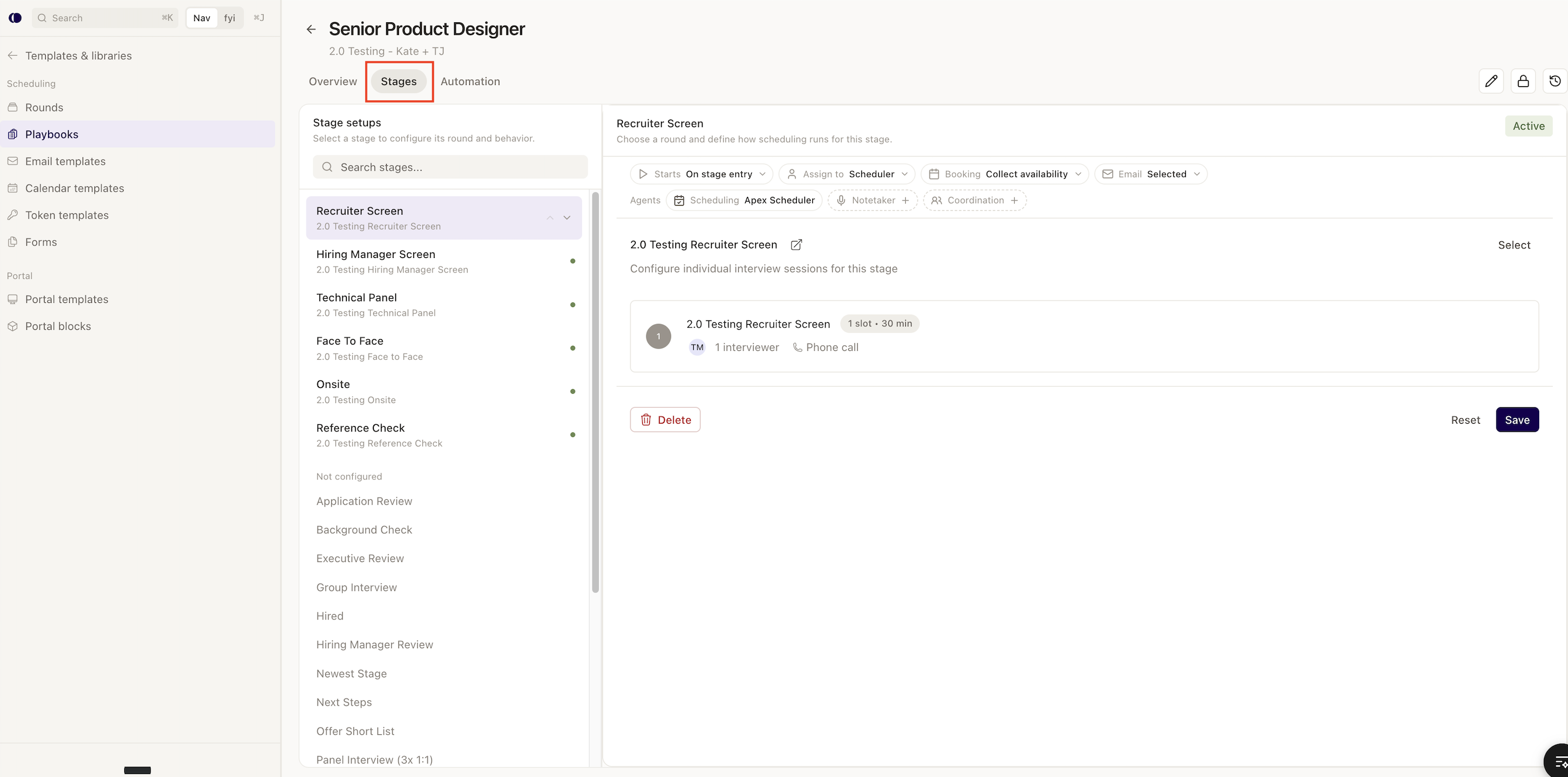
On a playbook’s Stages tab, map each ATS schedulable stage to a round template and how scheduling should run—when it starts, who owns the request, how candidates book, which email to send, and which Agents (if any) sit on that stage.
Jobs that use the playbook inherit this setup. For what a playbook is, see Playbooks Overview.
Open Stages
In the left nav, click Templates & libraries.
Open Playbooks (under Scheduling when that group is shown).
Open a playbook (or click New first—Create Playbook only needs a Name and optional Description).
Open the Stages tab.
Stage setups
Use Search stages... to find an ATS stage by name.
Stages you haven’t mapped yet appear under Not configured.
Click on a not configured stage, select a round, and then click 'Add' to add it to your configured stages.
Configured stages show the round name (or “No round selected”) and a badge such as Active when a mapping exists, or Not Configured when they still need setup.
Reorder
On the stage list, move a stage up or down to change order (controls are labeled for each stage name).
Select a round
For a stage that isn’t mapped yet:
Under Round Template, read “Select a round template for this stage.”
Click Select.
In Select interview round, search with “Search interview rounds...” and click Select round on the round you want.
After a round is chosen, the preview shows the round name and interview sessions. You can Select again to change the round. Create and edit round templates under Templates & libraries → Scheduling → Rounds.
Set stage behavior
Use the chips on the stage to define scheduling behavior.
Starts
Option | Description in product |
|---|---|
On stage entry | Create the request and email the candidate |
On stage entry, no email | Create the request; your team sends outreach |
Your team starts it | Nothing happens until someone schedules |
Assign to
Choose Scheduler or Queue, then pick a person/queue. Until something is picked, the chip may show Pick a scheduler or Pick a queue.
Booking
Options:
Collect availability: to create availability requests on this stage.
Self booking: to create self-scheduling requests on this stage.
If nothing is chosen yet, the chip can show Not set.
Pick an email template from your email library. Use Preview email when a template is selected.
If scheduling starts with an email and no template is set, you may see: “Pick an email template. It's required when scheduling starts with an email.”
Agents (optional)
The Agents row attaches agent profiles to the stage. Slot labels on the chip are:
Scheduling — Catalog Nudge Agent (see Deploy Nudge Agent)
Coordination — see Deploy Coordination Agent
Notetaker — Interview Companion in Catalog
Interviewer — AI Interviewer in Catalog
Save, reset, or delete a mapping
Action | When to use |
|---|---|
Add | First time you finish configuring an unmapped stage |
Save | Updating an existing mapping |
Reset | Discard unsaved edits on the form |
Delete | Remove the stage mapping |
Playbook badges vs job Active
On the playbook Stages tab, Not Configured vs Active means whether that ATS stage has a mapping in the template—not whether a specific job’s stage is live for candidates.
After a job uses the playbook, stage go-live and per-job Active/Inactive are handled on the job (and when you apply or activate the playbook). Details are in Apply a playbook to jobs.