Playbooks Overview
Last updated: October 26, 2026
A Playbook is a reusable template for how interviews run on jobs: which ATS stages map to rounds, what happens when the playbook is applied, and (optionally) which jobs get it automatically. Use playbooks so many roles share the same stage setup and automation instead of configuring each job from scratch.
Open Playbooks
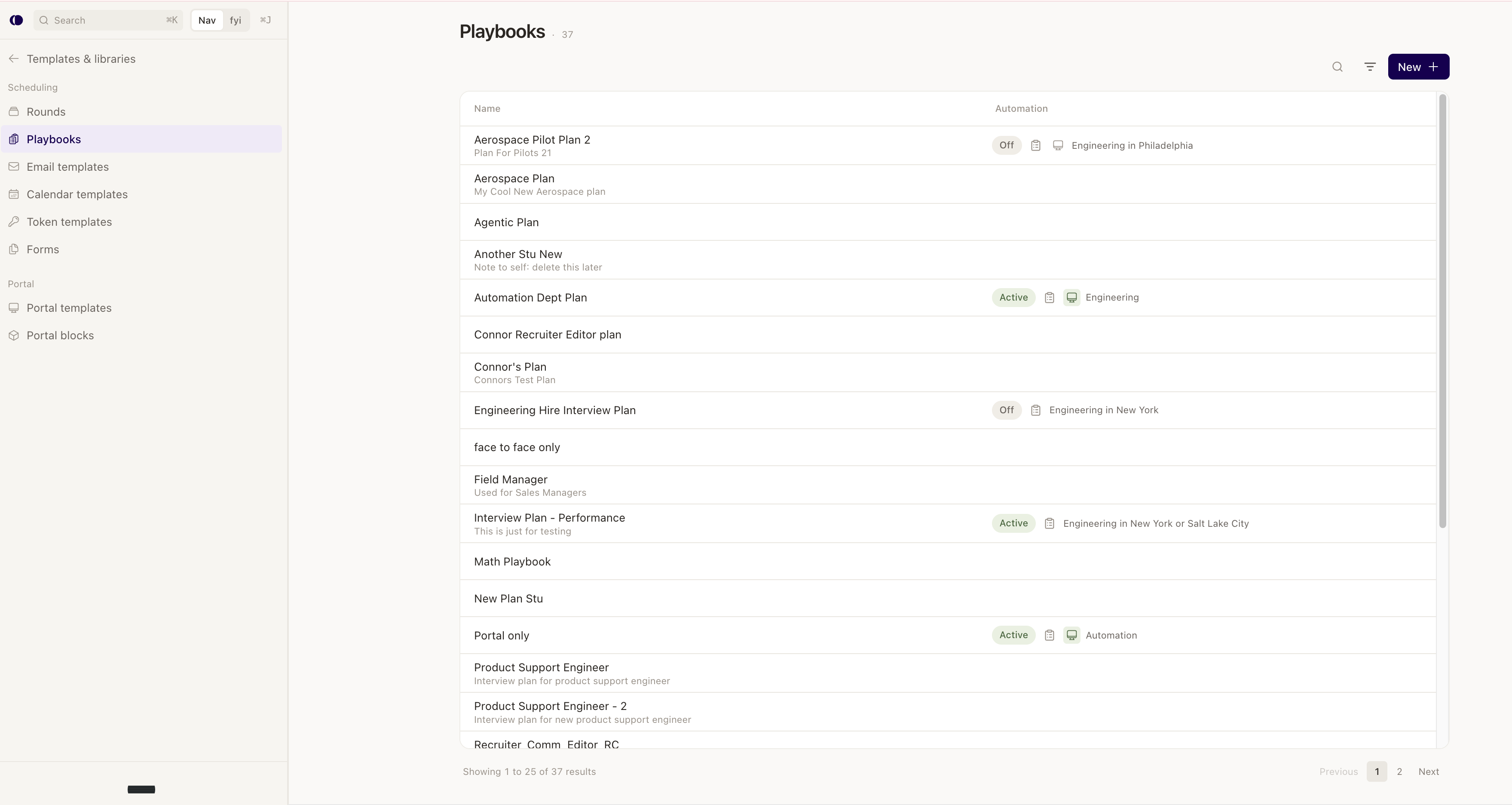
In the left nav, click Templates & libraries.
Open Playbooks.
Playbooks access is for Editor and above.
Playbooks list
The page title is Playbooks.
Search playbooks… — find playbooks by name.
New — create a playbook (Create Playbook: Name and optional Description).
Filters — sidebar titled Filters (“Filter playbooks by auto apply status and targeting”):
Auto apply status — All auto apply statuses, Active, Inactive, Not set up
Departments
Locations or Offices (depending on office syncing)
Table columns
Column | What you see |
|---|---|
Name | Playbook name and description; lock badge if locked. |
Automation | Auto-apply state when set up: Active / Off, plus marks such as Stages go live / Stages stay off, optional portal template info, and targeting summary. |
Empty list: No playbooks found.
Row menu: Edit, Lock / Unlock (when you can manage locks), Delete.
Open a playbook
Click a row to open that playbook. Tabs:
Overview — summary of Which jobs auto-apply covers and What happens when a job gets the playbook (including stage steps, or No stages yet / Add stages).
Stages — map ATS stages to rounds and stage behavior.
Automation — auto-apply rules (which jobs, go-live / portal behavior when applied).
Playbooks and Jobs
On Jobs, the Setup column can show a Playbook mark (Stages live / Stages off). From the Jobs list, users can select jobs and use Actions → Playbook (Apply Playbook, Activate Playbook and Stages, Deactivate Playbook and Stages). You can also apply a playbook from a job’s own setup. Auto-apply, when Active, attaches the playbook to matching jobs without that manual step.