Navigating the admin interface
Last updated: December 24, 2025
The admin interface of candidate.fyi is designed to provide a comprehensive and intuitive user experience for managing candidate.fyi. The interface is segmented into distinct areas, each accessible via icons on the dashboard. Here's a high-level guide on navigating these sections:
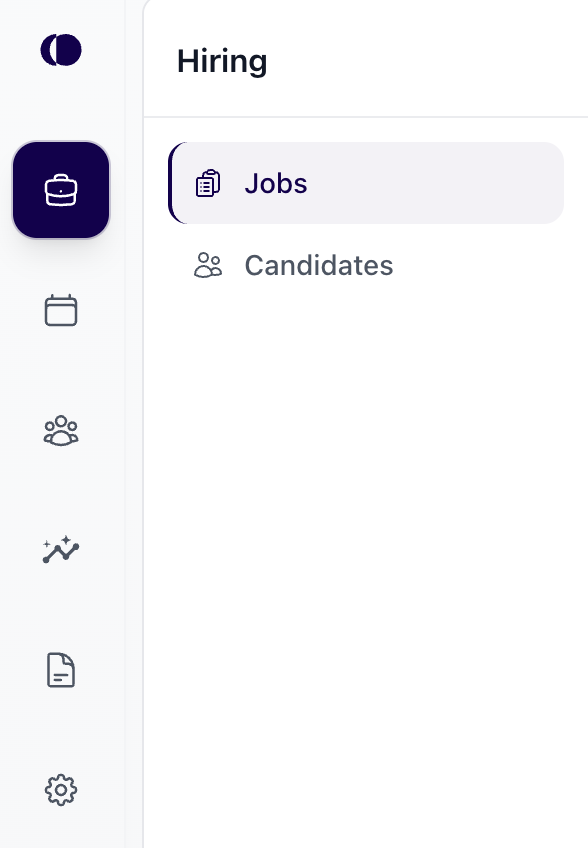
Hiring (Briefcase Icon)
Located on the left-hand side, the briefcase icon opens the hiring section. This area mirrors your jobs from the ATS and centralizes everything related to active roles.
Within Hiring, you’ll find two subsections:
Jobs: View all jobs, see which have active portals and interview automation configured.
Candidates: Access candidate lists tied to each job, including interview and feedback status.
Selecting a job provides a detailed view that includes key metrics, an interview pipeline overview, and links to edit the job’s portal or configure interview automation.
Scheduling (Calendar Icon)
This icon takes you to the scheduling area where all interview and event scheduling requests are managed.
Scheduling requests in each queue are color coded:
Orange Bars: You need to take action (e.g., send an invite or book a time).
Green Bars: No action required (e.g., you are waiting on the candidate to submit availability).
Interviewers (Users Icon)
The Interviewers section consolidates everything related to your interviewer management.
You’ll find:
Interviewer profiles and preferences
Tags and interviewer pools
Training modules
Booking links
This area serves as a single space for managing interviewer information and improving interviewer coordination.
Templates & Libraries (Page Icon)
All reusable setup content lives under templates & libraries, including:
Rounds
Interview Plans
Email templates
Calendar templates
Token Templates
Forms
Portal blocks
Use this area to create and maintain templates for consistent communication and scheduling across jobs.
Insights (Graph Icon)
The graph icon opens the analytics and reporting area.
Here, you can view data from portals, pulses, and scheduling to understand performance trends and make informed, data-driven decisions.
Pulse responses live within Insights → Pulses, where you can review candidate experience feedback and survey results.
Global Settings and Users (Cog Icon)
The Cog icon leads to your administrative settings. This is where you manage organization-wide settings such as branding, integrations, and team member roles and permissions.
Personal Settings (User Profile Icon)
The User Profile icon is where you can manage your own account settings.
Here, you can update personal information, connect your email or calendar, and access your personal booking links.