Zoom (User Setup)
Last updated: October 26, 2026
Introduction
By connecting your Zoom account to candidate.fyi, you can automatically generate a unique Zoom link for each of your scheduled meetings. When a candidate schedules a meeting with their recruiter, candidate.fyi generates a unique Zoom link and attaches it to the calendar invite they are sent.
Connecting Zoom
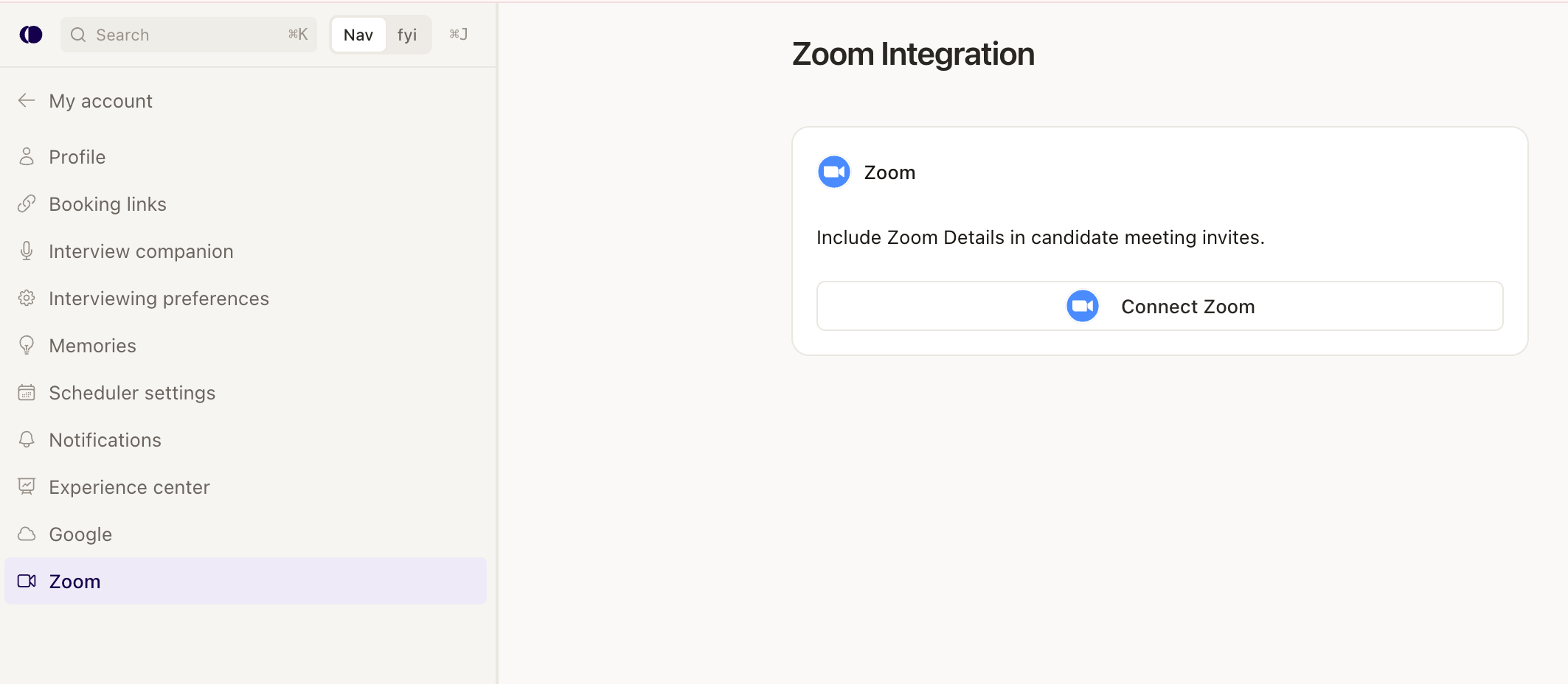
To connect your Zoom account, open My account → Zoom in the candidate.fyi admin portal.
Once there, you can connect your Zoom account directly to your candidate.fyi account with Connect Zoom.
If you see a message that personal Zoom connections are not enabled for your organization, ask an admin—your org may use company-level Zoom instead of personal connections.
Once you're connected
Once your Zoom account is connected, you can select Zoom as the location for your scheduled events.
Open My account → Booking links, stay on the Booking Links tab, edit the job or link, and set Meeting Type to Zoom.
You can also set Zoom as your default meeting type for all booking links by opening the Settings tab on Booking links, then setting Meeting Type under Default Values to Zoom.
Once Zoom is selected as the meeting type, scheduled events include a link to join the Zoom meeting, as well as links to reschedule and cancel.
Disconnecting Zoom
To disconnect your Zoom account, open My account → Zoom and click Disconnect Zoom.
Please note that any events that were created before you disconnected your Zoom account will still have Zoom meetings and connection information attached.
Alternatively, you can remove the app from Zoom directly:
Log in to your Zoom account and open the Zoom App Marketplace.
Click Manage → Added Apps, or search for the Zoom for candidate.fyi app.
Open the Zoom for candidate.fyi app.
Click Remove.