Zoom Host Pools
Last updated: October 26, 2026
Zoom Host Pools in candidate.fyi help you run many Zoom interviews at once, beyond what a single Zoom user can host under a normal license. Organizations often add dedicated Zoom accounts (for example, accounts upgraded for higher concurrent meeting limits) and register them in a host pool. candidate.fyi then assigns meetings across those accounts when you schedule interviews.
This guide covers turning on host pools at the company level and choosing pool hosting when you configure rounds and scheduling requests.
Who can configure host pools
Only users with the Admin role can connect Zoom and manage host pool settings. If you do not see Company in the left sidebar, or Integrations under Company, ask an admin on your team.
Setting up Zoom Host Pools
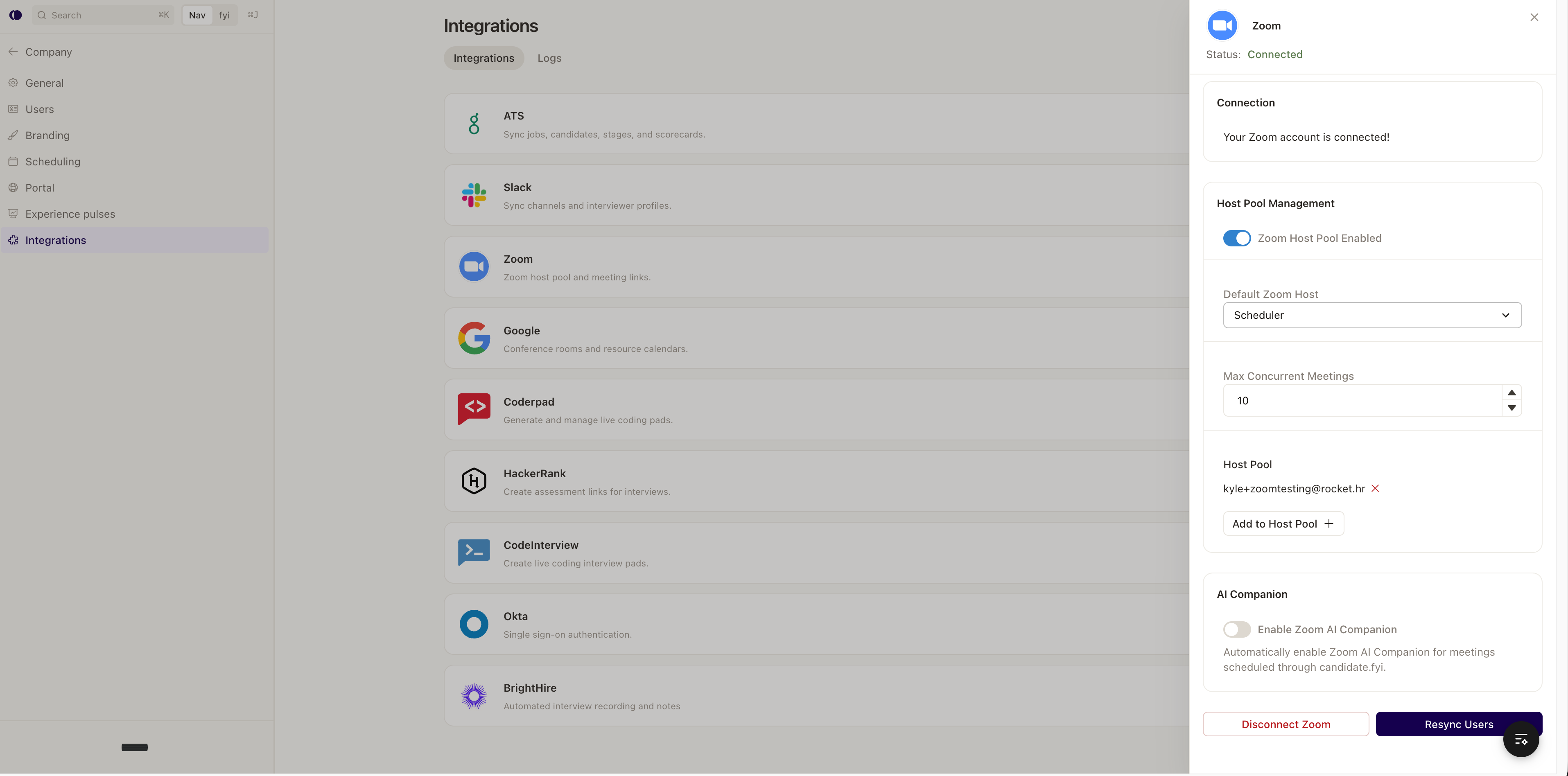
Step 1: Open Company settings
Log in to your candidate.fyi account.
In the left sidebar, click Company.
Step 2: Connect Zoom
Under Company, select Integrations.
Open the Zoom integration.
If Zoom is not connected yet, follow the prompts to connect your organization’s Zoom account. Host pool settings are available only after Zoom is connected.
Step 3: Configure Host Pool Management
In the Host Pool Management section on the Zoom integration page:
Turn on Zoom Host Pool Enabled to activate host pools for your organization.
Set Default Zoom Host to choose what new Zoom meetings use by default:
Host Pool — assign hosting to an account from your pool (recommended for high-volume scheduling).
Interviewer — the interviewer’s linked Zoom account hosts when eligible.
Scheduler — the scheduler’s linked Zoom account hosts.
When host pools are enabled, set Max Concurrent Meetings to match the limit you have with Zoom for your pool accounts (for example, 20 per licensed host). Click Save if you change this value.
Under Host Pool, add the email addresses of the Zoom accounts in your pool:
Click Add to Host Pool.
Enter the account email and save.
Remove an account with the remove control next to its email if needed.
These accounts should be the Zoom users you provision for concurrent hosting (licensed and configured in Zoom for the meeting volume you expect).
Using Zoom Host Pools when scheduling
You do not turn host pools on again per meeting with a separate “Zoom Host Pool Enabled” toggle. Instead, pick a conference type and how the Zoom host is chosen.
Host pool options appear in interview settings when Zoom Host Pool Enabled is on at the company level.
Where to configure
Set conference and Zoom host options in any of these places:
Templates & libraries → Rounds — when creating or editing a round template.
Hiring → [Job] → Interview setup — when configuring interviews for a specific job.
Scheduling — when creating or editing a scheduling request.
Open the section where you define Conference Type and related video settings for each interview.
Step 1: Choose Conference Type
For Conference Type, select one of:
Zoom — a Zoom meeting; you then choose who hosts (Step 2).
Shared Zoom — always uses your Host Pool (only when host pools are enabled). You do not pick Interviewer or Scheduler for Shared Zoom.
Step 2: Choose how the Zoom meeting is hosted (Zoom only)
When Conference Type is Zoom, set Zoom Host (sometimes labeled Zoom Host Type in scheduling views):
Host Pool — candidate.fyi schedules on one of the pool accounts from Company → Integrations → Zoom.
Interviewer — the interviewer’s connected Zoom account hosts (when eligible).
Scheduler — the scheduler’s connected Zoom account hosts.
If you leave this unchanged, new interviews follow your company Default Zoom Host from Host Pool Management.
Scheduled interviews that use the pool may show Zoom Host Pool next to the conference type in scheduling summaries.
Tips
Connect org Zoom under Company → Integrations → Zoom before adding pool emails.
Align Max Concurrent Meetings with your Zoom licensing.
Use Shared Zoom when every interview in that configuration should always draw from the pool.