Using bulk actions
Last updated: November 2, 2026
Bulk actions let you apply portals and playbooks to multiple jobs at once, streamlining setup and reducing repetitive work.
Overview
Instead of manually configuring portals or playbooks one job at a time, bulk actions allow you to select multiple jobs and apply changes simultaneously. This is especially useful when activating several roles at once, rolling out a new portal template, or ensuring consistency across job setups.
Bulk actions run asynchronously in the background. After you initiate a bulk action, you can continue working in candidate.fyi. You'll receive an email notification when the bulk action completes; if any jobs fail to update, the email includes details about what went wrong.
Who can use bulk actions
Bulk actions are available to users with Editor or Admin permissions. Viewers and non-approved members cannot access this feature.
Available bulk actions
From the Jobs page, select jobs and open Actions → Portal or Actions → Playbook.
Copy Portal from Job
Copies another job’s portal onto the selected jobs. You choose the source job in the dialog. Use this when you want to give jobs a portal structure based on an existing job.
What happens if a job already has a portal? If a job already has a portal set up, copying from another job replaces the existing portal configuration. Any customizations made to the original portal are overwritten. You can set the copied portal to Draft or Live.
Apply Portal Template
Applies a portal template to the selected jobs. Use this when you want jobs to use a shared template from Templates & libraries.
What happens if a job already has a portal? It depends on whether your organization uses playbooks:
With playbooks: the job's current portal is replaced with the template, whether it's detached or linked to another template, and whether or not the job has a playbook. Live portals are skipped unless you check Include live portals. Live portals you include stay live, and candidates see the new pages right away.
Without playbooks: jobs already linked to a different portal template are skipped. Other portals are replaced, live ones included.
Jobs that are skipped show the reason in the bulk-action tracker.
Publish Portal
Makes candidate portals live for the selected jobs. Once published, candidates assigned to these jobs will be able to access their portals and view the content you've configured.
What happens if a job's portal is already published? The action completes successfully without making changes. The portal remains published.
Unpublish Portal
Takes candidate portals offline for the selected jobs. Candidates will no longer be able to access portal content for these roles.
What happens if a job's portal is already unpublished? The action completes successfully without making changes. The portal remains unpublished.
Apply Playbook
Applies a predefined playbook to the selected jobs. This sets up interview stages, rounds, and default automations according to the playbook you've configured.
What happens if a job already has a playbook? If a job already has a playbook (or plan) set up, applying a new playbook replaces the existing configuration for matching stages. Any job-specific customizations (such as assigned interviewers) will be overwritten by the defaults in the new playbook.
Activate Playbook and Stages
Activates the playbook and its stages for the selected jobs so interview automation can run on those roles.
Deactivate Playbook and Stages
Deactivates the playbook and its stages for the selected jobs.
How to use bulk actions
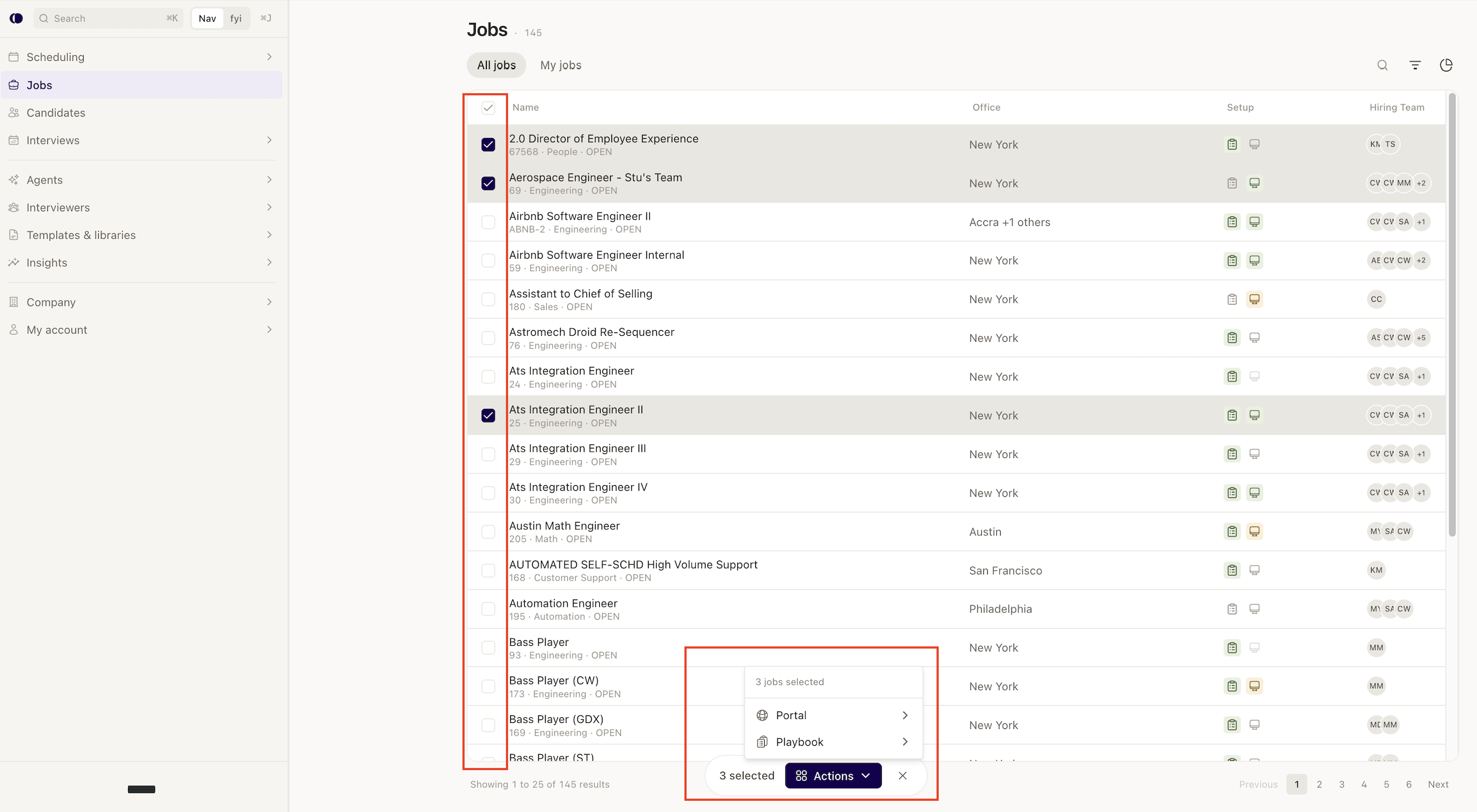
Navigate to the jobs list in candidate.fyi.
Select the jobs you want to update by checking the boxes next to each job, or use Job Filters to narrow down your list and select all matching jobs.
If you selected all jobs matching your current filters, you can unselect specific jobs before proceeding. This grabs everything that applies to your filters except the ones you unselect.
Click the Actions button and choose Portal or Playbook, then choose the action you want to perform.
Confirm your selection in the dialog (pick a source job, template, or playbook where prompted). The action will begin processing in the background.
Track progress using the bulk-action tracker on the Jobs page.
Important: You can only see bulk actions that you initiated. Other team members' bulk actions won't appear in your view.
Troubleshooting
My bulk action is taking a long time
Bulk actions process asynchronously and may take several minutes depending on the number of jobs selected and system load. Check the tracker on the Jobs page for the current status. If the action has been running for an unusually long time, contact support.
Some jobs failed to update
If any jobs fail during a bulk action, you'll receive an email notification listing which jobs failed and the reason for each failure (up to ten failed items in the email). Common reasons include:
The job no longer exists in your ATS
Permissions or configuration issues specific to that job
The portal, portal template, or playbook was deleted or is unavailable
Review the failure details and manually address any issues for those jobs, or retry the bulk action after resolving the underlying problem.