Candidate Portal Overview
Last updated: February 14, 2026
Understanding and Managing Candidate Portals
Candidate Portals are a core feature of the candidate.fyi experience, designed to provide candidates with a transparent, branded, and informative overview of their interview journey. By surfacing real-time data from your Applicant Tracking System (ATS), portals help reduce candidate anxiety and minimize manual status updates from your coordination team.
Overview
A Candidate Portal acts as a personalized dashboard for every applicant. It pulls information directly from your ATS to show candidates:
Their current stage in the hiring process.
Upcoming interview details.
Company culture content, team introductions, and benefit overviews.
A centralized location to submit availability.
Setting Up Your Portal
Portals are currently configured on a per-job basis. While you can duplicate settings using templates, each new job opened in your ATS requires a corresponding portal activation in candidate.fyi.
1. Mapping Interview Stages
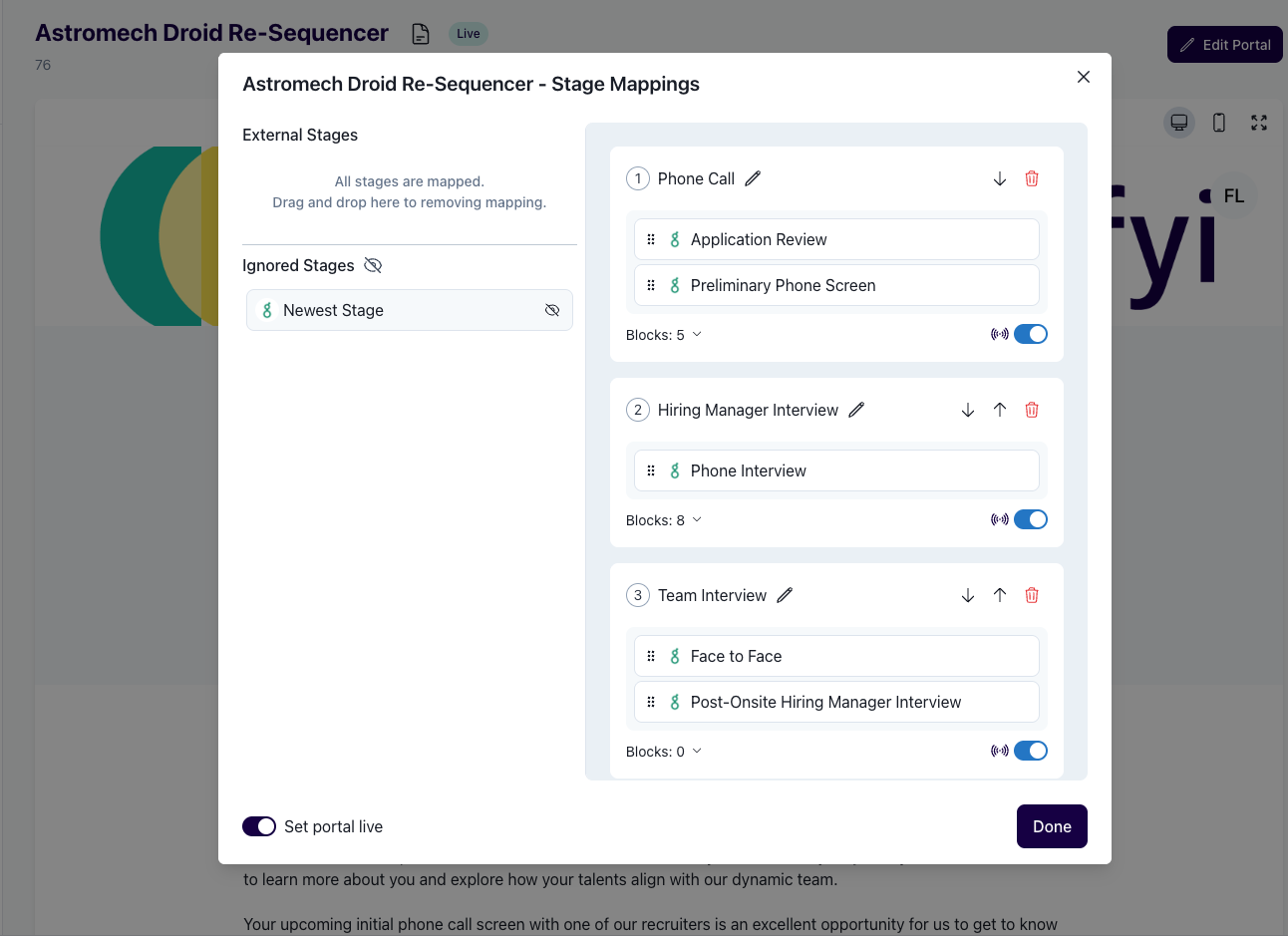
To ensure candidates see the correct information at the right time, you must map your ATS stages to candidate.fyi stages.
Navigate to the Jobs module and select your specific job profile.
Go to the Portal Settings.
Map ATS Stages: Align your internal ATS stages (e.g., "Hiring Manager Review") with the public-facing candidate.fyi stages.
Note: You can group multiple ATS stages into a single portal stage to simplify the view for the candidate.
Define External/Ignored Stages:
External: Candidates can log in but won't see "Next Steps" progress.
Ignored: Candidates in these stages (e.g., "Application Review") will not have access to the portal.
2. Configuring Automated Notifications
You can automate the invitation process to ensure a seamless experience.
Portal Invitation Email: Toggle this ON to automatically trigger a welcome email containing a "Magic Link" as soon as a candidate moves into a mapped portal stage.
Manual Sharing: If you prefer manual control, you can toggle the auto-invite OFF and include the portal link or token in your existing email templates or calendar invites.
Customizing Portal Content
Using Portal Blocks, you can tailor the information a candidate sees based on how far they have progressed in the interview funnel.
Using the Content Library
We recommend building your content in the Templates and Libraries section first.
Global Updates: When you update a "Value" or "Benefits" block in the library, it automatically updates every portal using that block.
Block Types: You can add Text, Images, Videos, or Team Member profiles and more.
Stage-Specific Content
You can "stack" content so it remains relevant to the candidate's journey:
Early Stages: Add "About Us" videos and company mission statements.
Technical Stages: Add "What to Expect" guides for coding challenges or portfolio reviews.
Late Stages: Add detailed benefits PDFs, office location maps, or "Meet the Team" bios.
Candidate Experience & Feedback
Access and Security
Magic Links: Candidates log in via a secure link sent to their email. Links are valid for 30 days.
Multiple Applications: If a candidate applies for two different roles, they use the same link. A dropdown menu in the top-right corner allows them to toggle between their different job portals.
Mobile Optimized: All portals are fully responsive and can be viewed on any mobile device.
Candidate Pulses (Surveys)
"Pulses" are automated, generic feedback requests sent via email after a candidate completes a stage.
Candidates rate their experience using five emojis and an optional comment field.
Note: These messages are standardized and not customizable.
Best Practices
Start with New Roles: It is most efficient to enable portals for newly opened jobs rather than retroactively mapping stages for active, mid-flight roles.
Involve Marketing: Collaborate with your Recruitment Marketing or Brand teams to ensure the images and videos in your Portal Blocks align with company standards.
Preview Often: Use the Preview button (top right) to toggle between Desktop and Mobile views before taking a portal live.
💡 Troubleshooting Tip
If a candidate reports they cannot see their portal, check if they are currently in an "Ignored Stage". Candidates will only gain access once they move into a stage that has been explicitly mapped in the portal settings.