Integrating with Slack
Last updated: October 26, 2026
Approximate read time: 5 minutes
The Slack integration connects your Slack workspace to candidate.fyi so your team can sync interviewer profiles from Slack, send interviewer follow-ups in Slack, create interview channels for scheduling requests, and (when configured) manage scheduling work in dedicated Slack queue channels.
You need a Slack workspace admin (or someone who can approve installing the candidate.fyi Slack app) to complete the initial connection. In candidate.fyi, only users with the Admin role can open Company settings and manage integrations.
How to open Slack settings
Sign in to candidate.fyi.
In the left sidebar, click Company.
Click Integrations.
Select Slack from the integrations list.
Connect Slack
If Slack is not connected yet, you will see Slack Team Member Integration with an Add to Slack button.
Click Add to Slack.
In Slack, choose your workspace and approve access for candidate.fyi.
After connection succeeds, the page shows which Slack workspace you are connected to (team name) and options to manage the integration below.
Settings after Slack is connected
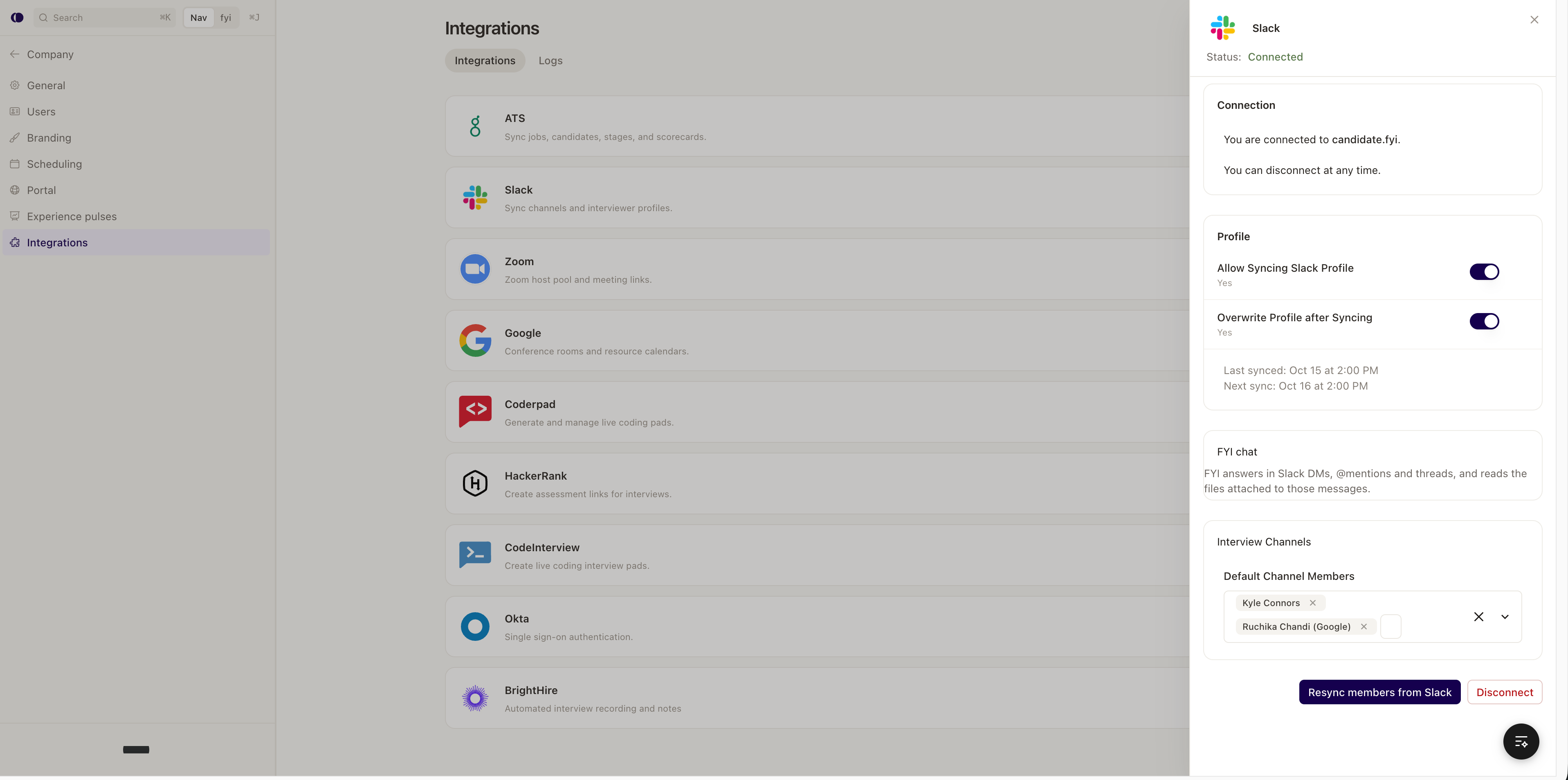
Connection
Confirms the connected Slack workspace. You can Disconnect at any time. To use Slack again, reconnect with Add to Slack.
Profile
Use these settings to keep interviewer profiles in candidate.fyi aligned with Slack.
Allow Syncing Slack Profile — When on, candidate.fyi syncs team member information from Slack into interviewer profiles (for example photo, title, and related profile fields Slack provides).
Overwrite Profile after Syncing — When on, synced Slack data can overwrite existing profile fields on subsequent syncs. When off, sync is more conservative about overwriting what is already in candidate.fyi.
When syncing is enabled, the page shows Last synced and Next sync timestamps. Member sync runs on a schedule; a full resync can take a few minutes.
Resync members from Slack — Manually kick off a member sync (available when Allow Syncing Slack Profile is on). If a sync is already running, you may see an error that a sync is in progress—wait and try again.
Interviewer Followups
This section appears when Interviewer Followups is enabled for your organization.
Enable candidate follow ups to interviewers in slack — When on, interviewers receive automated follow-up notifications in Slack so they can send thank-you or follow-up messages to candidates after interviews.
If you see a warning icon next to Interviewer Followups, Slack may need additional permissions. Disconnect Slack and reconnect (re-authorize the candidate.fyi app) so the required scopes are granted.
Interview Channels
This section appears when Slack interview channels are enabled for your organization.
Default Channel Members — Search for team members (Slack users) who should be added by default to every interview Slack channel created for a scheduling request—for example your coordination or recruiting ops team.
You can add or remove people from this list at any time. Changes apply to new channels going forward.
If you see a warning icon next to Interview Channels, disconnect and reconnect Slack to re-authorize channel creation permissions.
Scheduling queues in Slack (related)
Slack-integrated scheduling queues are not configured on the Slack integration tab. Set them up under Company → Scheduling → Queues: create or edit a queue and set Communication Channel to Slack. Each Slack queue uses its own channel (names typically use the prefix #candidatefyi-). You cannot change a queue from Email to Slack after creation.
When changes take effect
Most toggles and member list updates save immediately. Profile resyncs and large member syncs can take a few minutes to finish across your organization.
Permissions
When enabling slack you will see something similar to this screenshot below, be sure to click 'allow' to provide candidate.fyi the proper scopes to integrate with your slack.
