Branding your candidate portal
Last updated: August 4, 2025
Overview
candidate.fyi allows you to personalize the appearance of your portals to align with your company's branding. This guide will walk you through the process of customizing your portal with an organizational logo, portal cover image, theme color and additional settings.
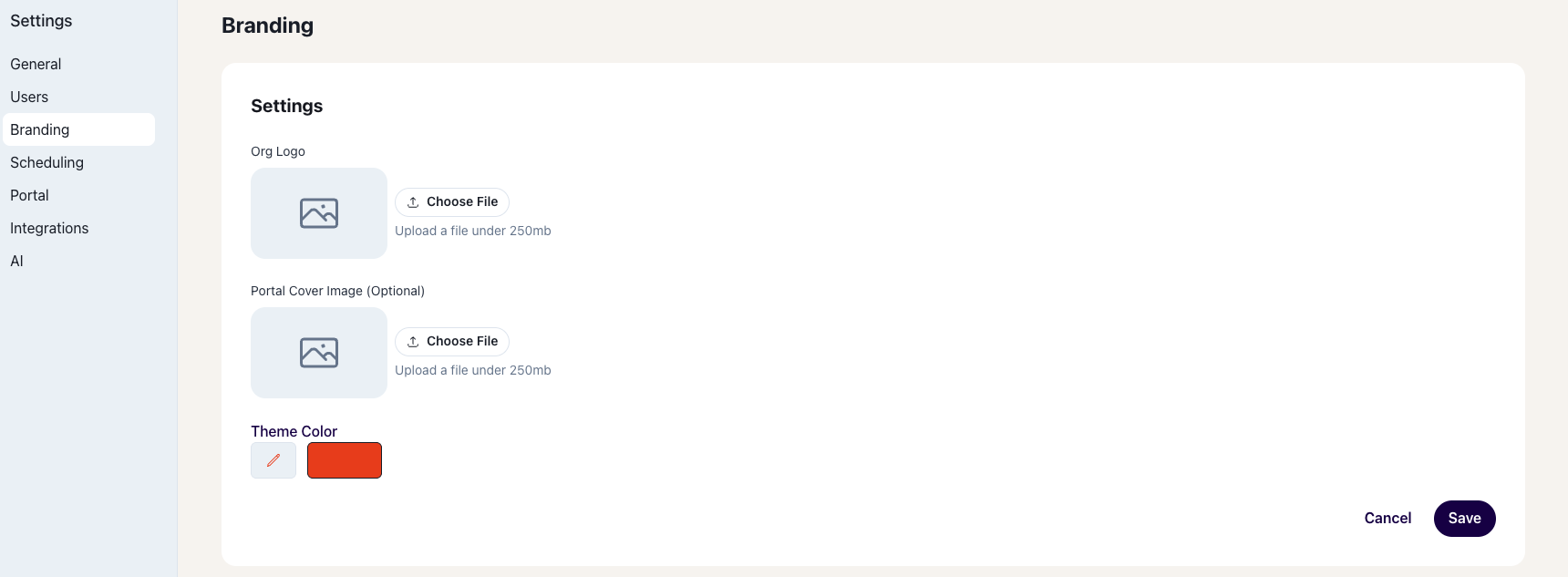
Customizing Your Portal
Brand Settings
Navigation:
Navigate to settings.
Click on the 'Branding' option from the left-hand navigation pane.
Organization Logo
Org Logo: To upload your company logo, click on 'Choose File'. Ensure the image file is under 50mb in size.
To remove an existing logo, click the 'X' button next to the upload field.
The logo will be displayed at the top of your candidate portal and in communications to maintain branding consistency.
Portal Cover Image
Portal Cover Image (Optional): For adding a header image to your portal, click 'Choose File'. This image should be 1400 x 180
Similarly, to remove a header image, click the 'X' button.
The header image can be used to give a visual introduction to your company culture or office environment.
Theme Color
Theme Color: Click on the color picker to choose a color that matches your company’s brand colors.
This color will be used for buttons, links, and other interface elements throughout the candidate portal.
Theme color will be a hex color value.
Functionality Settings
Navigation:
Navigate to settings.
Click on the 'Portal" option from the left-hand navigation pane.
Days After Rejection Candidates Can Access Portal
This setting determines how much time a candidate can access the portal after they've been rejected. It can be set as low as 0 days (for immediate loss of access).
Disable Showing Interviewers In Portal
This setting removes interviewer details from the candidate's confirmed interview information.
Auto Archive Portal When Job Is Closed
This setting ensures your portals are unpublished when the associated job has been closed in your ATS.
Social Links
You have the ability to add social links that will appear at the bottom of your candidate portal. This includes Facebook, Twitter (X), Instagram, LinkedIn, YouTube, TikTok, and Glassdoor.
Other Settings
Navigation:
Navigate to settings
Click on the "General" option from the left-hand navigation pane
Organization Name and Subdomain
Org Name: This field represents the official name of your organization as you want it to appear on the portal.
Portal Subdomain: This should be a unique identifier that forms part of the URL to your candidate portal, typically formatted as
subdomain.candidate.fyi. replace "subdomain" with your company's name.
Saving Your Changes
After making your desired changes, remember to save them. There is typically a 'Save' or 'Submit' button at the bottom of the page.
It's recommended to preview your changes to ensure that everything appears as expected.
How everything looks to the candidate:

Additional Tips
Choose high-quality images for your logo and cover image to ensure they look professional on all devices.
When selecting a theme color, consider how it will look with the logo and cover image to ensure readability and aesthetic appeal.
Keep accessibility in mind; choose a theme color that contrasts well with text for those with visual impairments.