Integrating Workday
Last updated: September 10, 2026
Overview
The candidate.fyi Workday integration connects your Workday account with candidate.fyi, enabling seamless data synchronization.
Prerequisites
Security Administration access in Workday.
What candidate.fyi will need
This guide brings you through various setup activities that will occur within Workday. At the end of this, there will be the following artifacts that need to be provided back to candidate.fyi for both your sandbox and production tenant:
ISU credentials
username + password
Workday URLs
Human Resources Web Service URL
Recruiting Web Service URL
UI URL
Job Applications Report Web Service URL
Application Steps Report Web Service URL
Jobs Hiring Team Report Web Service URL
Setup
To set up the integration, complete the following steps:
Configuration
Enable Candidate ID Display
Task: "Edit Tenant Setup - HCM."
Enable: “Include ID in Candidate Name.”

Obtain Workday URLS
In Workday, Search for "Public Web Services". You will need to obtain the URL for Human Resources & Recruiting.

Human Resources
Locate “Human Resources”
Select “Web Service” -> “View WSDL”
This will open a new URL. Navigate to the bottom, where it says <soapbind:address tag and copy this url where location= is

Recruiting
(same step as Human Resources, but for recruiting)
Locate “Recruiting”
Select “Web Service” -> “View WSDL”
This will open a new URL. Navigate to the bottom, where it says <soapbind:address tag and copy this url where location= is

Browser URL
Copy the URL in your browser. candidate.fyi will need access to this.
User & Permissions
Create an Integration System User (ISU)
Steps:
Search "Create Integration System User" in Workday.

Enter a unique username (e.g., ISU-candidatefyi).
Assign a secure password
Uncheck "Require New Password at Next Sign In."
Save the user and add it to the list of system users exempt from password expiration (via the "Maintain Password Rules" task).

Create a Security Group and Assign the ISU
Steps:
Search "Create Security Group."
Choose "User-Based Security Group (Unconstrained)."
Name the group (e.g., SG-candidatefyi).
Assign the created ISU (ISU-candidatefyi) to this group.

Configure Domain Security Policy Permissions
Search for "Maintain Permissions for Security Group."
Select the newly created security group (SG-candidatefyi) and assign the required domain permissions
View/Modify Access | Domain Security Policy | Functional Area |
Get Only | Worker Data: Public Worker Reports | Staffing |
Get Only | Worker Data: Current Staffing Information | Staffing |
Get Only | Person Data: Public Work Email Address Integration | Staffing |
Get and Put | Candidate Data: Job Application | Recruiting |
Get and Put | Candidate Data: Attachments | Recruiting |
Get Only | Job Requisition Data | Pre-Hire Process |
Get Only | Candidate Data: Questionnaires | Recruiting |
Get and Put | Candidate Data: Other Information | Recruiting |
Get and Put | Questionnaire Creation and Distribution | Recruiting |
Get Only | Job Requisitions for Recruiting | Recruiting |
Get Only | Integration Build | Integration |
Get Only | Manage: Location | Organizations and Roles |
Get Only | Job Information | Jobs & Positions |
Get Only | Manage: Organization Integration | Organizations and Roles |
Get Only | Business Process Reporting | System |
Get and Put | Candidate Data: Interview Schedule | Recruiting |
Get and Put | Candidate Data: Edit Job Application | Recruiting |
Get Only | Manage: Evergreen Requisitions | Recruiting |
Get and Put | Prospects | Recruiting Talent Pipeline |
Get Only | Get_Job_Requisition_Interview_Settings | Recruiting |
Get Only | Get_References | Integration |
Important: Business Process Permissions (Required)
In addition to domain security policies, the Integration System User (ISU) must also be assigned to the Interview Business Process steps. Without this, scheduling and feedback actions will fail even if permissions are configured correctly.
Ensure:
Security group is added to Interview BP
Assigned to steps: Schedule Interview, Manage Interview Feedback, Schedule Interview Team
ISU is part of that security group
Add Security Group to Business Process Policies
1. Interview Business Process
Search "Edit Business Process Security Policy."
Select the "Interview" business process.
Under the "Who Can Do Action Steps in Business Process" section, add the security group (e.g., SG_candidate_fyi) to the following steps:
Schedule Interview
Manage Interview Feedback
Schedule Interview Team (if applicable).

2. Job Application Business Process
Search "Edit Business Process Security Policy."
Select the "Job Application" business process.
Under the "Who Can Do Action Steps in Business Process" section, add the security group (e.g., SG_candidate_fyi) to the following step:
Interview.
3. Activate pending security policy changes
Search for "Activate Pending Security Policy Changes" in Workday.
Open the task to review the list of changes associated with the security policies.
Carefully verify the changes to ensure all updates are aligned with the intended configuration for the integration.
Add a comment for internal tracking purposes, such as "Activating security policies for candidate.fyi integration."
Confirm the activation by selecting the "OK" or "Submit" button.
Wait for the system to process the updates and confirm that the activation was successful. A summary or confirmation screen should appear to validate the changes.
Custom Report Creation
You will need to create three custom reports for candidate.fyi to access relevant data from Workday.
Job Applications Report
Search for "Create Custom Report":
Navigate to the Workday search bar and enter "Create Custom Report." Select the task to begin.
Enter Report Settings:
Report Name: cfyi job applications
Report Details:
Report Type: Advanced
Enable As Web Service: Check box
Data Source:
Optimized for Performance: Uncheck box
Data Source: Job Applications

Add Columns for Report
After creating the report, you will need to add the below columns to the report. Please add them exactly as shown.
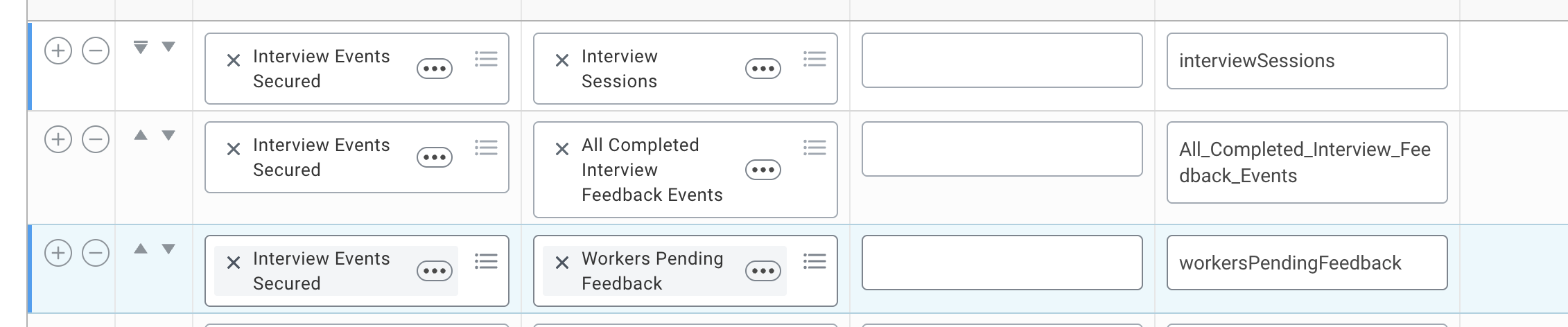
Note - for “Interview Events Secured” you will need to add an additional “Group Column Heading”

Optional:
candidate.fyi can also help track the feedback status on your scheduled interviews. If applicable add the following additional business objects to the above report:
Add Sort
Navigate to the “Sort” tab and add the field “Last Job Application Update Moment” as a sort field
Set the “Sort Direction” to Alphabetical - Descending

Add Filter:
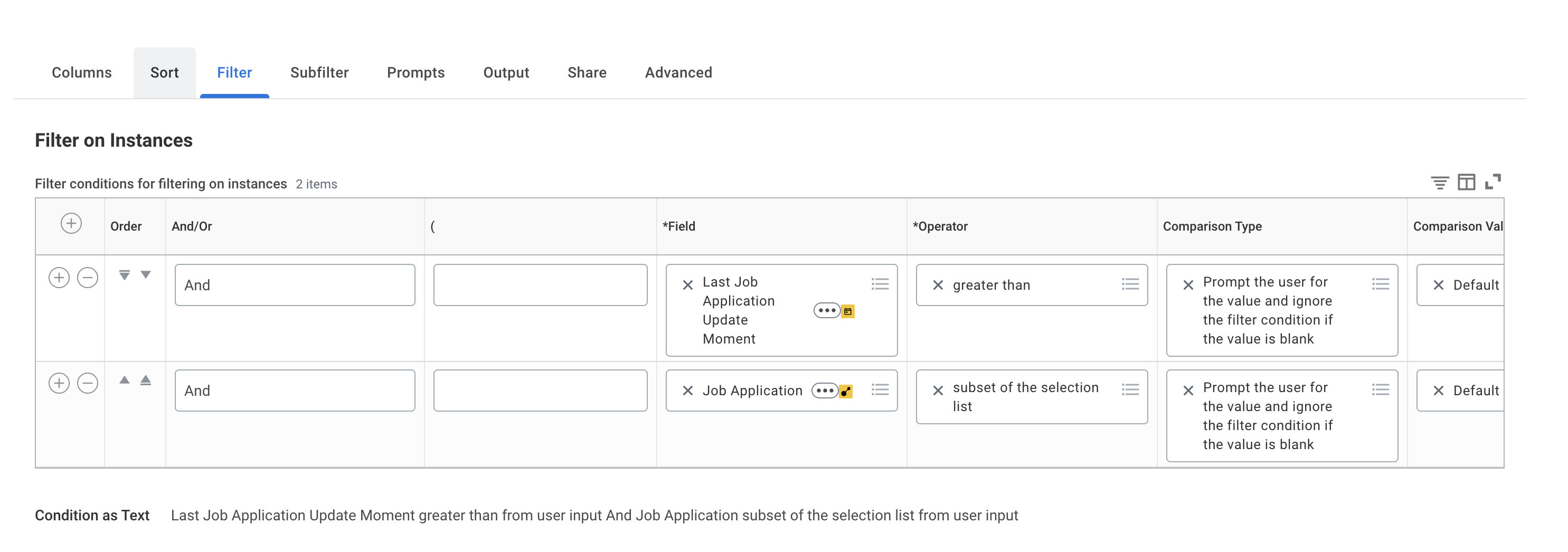
Navigate to the “Filter” tab and add the filters below. Both filters should be And, and both must ignore the filter condition if the value is blank so incremental sync still works when only the date prompt is sent.
Filter 1
And/Or: And
Field: Last Job Application Update Moment
Operator: greater than
Comparison Value: Prompt the user for the value and ignore the filter condition if the value is blank
Comparison Value: Default prompt
Filter 2
And/Or: And
Field: Job Application
Operator: subset of the selection list
Comparison Value: Prompt the user for the value and ignore the filter condition if the value is blank
Comparison Value: Default prompt
Enter in prompts
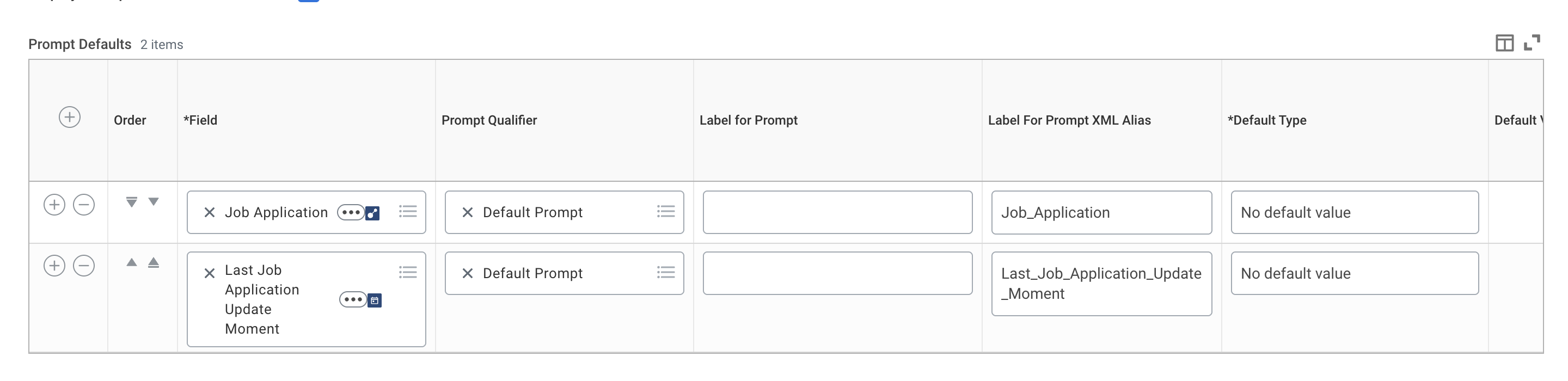
Prompt 1
Field: Last Job Application Update Moment
Prompt Qualifier: Default Prompt
Default Type: No default value
Required: No
Prompt 2
Field: Job Application
Prompt Qualifier: Default Prompt
Default Type: No default value
Required: No
Allow Multiple Values: Yes
XML Alias: Job_Application
Share the Report with the ISU:
Navigate to the “Share” tab and select “Share with specific authorized groups and users”
Search for and select “ISU-candidatefyi”

Select Ok / Save
Obtain and Save the RaaS URLs:
After you saved, search for the report and select the three little dots next to the name
Select Web Service -> View URLs
Click on WSDL
Navigate to the bottom where it says <soapbind:address tag and copy this url where location= is


Copy the url after location=

Application Steps Report
Search for "Create Custom Report":
Use the Workday search bar to locate and open the "Create Custom Report" task.
Enter Report Settings:
Report Name: cfyi application steps
Report Details
Report Type: Advanced
Enable As Web Service Check box
Data Source:
Optimized for Performance: Uncheck box
Data Source: Business Process Definitions

Add Columns for Report:
Add the below columns to the report exactly as shown

Add Filters:
Navigate to the “Filter” tab and add the filters as seen below.
Business Process Type:
And/Or: And
Field: Business Process Type
Operator: in the selection list
Comparison Type: Value specified in this filter
Comparison Value: Job Application
Last Functionally Updated:
Field: Last Functionally Updated
Operator: greater than
Comparison Type: Prompt the user for the value and ignore the filter condition if the value is blank
Comparison Value: Default Prompt

Enter in prompts
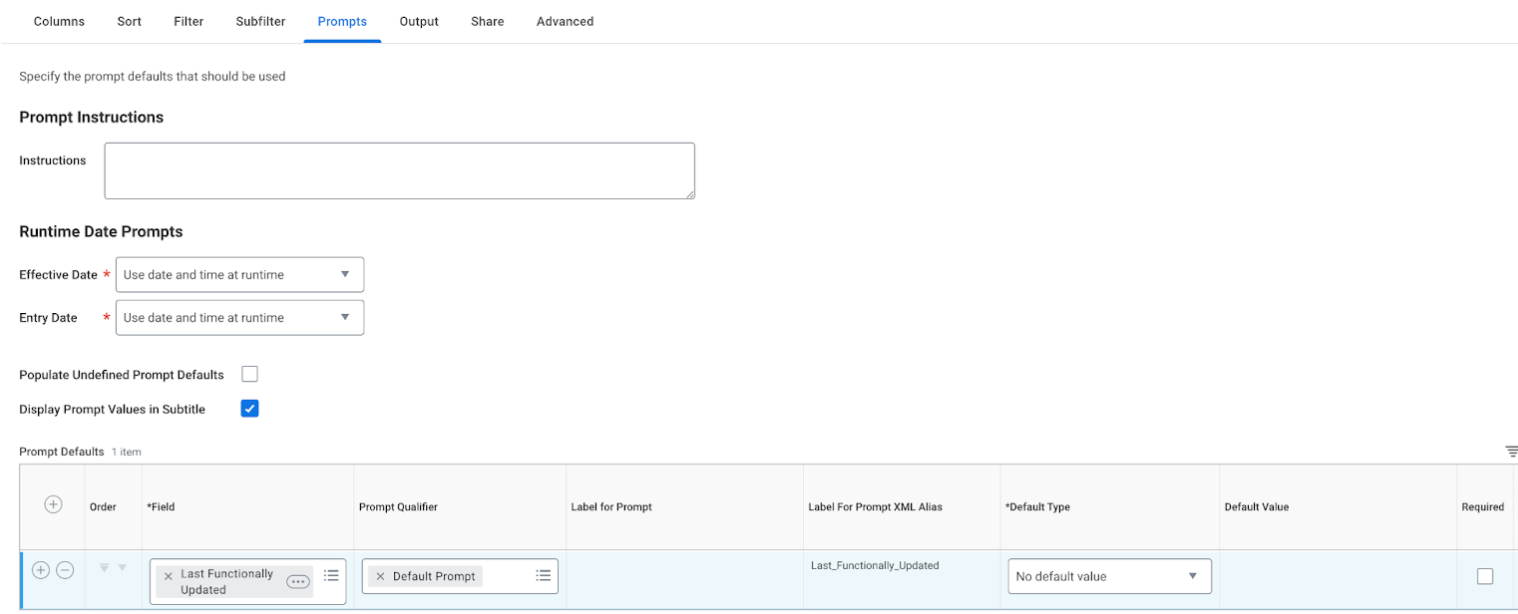
Navigate to the “Prompts” tab and enter in the below
Field: Last Functionally Updated
Prompt Qualifier: Default Prompt
Default Type: No default value
Share the Report with the ISU:
Navigate to the “Share” tab and select “Share with specific authorized groups and users”
Search for and select “ISU-candidatefyi”

Obtain and Save the RaaS URLs:
After you saved, search for the report and select the three little dots next to the name
Select Web Service -> View URLs
Click on WSDL
Navigate to the bottom where it says <soapbind:address tag and copy this url where location= is
Jobs Hiring Team Report
Search for "Create Custom Report":
Use the Workday search bar to locate and open the "Create Custom Report" task.
Enter Report Settings:
Report Name: cfyi job reqs
Report Details:
Report Type: Advanced
Enable As Web Service: Check box
Data Source:
Optimized for Performance: Uncheck box
Data Source: All Job Requisitions

Add Columns for Report
Add the below columns to the report exactly as shown
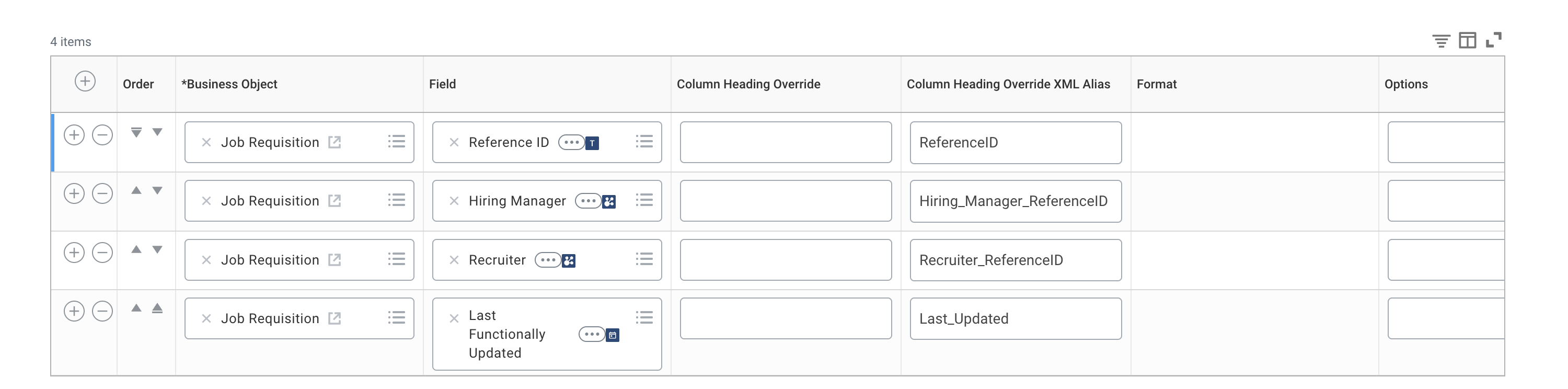
Optional:
candidate.fyi can also support sourcers, coordinators, and alternate recruiters per requisition if you any of these custom concepts set up in your workday tenant.
To have these roles pulled in add the appropriate business object and overwrite the Column Heading XML with the following
Alternate Recruiters | Alt_Recruiter_group |
Coordinators | Coordinator_group |
Sourcers | Sourcer_group |
Add Filter:
Navigate to the “Filter” tab and add the filters as seen below.
Last Functionally Updated:
Field: Last Functionally Updated
Operator: greater than
Comparison Type: Prompt the user for the value and ignore the filter condition if the value is blank
Comparison Value: Default Prompt

Enter in prompts
Navigate to the “Prompts” tab and enter in the below
Last Functionally Updated:
Field: Last Functionally Updated
Prompt Qualifier: Default Prompt
Default Type: No default value
Include Evergreen Requisitions:
Field: Include Evergreen Requisitions
Default Type: Specify default value
Default Value: Checked
Share the Report with the ISU:
Navigate to the “Share” tab and select “Share with specific authorized groups and users”
Search for and select “ISU-candidatefyi”
Obtain and Save the RaaS URLs:
After you saved, search for the report and select the three little dots next to the name
Select Web Service -> View URLs
Click on WSDL
Navigate to the bottom where it says <soapbind:address tag and copy this url where location= is
Send to candidate.fyi
Please send the following details over to candidate.fyi, for both your sandbox and production tenant.
ISU credentials
username + password
Workday URLs
Human Resources Web Service URL
Recruiting Web Service URL
UI URL
Job Applications Report Web Service URL
Application Steps Report Web Service URL
Jobs Hiring Team Report Web Service URL