Booking Links Overview & Setup
Last updated: July 20, 2026
Booking links streamline the interview scheduling process by providing candidates with a direct way to select an interview time that works for both parties. This document outlines how to use booking links within our platform.
Only users who have connected their calendars will see booking link settings within candidate.fyi!
Accessing Booking Links
- Navigate to your personal profile settings.
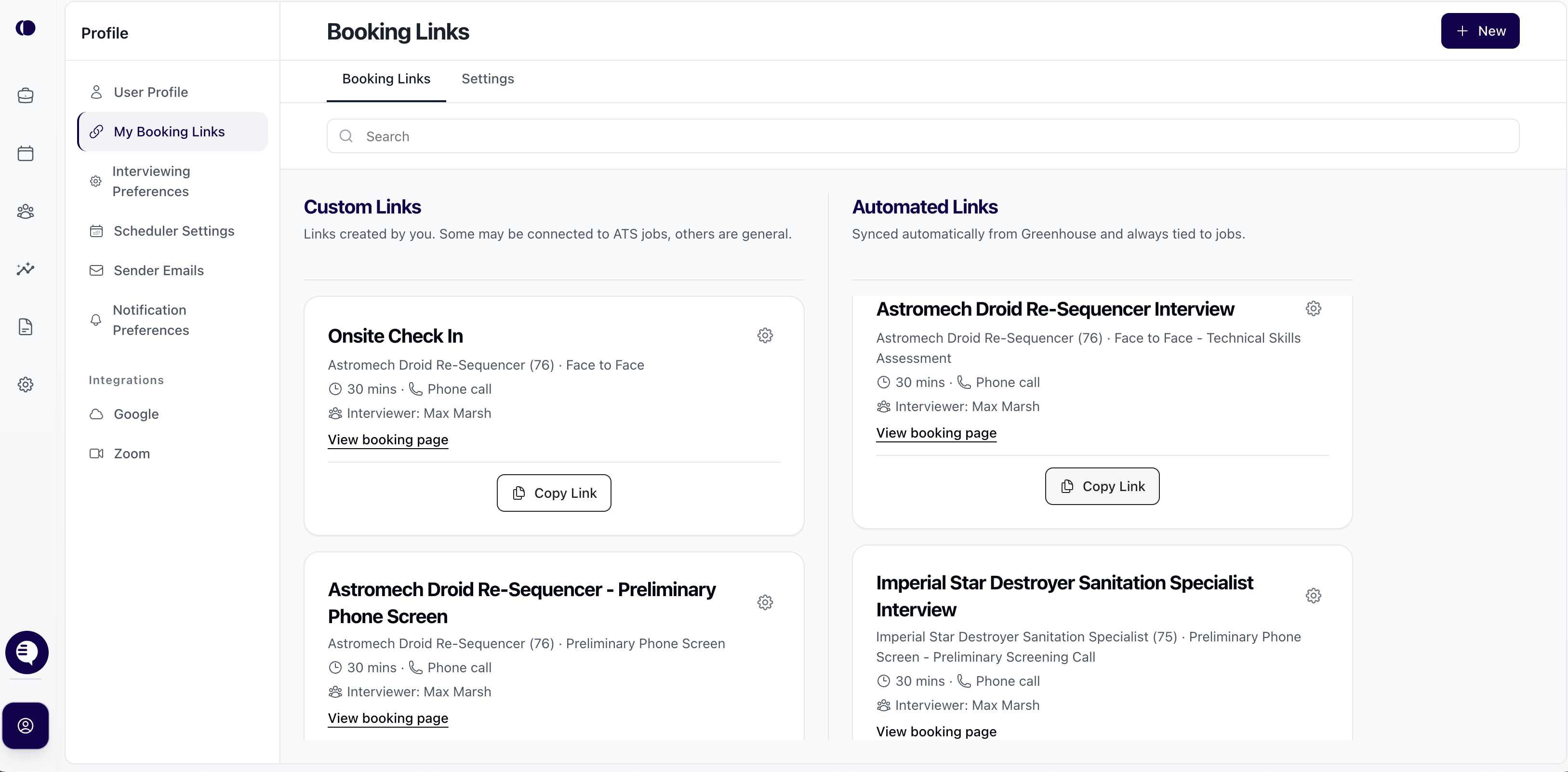
- Select "My booking links" from the expanded menu to access the page where you can manage your booking links.
Features of Booking Links
-
Custom or Automated Links: There are two types of booking links:
-
Custom links: Personalized links that can be created based on user preferences.
- Automated links: Each job position + recruiter combination has a unique booking link. This link is generated based on who is set as the "recruiter" on a job in your ATS.
- Convenience for Candidates: Candidates can use these links to choose an available interview time that suits them that's connected to the recruiters calendar.
- Automatic ATS Synchronization: When a candidate selects a time and submits their information, the platform automatically creates a candidate entry for the appropriate job in your Applicant Tracking System (ATS). It will also create a scheduled interview in the ATS.
Creating and Managing Booking Links
- Event Name and Details: Each booking link card provides the title of the position, the duration of the scheduled interview, and the location.
- View Booking Page: Click this link to preview the page that candidates will see when they click on the booking link.
- Copy Link: Use the 'Copy Link' button to copy the unique booking link for each job, which can then be shared via email or other communication methods.
Using Booking Links
- Share the unique booking link with potential or current candidates for the relevant job position.
- Candidates will click on the link, choose an interview time from the available slots, and can upload additional information as per the settings.
- Check your ATS for the automatically created candidate entry and the scheduled interview appointment.
Customization and Settings
Customizing Across Booking Links
Booking Configuration
-
Additional Booking Fields:
-
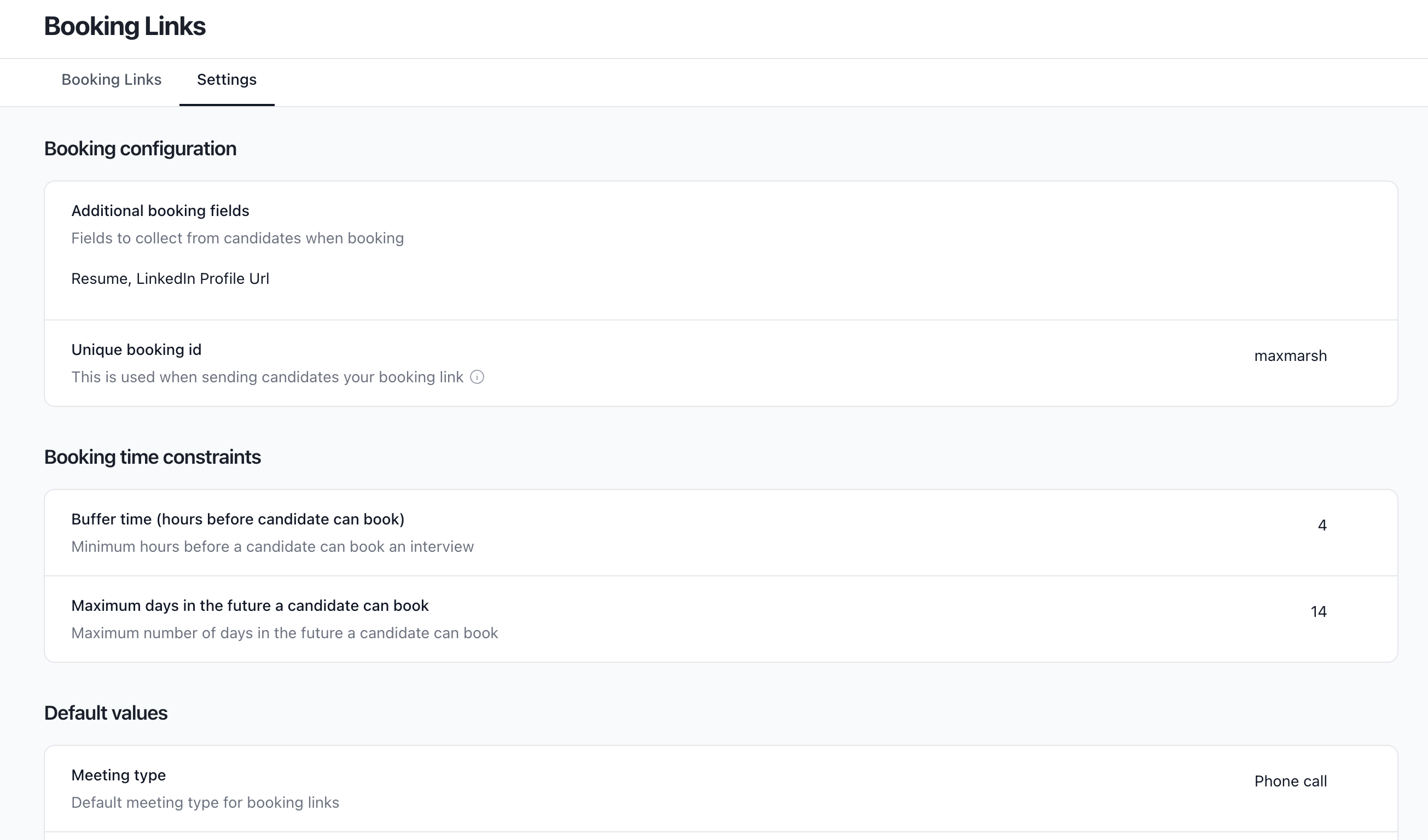
Fields that are required from the candidate when they book an interview. In this case, a resume and LinkedIn profile URL are mandatory (indicated by an asterisk). You can make these hidden, displayed, or displayed and required.
-
Unique Booking ID:
-
An identifier for the booking settings/profile, here it's set as
maxmarsh. This will be the ID in the url for the booking links.
Booking time constraints
-
Buffer time (hours before candidate can book)
-
Defines how many hours in advance a candidate must book the interview, set to a minimum of 4 hours here.
-
Maximum Days In the Future A Candidate Can Book:
-
This is the maximum number of days into the future that a candidate is allowed to book an interview, limited to 14 days in this instance.
Default Values:
-
Meeting Type
-
Sets the standard medium for interviews.
-
Default Initial Stage:
-
Indicates the default stage we will enter the candidate in when they select their time.
-
Default Source:
-
Where the candidate was sourced from.
-
Credited To:
-
The user to whom the interview setup is credited
Customizing Per Booking Link
You have the option to configure each booking link (with the little gear icon).
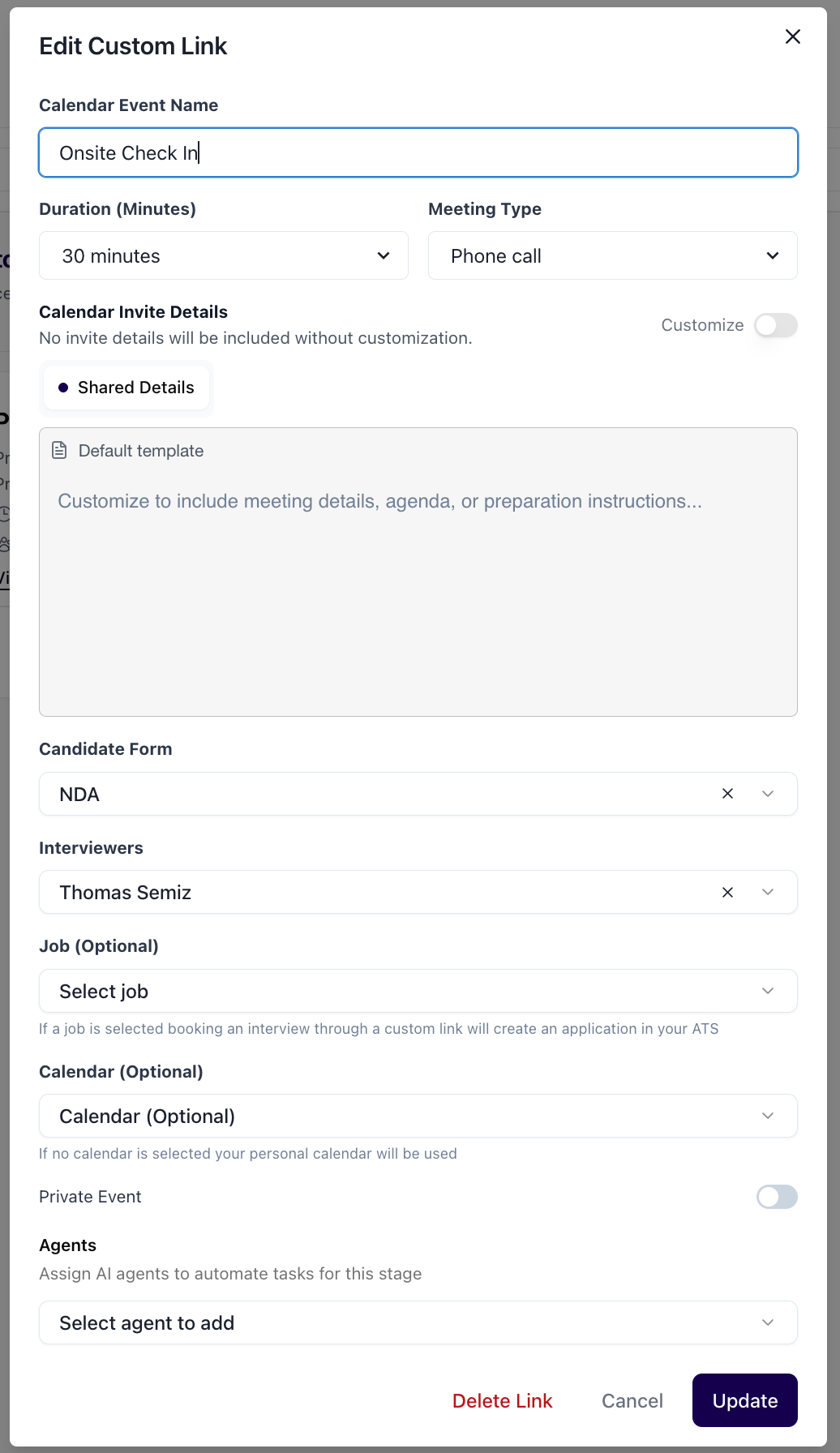
- Calendar Event Name: This is the title of the event that will appear on the calendar. In this case, the event is named "Onsite Check In", which will help both the interviewer and candidate to identify the event easily on their calendars.
- Duration (Minutes): The length of the interview can be set here, with this particular event being scheduled for 30 minutes. This setting ensures that both parties allocate the correct amount of time for the interview in their schedules.
- Meeting Type: Specifies the platform or medium through which the interview will take place.
- Calendar Invite Details (Optional): This section is for entering any additional information about the interview that candidates should know. These details will be visible to candidates in their calendar invites. You can include specifics like the interview format, what to prepare, or who the interview will be with.
- Candidate Form (Optional): You can attach a form to the booking link for candidates to fill out when submitting their time slots. Learn more about forms on booking link here.
- Interviewers: This will be the interviewer that will get booked when the candidate selects a time.
- Job (Optional): If you'd like the booking link to create an ATS profile, you can select a job to link it to here.
- Calendar (Optional): This is the internal calendar that the booking link will get scheduled on.
- Private event: Mark a booking link as private and any calendar events scheduled from it will automatically be set to private.
- Agents: Assign AI agents on the booking link, or rely on your defaults from Profile → Interview Companion. Individual links can override or turn off the default. Learn more in Applying The Interview Companion Agent for Booking Links.
Troubleshooting and Support
- If a booking link is not functioning as expected, verify that it has been set up correctly in the settings and that your ATS is properly integrated.
- For any issues or questions not addressed in this document, please contact our platform support team for assistance.